
Two things have to be true
What is PDF redaction?
Redaction is the permanent removal of sensitive content from a document. The goal is to produce a file where the redacted information is gone — not hidden, not covered, but unrecoverable. A redacted PDF should look the same as the original with black rectangles in place of the redacted text, but the text itself should not exist anywhere in the file. There should be nothing to copy, nothing to extract, and nothing to recover with a tool.
The opposite of redaction is a visual black box: drawing a black rectangle on top of the text. The text is still in the file, hidden behind the rectangle, and can be recovered by anyone who knows where to look. That is not redaction — it is an annotation. Real redaction destroys the underlying content.
The legal stakes are real. Court filings with improperly redacted privileged communications have led to malpractice claims and bar discipline. Police reports, regulatory disclosures, and corporate documents have all leaked supposedly redacted information through visual black boxes that turned out to be cosmetic. The difference between annotation and redaction is the difference between a protected disclosure and a public one.
When do you need to redact a PDF?
Redaction is the right tool whenever information needs to be removed, not just hidden. The common cases:
- Legal discovery production. When a party produces documents in litigation, privileged communications, trade secrets, and personally identifiable information must be removed before the documents go to the other side. Failure to redact properly has led to bar discipline and case-dispositive sanctions.
- Medical records. Patient names, dates of birth, account numbers, and other protected health information must be removed before records can be shared for research, a second opinion, or a referral.
- Financial statements. Bank statements, tax returns, and proof-of-funds documents need account numbers, transaction history, and balances redacted before they are shared with a landlord, an investor, or a counterparty.
- Contracts shared as templates.An employer sharing a contract template with a new hire may want to redact salary, bonus, and equity terms from a prior executive’s version.
- FOIA and public records. Government agencies redact personal information, Social Security numbers, and law-enforcement sensitive data before releasing records under the Freedom of Information Act.
True redaction vs visual black boxes
The single most common redaction mistake is drawing a black rectangle on top of the text and calling it done. The text is still in the file. Anyone who receives the document can:
- Open the PDF in a reader and try to copy the text underneath the box.
- Run the file through a tool that strips annotations and reveals the underlying text.
- Open the PDF in a PDF editor and delete the rectangle, revealing the original text.
This is not a theoretical risk. Court filings, police reports, and corporate documents have all leaked supposedly redacted information through this exact mechanism. Visual black boxes are not redaction; they are an invitation to extract.
True redaction destroys the underlying content. The simplest robust technique is to rasterize each redacted page to an image (so it becomes pixels, not text) and discard the original text objects. The page looks the same, but the text is gone — there is nothing to copy or extract because the text no longer exists in the file. A redacted PDF produced this way is permanent.
How to redact a PDF in 3 steps
- Open the redact tool in your browser. Go to the Redact PDF tool in Chrome, Safari, Firefox, or Edge. The tool loads locally — the file is never uploaded.
- Draw redaction boxes. Drag to draw a box over each piece of text or area you want permanently removed. Add as many boxes as needed across any page. The original content underneath is flagged for destruction.
- Apply and download. Click Apply. The redacted pages are flattened to images with the original content permanently removed. The result downloads to your device.
Because the whole process runs locally, you can confirm there is no file transfer in the browser’s Network tab.
Privacy implications of cloud-based redaction
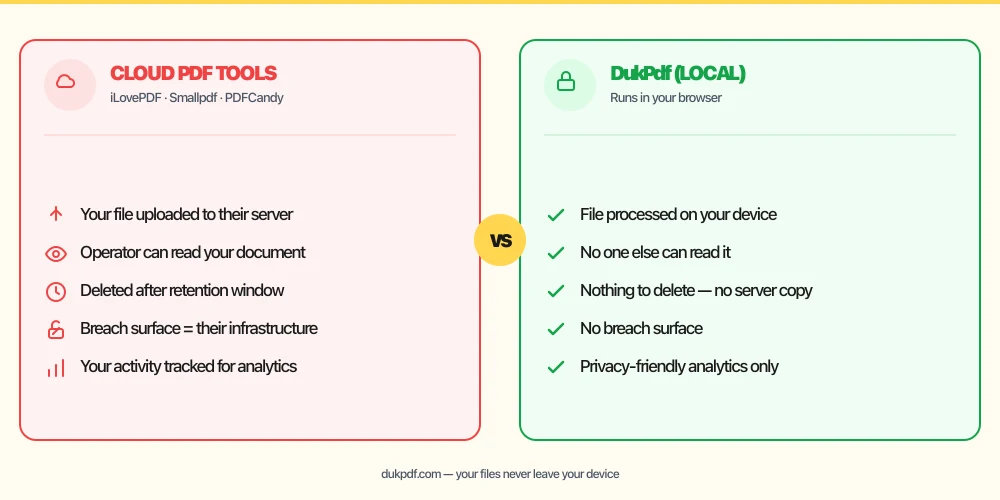
Redaction is the most privacy-sensitive PDF operation there is. To redact a document, you have to start with the unredacted version — the most sensitive copy that exists. Uploading that copy to a cloud redaction service means the most sensitive version of the file is on a third party’s infrastructure during processing. The exposure surface is the same as any other upload — a breach, a misconfigured access policy, a malicious look-alike — but the data at risk is the unredacted original.
For privileged client material, personnel records, medical charts, and financial statements, a tool that redacts on your device is the structurally simpler choice. The unredacted file never leaves your machine, so the most sensitive version is never exposed to a third party. See our guide on HIPAA and online PDF tools for why this is especially important for protected health information, and our guide on redacting without uploading for the same logic in legal contexts.
This also intersects with professional duty. Lawyers handling privileged material are expected to make reasonable efforts to prevent unauthorized access to client information. Uploading the unredacted file to a third-party processor is itself a transmission that creates a new breach surface. Keeping the file on the device where it originated is the simplest way to satisfy that duty.
What NOT to do when redacting
- Do not rely on a black box drawn on top of the text. This is cosmetic, not redaction. Use a tool that destroys the underlying content.
- Do not redact the metadata and forget the file content. The author, creation date, and software history sit in the file metadata. If they are sensitive, edit them after redaction.
- Do not upload the unredacted file to a free online tool.Once the unredacted file is on a third party’s server, the most sensitive version is exposed. Use a tool that redacts on your device.
- Do not assume hidden text or layers are safe.A PDF can have multiple layers — text underneath an image, hidden form fields, comments. A robust redaction tool strips all of these.
- Do not forget the file attachments. PDF can embed other files. A properly redacted document should have those reviewed too.
Common mistakes when redacting PDFs
- Using a drawing tool instead of a redaction tool. Many PDF editors let you draw shapes. Those shapes are annotations. For real redaction, the underlying content must be destroyed.
- Redacting only the visible text.A PDF can have text in unexpected places — in the file metadata, in hidden form fields, in JavaScript actions, in embedded attachments. Audit these too.
- Sending the redacted version but losing the original. Keep the unredacted original in a secure location. The redacted version is for sharing; the unredacted is the source of record.
- Forgetting to verify the redaction. After applying redactions, open the result and try to copy text from the redacted area. If anything copies, the redaction failed.
- Redacting inconsistently across pages.A redaction that catches a name on page 2 but misses the same name on page 5 leaks information about the document’s structure. Audit every page carefully.
Redact vs alternatives
If information needs to be controlled, several tools can help — pick the one that fits the actual risk:
- Redact PDF permanently destroys content. Use it when the recipient should not be able to see or recover the information.
- Protect PDF encrypts the file with a password. Use it when the recipient should be able to read everything in the document, but only with authorization.
- Edit PDFadds visual layers on top. Use it for annotations, not redaction — the underlying content is unchanged.
- Print, mark, scan. The traditional approach. Printing the document, marking it with a black marker, and rescanning is a form of redaction, but the result is a low-resolution image. It works, but is harder to verify and produces a worse result than digital redaction.
How DukPdf redacts locally
DukPdf’s Redact PDF tool runs the entire redaction in your browser. Draw boxes over the text or regions you want removed, click apply, and download the redacted document. Each redacted page is re-rendered as an image with the underlying content destroyed — not just visually covered, but gone.
Open DevTools → Network tab while redacting — zero upload requests carrying your file. For a privileged client document, a personnel record, or any other sensitive file, that is the structurally simpler way to redact. The most sensitive version of the document never leaves your machine.
Tips for airtight redaction
A few practical tips that come up repeatedly when redacting real-world documents:
- Redact every occurrence, not just the first. A name that appears once on page 1 and again on page 7 needs to be redacted in both places. Search the document for the term you are redacting and confirm every hit is covered.
- Audit the metadata.PDFs carry authoring metadata — author name, organization, software, timestamps. If that information is sensitive, edit or strip it after redaction.
- Check for hidden content. A PDF can have hidden form fields, comments, JavaScript actions, and embedded attachments. A robust redaction tool handles these; verify that the result has no hidden content before sharing.
- Verify the redaction. Open the redacted file and try to copy text from a redacted area. Try to extract the file with a tool. If anything reveals the original content, the redaction failed.
- Keep the original. The redacted version is for sharing; the unredacted is the source of record. Store the unredacted file in a secure location and share only the redacted output.
Related reading
HIPAA and online PDF tools
Why a BAA matters more than encryption marketing, and why an on-device redaction tool is the structurally simpler choice for protected health information.
PrivacyHow to redact a PDF without uploading it
The deeper argument for on-device redaction, including the professional-duty angle for lawyers and the structural reasoning for why uploading the unredacted original is the risk worth avoiding.
Frequently asked questions
What is the difference between blacking out and redacting?
Blacking out is drawing a black rectangle on top of text. The text is still in the file underneath and can be copied, selected, or extracted. Redacting is destroying the underlying content so there is nothing left to recover. Real redaction is permanent; blacking out is cosmetic. Tools that only let you draw a rectangle are giving you a black box, not a redaction.
How do I permanently redact a PDF?
Use a tool that destroys the underlying content — for example, by rasterizing each redacted page to an image and discarding the original text objects. The page looks the same, but the text is gone. A drawing tool that lets you place a black rectangle on top is not enough; the original text is still in the file.
Is it safe to redact a PDF online?
It depends. To redact a file, you have to upload the unredacted version — the most sensitive copy that exists. For a privileged document, a personnel record, or anything under an NDA, a tool that redacts on your device is the safer choice. The unredacted original never leaves your machine, so the most sensitive version of the file is never exposed to a third party.
Can the underlying text be recovered after a black box is drawn?
Often, yes. Anyone who receives the file can copy the text underneath the box, extract it with a tool, or open the PDF in an editor and delete the overlay. Visual black boxes are not redaction; they are annotations. The only way to make text unrecoverable is to remove the underlying content from the file.
What kinds of documents need to be redacted?
Anything that contains information that should not be shared. Court filings (privileged communications, SSNs, minor names), medical records (PHI, dates of birth), financial statements (account numbers, balances, transactions), and contracts (salary, bonus, names of related parties) are common cases. The rule of thumb: if revealing the information would cause harm, redact it.