
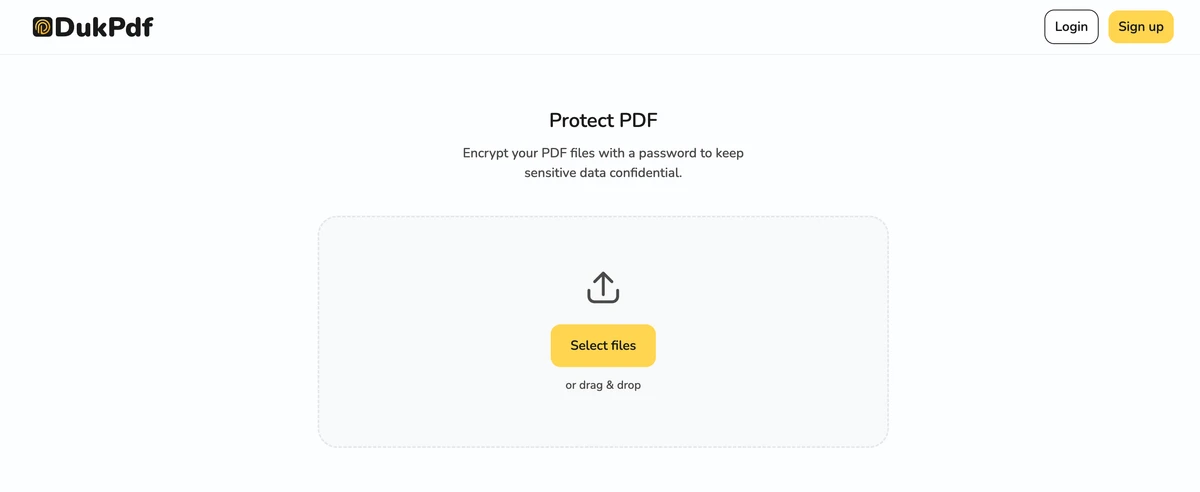
Encrypt on your device
What is PDF encryption?
PDF encryption scrambles the content of a PDF using a cryptographic key derived from a password. Without the password, the file is unreadable — the bytes on disk are still there, but they are not a usable PDF. With the password, the file decrypts back into the normal document. The modern standard is AES (Advanced Encryption Standard) with 128-bit or 256-bit keys, the same algorithm used by banks, governments, and password managers.
PDF encryption follows the PDF standard, so a password-protected file opens in any compliant reader — Adobe Acrobat, Preview, Chrome, Firefox, Edge, mobile readers, and dedicated apps all handle it the same way. A recipient with the password enters it once, the file decrypts, and they read the document normally.
A common confusion is between PDF password protection and PDF permission restrictions. The former encrypts the file so it cannot be read without the password; the latter just sets flags inside the file that ask readers to disable printing or copying. Restriction flags are not encryption — they are honored by some readers and ignored by others. Real protection uses encryption.
When do you need to protect PDFs?
Password protection is appropriate whenever the file is sensitive enough that an unauthorized viewer would be a problem. Common cases:
- Confidential contracts and NDAs. A contract sent by email is a file on a server. Adding a password means an attacker who intercepts the email still cannot read the document without the password, which is shared through a separate channel.
- Financial documents. Tax returns, W-2s, bank statements, pay stubs, and investment reports all contain account numbers and figures. Adding a password to the PDF is a layer of protection on top of email security.
- Medical records. Lab results, intake forms, and insurance documentation are protected health information under HIPAA. A password-protected PDF that travels only on the device that created it is the simplest HIPAA-aligned workflow.
- Legal filings and discovery materials. Drafts, motions, and exhibits shared with co-counsel are typically encrypted so that a misdirected email is not a confidentiality breach.
- HR and personnel files. Performance reviews, offer letters, and termination paperwork are sensitive. A password keeps the file protected even when the storage medium is shared.
Open password vs owner password
The PDF standard supports two passwords, and the difference matters:
- Open password (user password).Required to view the document. The file is unreadable without it. This is what most people mean by “password protect a PDF.”
- Owner password.Required to change the document’s permissions — printing, copying text, editing, filling forms. The file is still viewable, but the recipient cannot modify it. Useful for protecting the integrity of a published contract or report.
You can set one, the other, or both. For most sensitive files, the open password is the important one. The owner password is a separate layer used when you want a document to be readable but unmodifiable.
How to password protect a PDF in 3 steps
- Open the protect tool in your browser. Go to the Protect PDF tool in Chrome, Safari, Firefox, or Edge. The tool loads locally — the file and the password never reach a server.
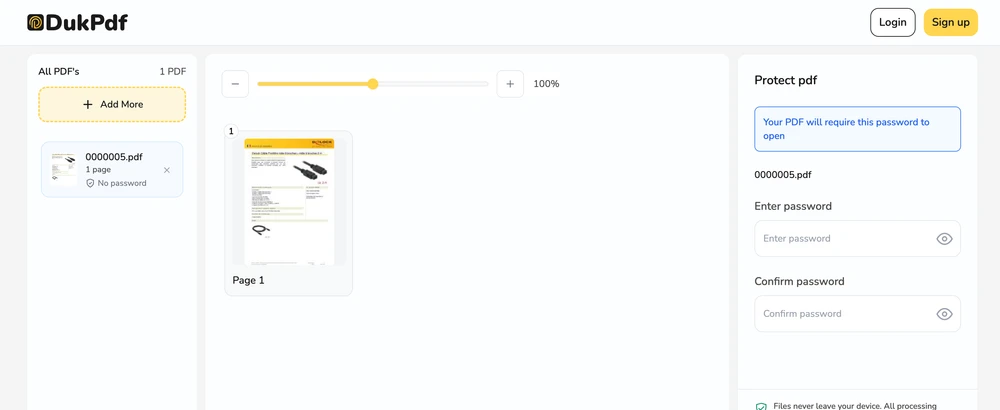
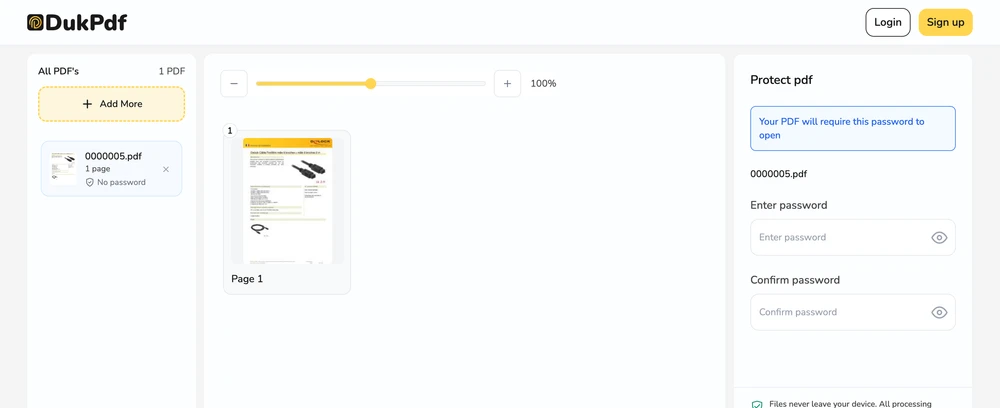
- Set your passwords.Enter an open password (required to view the PDF) and optionally an owner password (required to edit, print, or copy). Use a strong password — at least 8 characters with a mix of upper and lower case, numbers, and symbols. A passphrase of 4–5 random words is also strong and easier to remember.
- Encrypt and download. Click Protect. The encryption runs locally in your browser using AES. The protected file downloads automatically.
The whole operation runs in your browser. Open DevTools → Network tab while protecting — you will see zero requests carrying your file or your password.
Privacy implications of cloud-based password protection
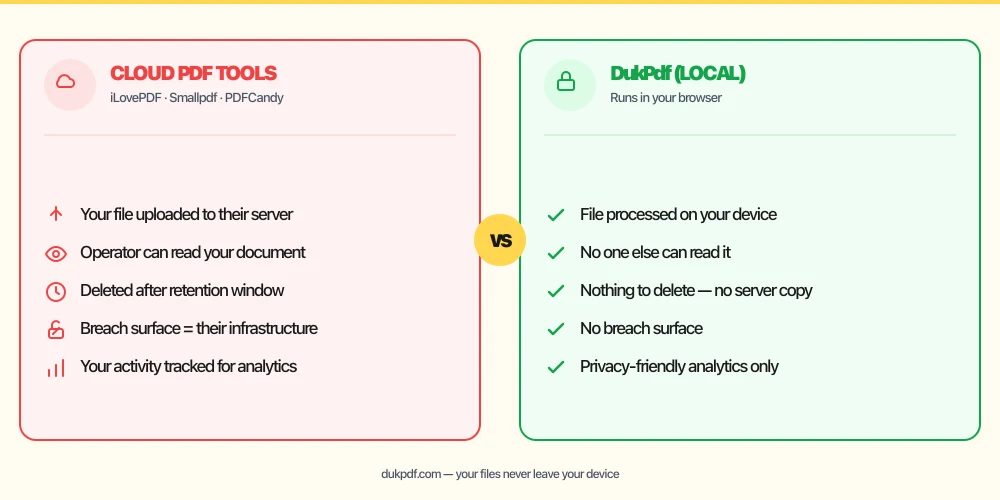
A cloud-based password protection tool has to receive both the file and the password. Even with a reputable service, both reach the operator’s infrastructure during processing, and the operator can theoretically read the document. The risk is real for confidential contracts, medical records, and financial documents. A tool that encrypts on your device processes the password locally and never sends it to a third party.
This is especially important for protected health information. Under HIPAA, any vendor that receives PHI is a business associate and requires a BAA. An on-device tool that never transmits the file removes that classification entirely. See our guide on HIPAA and online PDF tools for the full argument.
Even outside of regulated industries, the principle is the same: a password sent to a server is a password that lives on infrastructure you do not control. The operator may log it, may be subject to a subpoena, or may suffer a breach. A tool that does the encryption locally eliminates the third party entirely — the password is processed by code in your browser and never leaves your machine.
How strong should your password be?
The encryption is only as strong as the password. A few rules:
- Length matters more than complexity. A 16-character passphrase made of four random words is exponentially harder to crack than an 8-character string with mixed case and symbols.
- Avoid dictionary words, names, and dates.A brute-force attack tries those first. Even with substitutions (“P@ssw0rd”), modern cracking rules know the patterns.
- Use a password manager.Generate the password and store it. You do not need to memorize a 20-character random string — you need to be able to send it to the recipient securely.
- Share the password through a different channel than the file. If the file goes by email, the password goes by text or phone. If an attacker intercepts the email, they do not have the password.
Common mistakes when password protecting PDFs
- Using a weak password.“password123” defeats the encryption entirely. Brute-force attacks crack short, simple passwords in hours.
- Sending the password in the same email as the file. An attacker who intercepts the email now has both. Send the password through a separate channel.
- Forgetting the password. A password-protected PDF with a lost password is, for practical purposes, unrecoverable. Store the password in a manager.
- Setting an owner password but no open password.The owner password alone leaves the document readable by anyone — it just restricts what they can do. For real confidentiality, set the open password.
- Reusing the same password across many files. If one is compromised, all are. Use a unique password per sensitive file, or a password manager to generate and store them.
Protect vs alternatives
If the document is sensitive, several tools can help — pick the one that fits the actual risk:
- Protect PDF adds AES encryption with a password. Use it when the recipient needs the document but should not be able to read it without authorization.
- Redact PDF permanently removes sensitive content. Use it when the recipient should not see certain information at all — account numbers, salaries, names.
- Sign PDF embeds a signature. Often used alongside protection — sign the document, then encrypt the signed copy.
- Encrypt the whole drive. If the file is on an encrypted volume (FileVault on Mac, BitLocker on Windows, LUKS on Linux), the file is already protected at rest. PDF encryption adds a layer for transit.
How DukPdf protects files locally
DukPdf’s Protect PDF tool runs the entire encryption in your browser. Set an open password and optionally an owner password, click protect, and download the encrypted result. The encryption happens in your device’s memory; the password is processed locally and never reaches a server.
Open DevTools → Network tab while protecting — zero upload requests carrying your file or your password. For a contract, a tax return, or any other document that should not leave your machine, that is the structurally simpler way to password-protect a PDF.
Tips for managing protected PDFs
A few practical tips that come up repeatedly when protecting real-world documents:
- Store passwords in a manager. A password-protected PDF with a forgotten password is, for practical purposes, unrecoverable. Generate the password with a manager and let the manager remember it for you.
- Share the password through a different channel. If the file goes by email, share the password by text, phone, or a separate email. An attacker who intercepts the email should not have the password.
- Set both passwords for sensitive documents. An open password prevents unauthorized viewing; an owner password prevents unauthorized editing. For contracts and legal filings, set both.
- Test the password before sending.Open the protected file and enter the password to confirm it works. A quick test prevents the “I cannot open this” reply.
- Re-protect after redaction. If you redact a protected file, the redaction tool may save the result without the password. Re-protect the redacted file before sharing.
Related reading
HIPAA and online PDF tools
Why a BAA matters more than encryption marketing, and why an on-device tool is the structurally simpler choice for protected health information — no BAA, no third-party processor, no new breach surface.
FinanceIs it safe to upload bank statements to online PDF tools?
Financial documents deserve the same protection as medical records. Learn what the FTC Safeguards Rule expects, and how to process statements without uploading.
Frequently asked questions
Is PDF password protection secure?
Yes, when AES encryption is used with a strong password. AES-256 is the same standard used by banks, governments, and password managers. The weak link is almost always the password itself, not the encryption: a short, dictionary-based password can be brute-forced regardless of the encryption algorithm.
What is the difference between an open password and an owner password?
An open password (also called a user password) is required to open and view the PDF. An owner password is required to change permissions like printing, copying, or editing. You can set just the open password, just the owner password, or both. Most users want the open password — the owner password alone leaves the document readable by anyone but limits what they can do with it.
Can a password-protected PDF be hacked?
The encryption itself (AES) cannot be broken by modern computing. The attack surface is the password. A short, simple password can be cracked by brute force in hours. A long passphrase made of 4-5 random words is effectively uncrackable. Pick the password carefully, and use a password manager to generate and store it.
Is it safe to upload a PDF to a password-protect tool online?
It depends on the service. If your password is sent to a cloud server along with the file, the operator can theoretically read your document. For sensitive files, a tool that encrypts on your device is the simpler choice — the password is processed locally and never reaches a third party.
How do I remove a password from a protected PDF?
Use an Unlock PDF tool. You will need to enter the current password to authorize the removal, and the resulting file is saved without any password. Treat the unlocked file carefully — it is now a plain PDF.