
Sign without uploading
What is an electronic signature?
An electronic signature is any sound, symbol, or process attached to a document with the intent to sign it. That definition is broad enough to cover a typed name, a drawn mark on a touch screen, a click-to-sign checkbox, or a qualified digital certificate. The narrow, everyday case — and the one this guide is about — is a visual signature image: your handwritten signature (or a typed or drawn version of it) embedded into a PDF.
For most contracts, NDAs, offer letters, and consent forms, a visual signature is enough. The signature image is placed on the signature line, the document is saved, and the recipient sees a clear, signed page. The file is still a normal PDF — it opens in any reader, prints, and copies the same way as a scanned document with a wet ink signature.
It is worth distinguishing between a signature (a mark indicating intent to sign) and a digital signature(a cryptographic signature that proves the file has not been altered since it was signed). A standard PDF signature is the former — it shows who signed and when, but does not by itself detect post-signing tampering. For most contracts that is enough. For documents where tamper-evidence matters (regulated filings, certain government forms), a digital signature with a certificate is the right tool.
When do you need to sign PDFs?
Almost every contract, agreement, or formal acknowledgement has moved to electronic signing. A few of the most common cases:
- Client contracts and NDAs. Service providers, freelancers, agencies, and consultants send and sign NDAs and statements of work as PDFs. The signed copy is the contract of record.
- Offer letters and employment paperwork. A signed offer letter is a legally binding agreement. Most HR teams now send it as a PDF and accept an electronic signature.
- Lease and rental agreements.Landlords and tenants can sign a lease PDF without meeting in person — the signed copy goes to both parties by email.
- Patient consent forms. Clinics, dentists, and telehealth providers use electronic consent forms. The signed copy is filed in the patient record.
- Vendor and supplier agreements. Purchase orders, master service agreements, and supplier onboarding paperwork are signed electronically to keep deals moving without paper.
Types of electronic signatures
Three kinds of signatures are widely accepted for everyday documents:
- Typed. You type your name in a signature font, the tool generates the signature image, and you place it on the page. Fast, consistent, works on any device.
- Drawn. You draw your signature with a mouse, trackpad, or touch screen. The result looks like your actual handwriting. Best on a phone, tablet, or drawing tablet.
- Uploaded. You use a scanned or photographed image of your real signature. The image is embedded into the PDF. Good for matching an existing signature on file.
All three produce the same kind of output — a signature image embedded in the PDF — and are treated the same way by the law. The choice is a matter of preference and the equipment you have.
How to sign a PDF in 3 steps
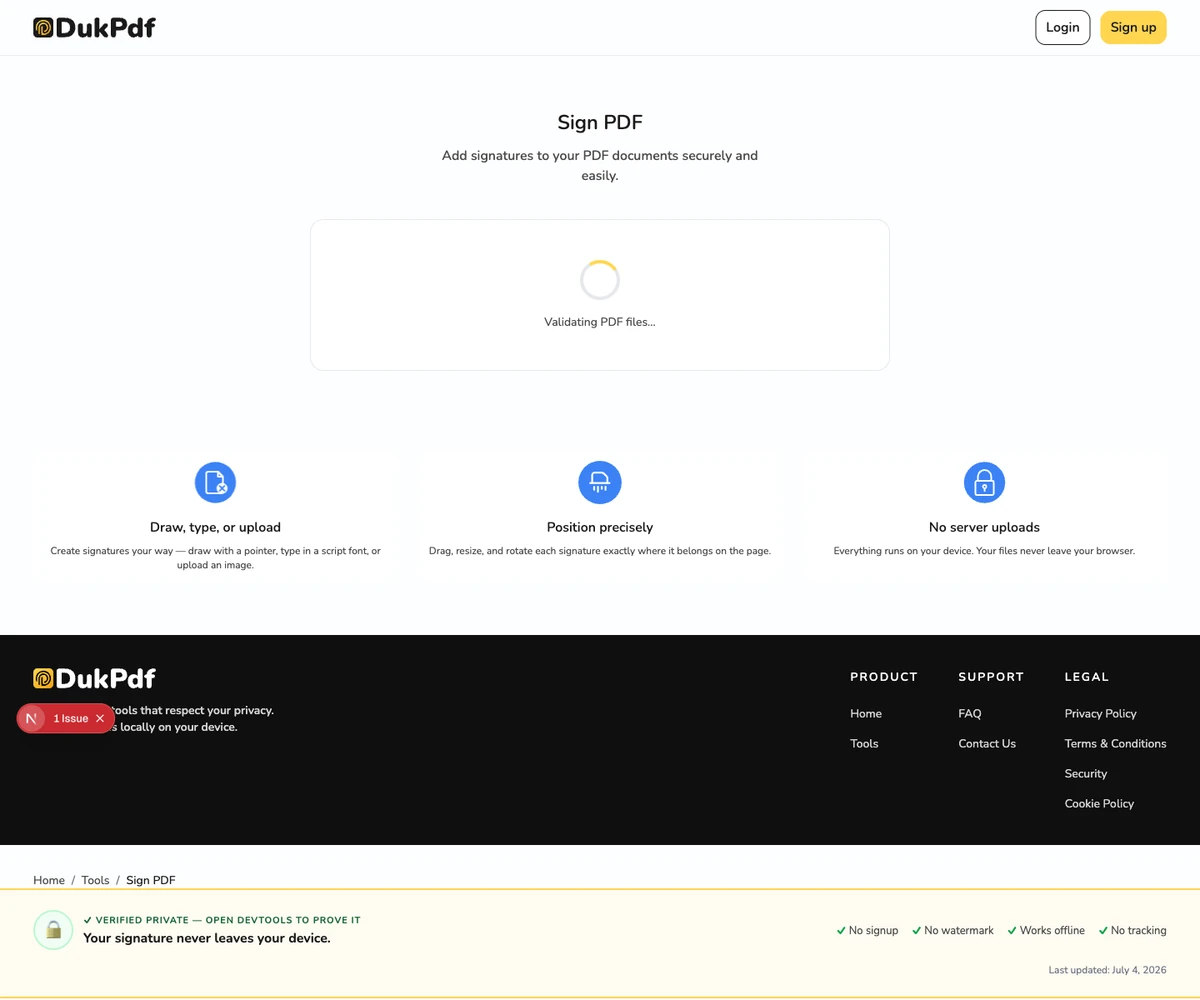
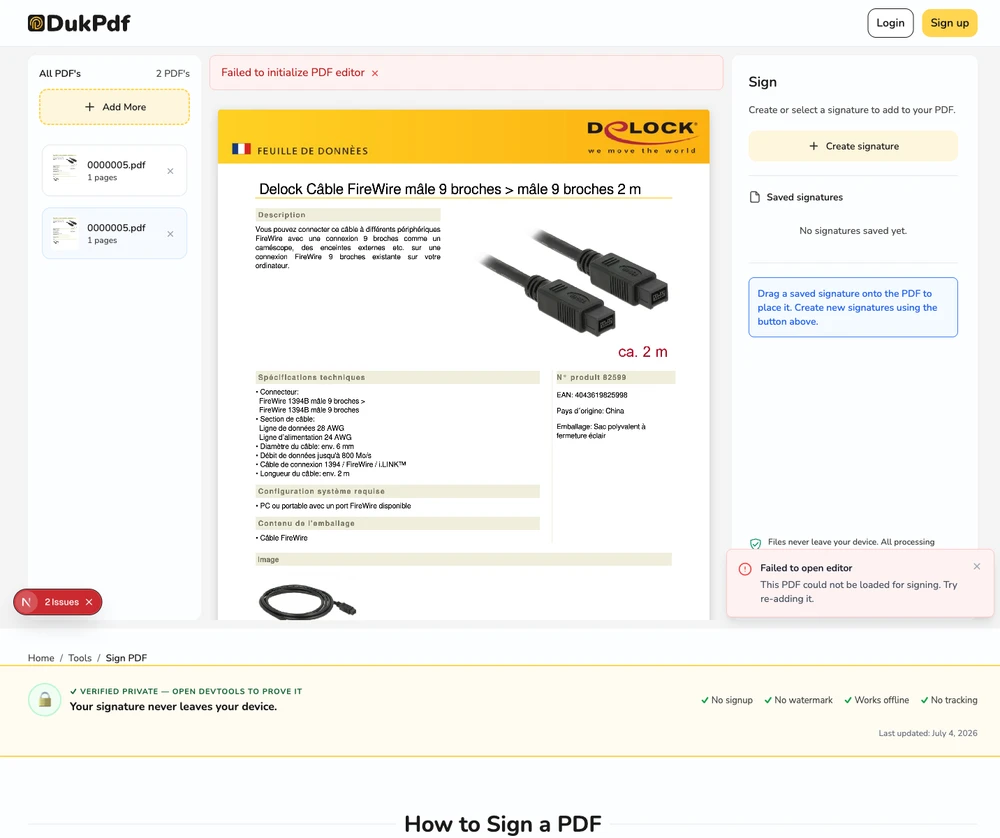
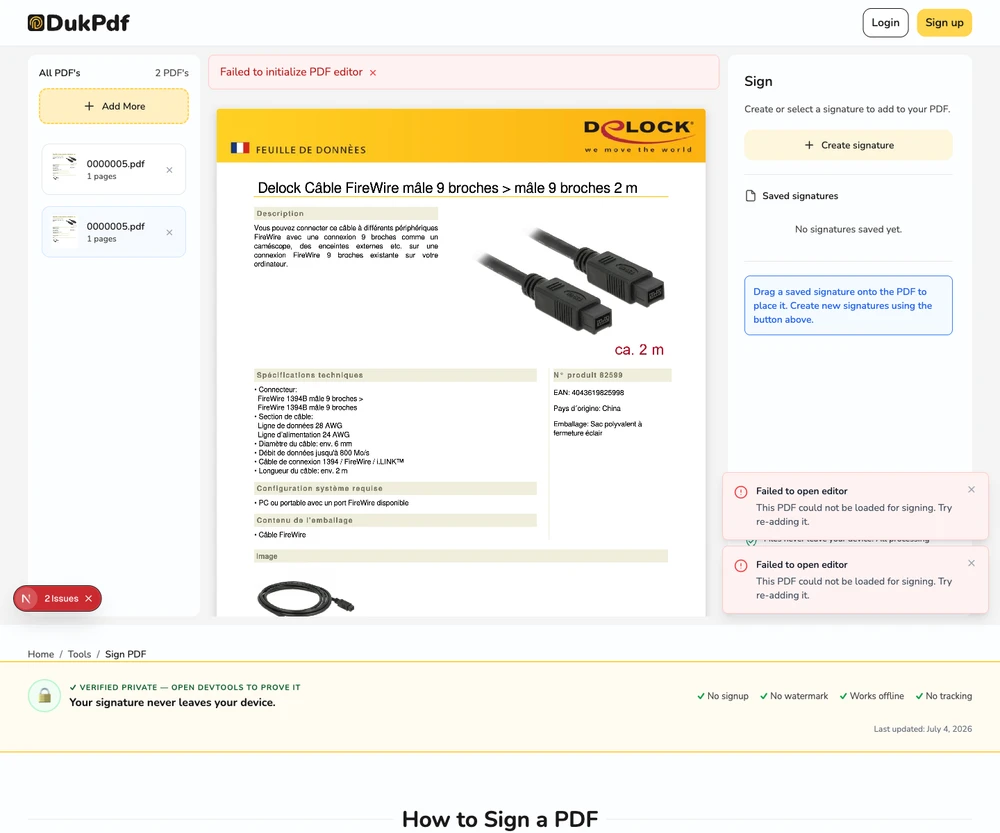
- Open the signing tool in your browser. Go to the Sign PDF tool in Chrome, Safari, Firefox, or Edge. The tool loads locally — nothing is sent to a server.
- Create your signature.Type your name, draw with your mouse or touchscreen, or upload a signature image. The signature is held in your browser’s memory and is never uploaded.
- Place and download. Click on any page to place the signature. Resize or move it as needed. Add a date or initials if required. Click Save to flatten the signature into the PDF and download.
The whole operation runs in your browser. You can confirm no file transfer happens by opening DevTools → Network tab while signing — zero requests carry your file data.
Privacy implications of cloud-based signing services
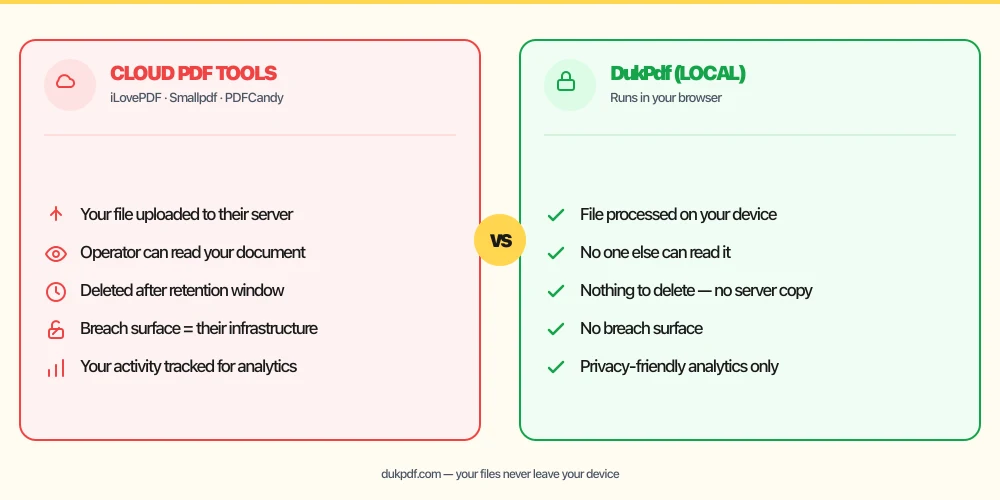
Cloud signing platforms are designed for security, but they are still third-party services. They receive your document, your signature, your email address, the IP address you signed from, and the timestamp of the signature — and they keep an audit trail. For most everyday documents this is fine. For sensitive contracts, vendor agreements, or anything under an NDA, a signing tool that runs locally means the document and the signature never reach a third party. The signature is created on your device, the PDF is edited on your device, and the result downloads directly to you.
This is especially important for documents that contain protected health information. See our guide on HIPAA and online PDF tools for why a BAA is usually required when a third party receives PHI — and why an on-device tool removes that requirement entirely.
There is also a question of how long signing services retain documents and what their breach record looks like. Reputable services have a published retention policy, but the only way to be sure your signed contract is not on a third party’s server is to never send it. A local signing tool makes that the default rather than the exception.
Are electronic signatures legally binding?
In the United States, the ESIGN Act (2000) and the Uniform Electronic Transactions Act (UETA, adopted by 49 states) generally make electronic signatures legally equivalent to wet ink signatures for most documents. The EU’s eIDAS regulation does the same in three tiers — simple, advanced, and qualified — with stricter identity verification for the higher tiers. The UK, Canada, Australia, and most other major jurisdictions have similar frameworks.
A few categories of document are typically excluded: wills and testamentary trusts, certain family law documents, and a handful of government filings that require specific formats. For everything else — contracts, NDAs, offer letters, leases, vendor agreements, consent forms, sales contracts — a standard electronic signature is sufficient. DukPdf does not provide legal advice; for documents where the legal treatment is unclear, consult a lawyer in the relevant jurisdiction.
Common mistakes when signing PDFs
- Uploading a sensitive contract to a free signing service.The signature is not the sensitive part — the contract content is. For NDAs, employment paperwork, and vendor agreements, an on-device signing tool keeps the document private.
- Sending the unsigned version to the other party by mistake. After signing, verify the file is the signed version before attaching it to an email. A quick preview confirms the signature is on the right page.
- Forgetting to include the date. Most agreements need a signed date next to the signature. Add it as a separate text element on the same page.
- Signing in a font that does not match other paperwork. If the contract will be reviewed alongside other signed documents, a drawn or uploaded signature reads more authentic than a typed name in a script font.
- Sharing the signed file without redacting unrelated PII first. A contract may include salary, SSN, or address fields that the counterparty does not need. Redact those before sending the signed copy.
Sign vs alternatives
If a document needs to be signed or approved, a few options are available:
- Sign PDF embeds a signature image (typed, drawn, or uploaded) into the document. Use it for everyday contracts and agreements.
- Protect PDF adds a password to the file. Use it after signing if the signed copy needs to stay confidential.
- Redact PDF permanently removes sensitive content. Use it to strip unrelated personal data from a contract before sending the counterparty a copy.
- Print, sign, scan. The traditional approach. Still works, but adds printing, signing, and scanning steps. Electronic signing is faster and produces a clearer result.
How DukPdf signs locally
DukPdf’s Sign PDF tool runs the entire operation in your browser. Type, draw, or upload a signature, place it on the page, and download the signed document. The signature is created locally, embedded into the PDF in your device’s memory, and never reaches a server.
Open DevTools → Network tab while signing — zero upload requests carrying your file or your signature. For an NDA, an offer letter, or any other document that should not leave your machine, that is the structurally simpler way to sign a PDF.
Tips for a clear, professional signature
A few practical tips that come up repeatedly when signing real-world documents:
- Size the signature to the signature line.A signature that is much larger than the line it sits on looks unprofessional. Most tools let you resize the signature after placing it — match the size to the line, not the other way around.
- Use a drawn signature for authenticity. If the document will be reviewed alongside other signed documents, a drawn signature (mouse, trackpad, or touch screen) looks more authentic than a typed name in a script font.
- Include the date next to the signature. Most agreements require both a signature and a date. Add the date as a separate text element on the same page.
- Save a copy of your signature. Most signing tools let you save the signature for reuse. A consistent signature across documents is faster and more professional.
- Verify before sending.Open the signed file and check the signature is on the right page, the right line, and the right size. A quick preview prevents the embarrassing “unsigned” reply.
Related reading
HIPAA and online PDF tools
Why a BAA matters more than encryption marketing, and why an on-device tool is the structurally simpler choice when protected health information is part of the signed document.
PrivacyHow to redact a PDF without uploading it
Before sending a contract to the other side, the right first step is often redaction — strip personal data, salary terms, and unrelated clauses. Learn how to redact locally so the unredacted original never leaves your device.
Frequently asked questions
Is an electronic signature legally binding?
In most jurisdictions, yes. The U.S. ESIGN Act (2000) and UETA, the EU eIDAS regulation, and similar frameworks in the UK, Canada, Australia, and elsewhere generally recognize electronic signatures as legally equivalent to handwritten ones for most documents. A few categories are excluded (wills, certain family law documents) and a few require a higher tier of e-signature with identity verification. The signature produced by DukPdf is a standard embedded signature, not a qualified electronic signature with identity verification, so it is suitable for contracts, NDAs, offer letters, and similar agreements.
Is it safe to sign a PDF online?
It depends on the service. Reputable signing platforms are designed for security, but they still hold your document on their servers during processing — and many retain a copy for audit purposes. For sensitive agreements, a tool that signs locally is the simpler choice: your document and your signature never touch a third party.
What types of electronic signatures can I add?
Three kinds work: typed (type your name and pick a font), drawn (use your mouse, trackpad, or touch screen), and uploaded (an image of your signature from your device). All three produce the same result — a signature image embedded in the PDF — and the choice is purely a matter of preference.
Can I add initials or a date alongside the signature?
Yes. A good signing tool supports multiple text elements and date stamps on the same page. Place the signature on the signature line, add a date next to it, and add initials in the margins as needed.
How do I sign a PDF without uploading it?
Use a browser-based signing tool that runs locally. Open the tool in your browser, drop in the PDF, create or upload your signature, place it on the page, and download the signed result. The signature is embedded directly into the PDF — no server processing required.