
Smaller file, same content
What is PDF compression?
PDF compression reduces the file size of a PDF without changing what is visible on the page. It does this by removing redundancy: duplicate objects, inefficient stream encoding, and images that are larger than they need to be for the resolution they are viewed at. A well-compressed PDF opens the same way, prints the same way, and looks the same way as the original — it just takes fewer bytes to describe.
There are two flavors. Losslesscompression changes nothing visual at all — the underlying byte stream is reorganized, but every pixel and every character is preserved exactly. Lossy compression additionally downsamples images (reduces their pixel dimensions) and may drop font subsets that are not used. Lossy produces smaller files, and the difference is rarely visible on screen, but it is not byte-identical to the original.
A common misconception is that compression always reduces quality. Lossless compression does not — it is mathematically lossless: the output is identical to the input. The reason lossless can still shrink a file is that PDFs frequently contain duplicated objects, unused font characters, and metadata that the rendering engine does not need. Removing those does not change the visible content but can shave 10–30% off the file size with no trade-off at all.
When do you need to compress PDFs?
Compression is the answer whenever a file is too big to move easily. The common cases:
- Email attachment limits. Gmail caps attachments at 25 MB, Outlook at 20 MB, and many corporate mail servers lower the cap further. A 40 MB scanned report is a non-starter without compression.
- Upload form size caps.Government portals, job applications, insurance forms, and school admissions systems often cap uploads at 5–10 MB. A scan from a modern office printer routinely exceeds that.
- Cloud storage costs.Long-term archive storage — tax records, legal files, medical charts — is billed by the gigabyte. Compressing a few thousand PDFs before archiving adds up to real savings.
- Embedded documents and page-load speed. A 20 MB product catalog on a website opens slowly for visitors on a phone or a metered connection. Compressing it to 4 MB is the difference between a usable page and a bounce.
- MFA submission and verification portals. Identity verification flows often have strict size limits; compressing an ID scan or a utility bill is the fastest way to fit.
When a form names an exact number, skip the guesswork: DukPdf has a page per limit that opens with the target preselected and searches for the best quality that fits it — compress a PDF to 100KB, 200KB, 300KB, 500KB or 1MB. The target binds the whole file, and the result list shows each file’s size before and after.
Lossy vs lossless compression
Choosing between lossy and lossless is a tradeoff between file size and fidelity. A few rules of thumb:
- Use losslesswhen the file is a contract, a tax form, a regulatory filing, or anything that will be printed at high resolution. Lossless guarantees the output is identical to the input — same fonts, same image data, same metadata.
- Use a balanced preset for everyday documents: reports, slide decks, ebooks, manuals. The image downsample is small enough to be invisible at screen resolution, and the size reduction is meaningful.
- Use maximum compressionwhen the file just has to fit a size cap and a slight softening of photos is acceptable — for example, embedding a catalog on a website.
A common mistake is to apply maximum compression to a scanned document and then re-print it at 300 DPI — the result is blurry. If the file is going to be printed, choose lossless or balanced.
How to compress a PDF in 3 steps
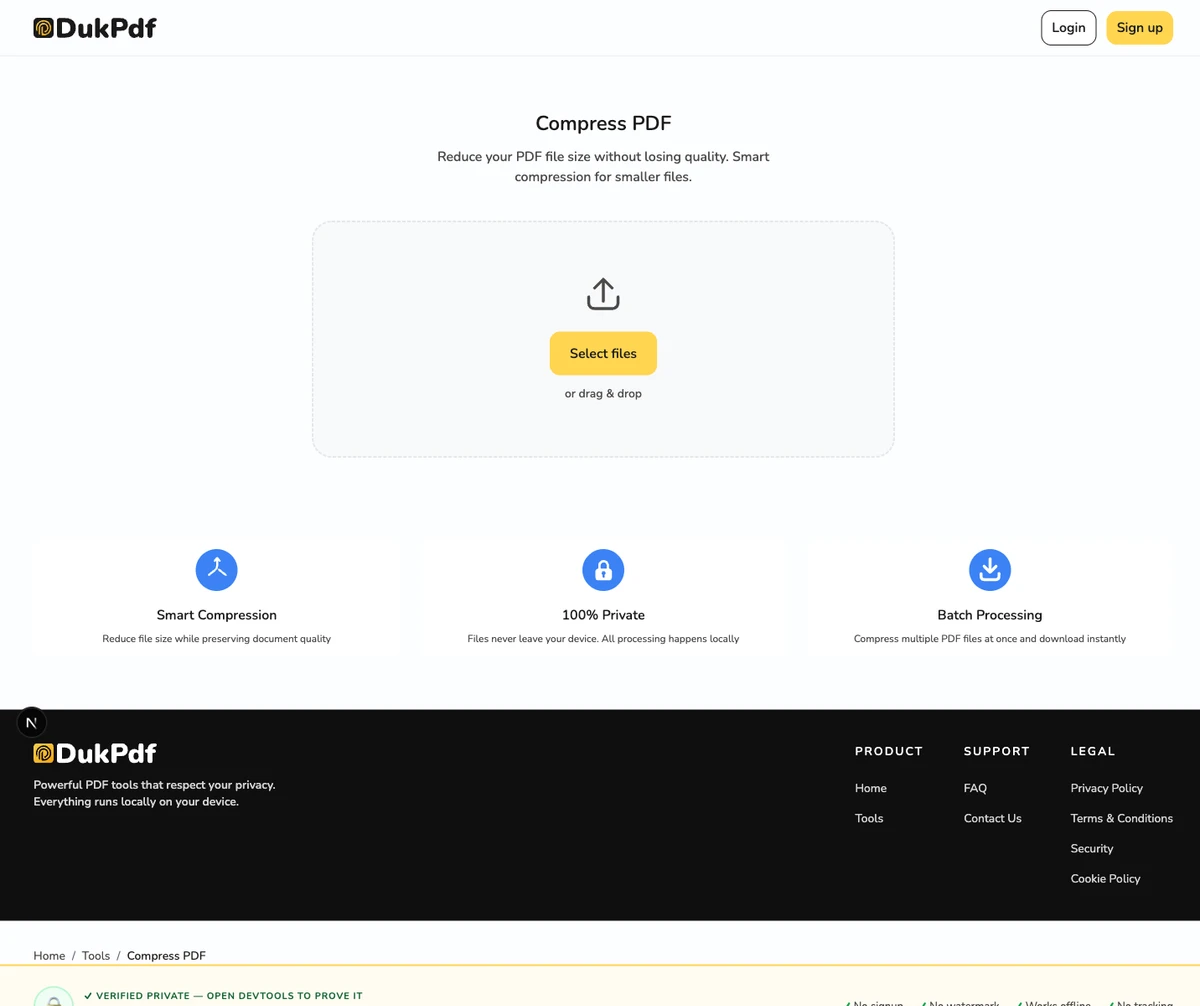
- Open the compress tool in your browser. Go to the Compress PDF tool in Chrome, Safari, Firefox, or Edge. The tool loads in your browser — the file never leaves your device.
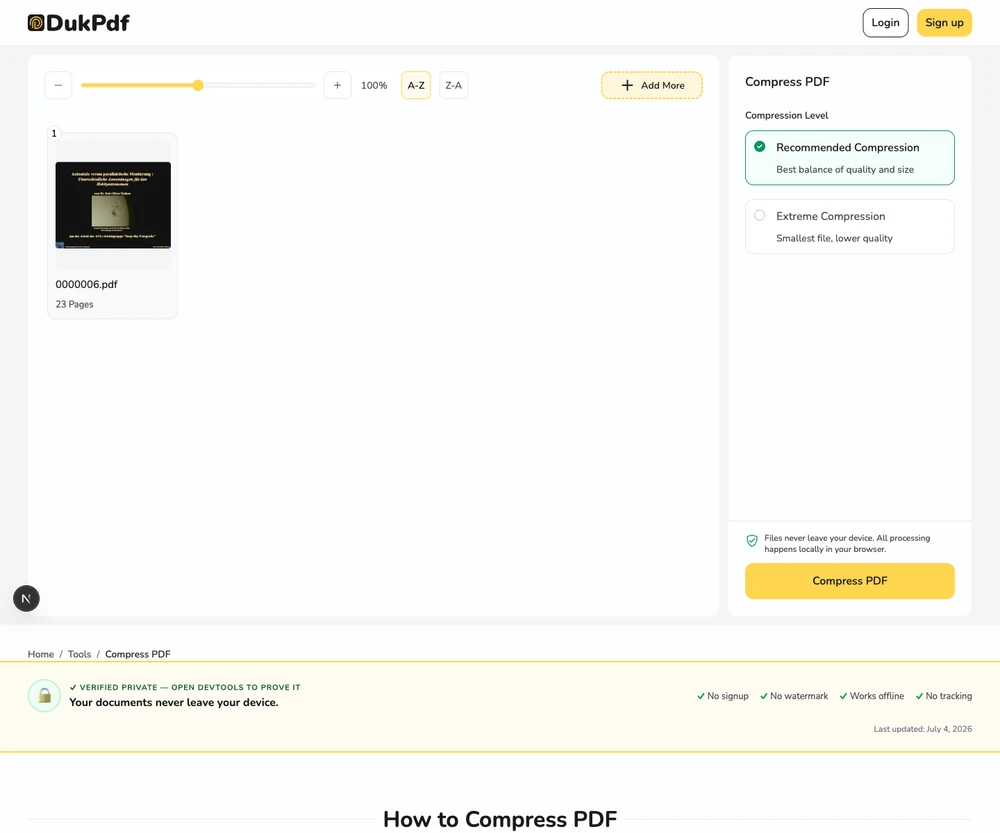
- Add your PDF and pick a preset. Click Select files or drag and drop the PDF. Choose lossless (no quality change, modest size reduction), balanced (recommended for most documents), or maximum (smallest file, slight quality loss on images).
- Compress and download. Click Compress. The compressed file saves to your Downloads. The original is never modified.
Batch compression works the same way: drop in multiple files and all of them get processed with the same preset. Results download individually as each file finishes.
Privacy implications of cloud-based PDF compression
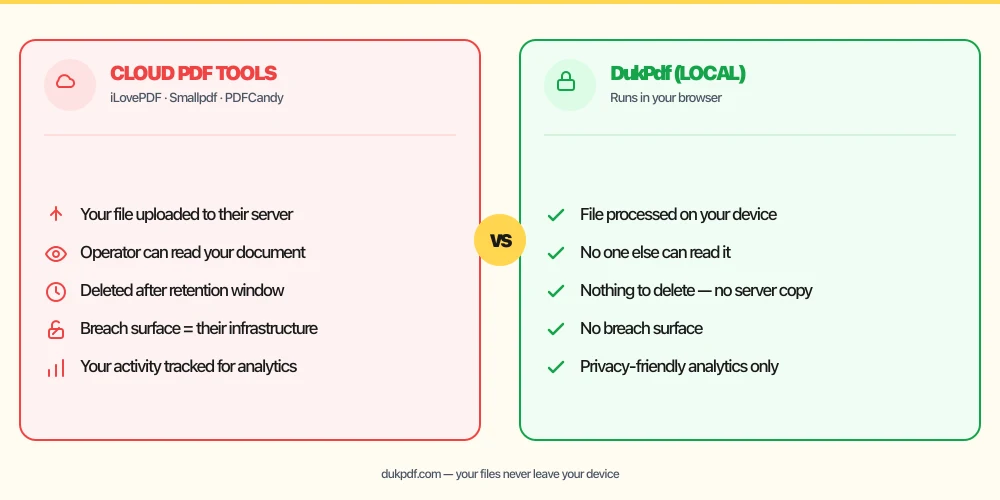
Compression is a content-preserving operation — the compressed file still contains all the same text, images, account numbers, and signatures as the original. Compressing on a cloud server means that content sits on a third party’s infrastructure during processing, with all the same exposure surface as any other upload: a breach, a misconfigured access policy, a malicious look-alike site.
For tax returns, bank statements, medical records, and contracts, a tool that compresses on your device is the simpler choice. The compressed file has the same sensitive content as the input, but the input never leaves you. See our guide on uploading bank statements to online PDF tools for the same logic applied to financial documents.
A related concern is the metadata that rides along with the file. PDFs often carry authoring metadata — author name, organization, software, timestamps, edit history — that may be more sensitive than the visible content. A robust compression pipeline gives you the option to strip that metadata from the output so the compressed file is leaner than the original in every way.
Common mistakes when compressing PDFs
- Uploading a sensitive file to a free cloud compressor. A file that has not been redacted should not leave your device. Use a browser-based tool that processes locally.
- Re-compressing an already-compressed file. Running lossy compression twice compounds the quality loss. Keep the lossless original and only compress copies you intend to share.
- Choosing maximum compression for print output. Maximum presets downsample images below print resolution. For documents that will be printed at high DPI, use lossless or balanced.
- Stripping metadata by accident. Some aggressive compression tools strip authoring metadata entirely. If the document needs a specific title or author, edit the metadata after compression.
- Assuming compression removes sensitive content. Compression reduces file size, not content. The compressed file has every account number, name, and signature the original did. Redact first if needed.
Compress vs alternatives
If the file is too big, a few tools can help — pick the one that fits the actual problem:
- Compress PDF reduces the file size by reorganizing streams and downsampling oversized images. Use it when the content is right but the file is too big.
- Merge PDF combines multiple files. Use it when the right content is spread across several documents.
- Split PDF breaks one file into several. Use it when only part of a document needs to move.
- Re-scan at lower resolution.For a scan-only document, the biggest size win is usually rescanning at 150–200 DPI instead of 600 DPI. Compression is the easier lever when you cannot rescan.
How DukPdf compresses locally
DukPdf’s Compress PDF tool runs the entire operation in your browser using qpdf compiled to WebAssembly. Drop in one or more PDFs, pick a quality preset (lossless, balanced, or maximum), and download the compressed results. There are no server uploads and no watermark on the output.
Because the compression runs locally, the original file is processed in your device’s memory and never reaches a server. Open DevTools → Network tab while compressing — zero upload requests carrying your file. For a tax return, a contract, or any other document that should not leave your machine, that is the structurally simpler way to shrink a PDF.
Tips for the best compression result
A few practical tips that come up repeatedly when compressing real-world documents:
- Compress a copy, not the original. Always compress a copy of the original. The compressed file is smaller but the original is still useful for re-compression with a different preset, or for archival at full quality.
- Match the preset to the use case. For an email attachment, balanced is usually enough. For a file that will be printed, lossless is the safe choice. For an embedded PDF on a website, maximum compression is appropriate.
- Check the result before sharing. Open the compressed file and verify that text is still crisp, that images are still sharp, and that the page count is unchanged. A good compression is invisible; a bad compression shows blurry text or pixelated photos.
- Be careful with scanned documents. A scanned PDF is mostly images; compression will downsample those images. If the document will be read on screen, that is fine. If it will be printed at high DPI, use lossless.
- Strip metadata if you need to. Compression often preserves or even exposes authoring metadata. If the file will be shared widely and the author information is sensitive, strip the metadata after compression.
Related reading
Is it safe to upload bank statements to online PDF tools?
Compression is content-preserving — the compressed file still has every account number, balance, and transaction from the original. For financial documents, processing on your device removes the upload step entirely.
PrivacyHow to redact a PDF without uploading it
If the file contains information that should not be shared, the right first step is redaction — not compression. Learn how to redact locally so the unredacted original never leaves your device.
Frequently asked questions
How much can I compress a PDF?
It depends on the content. Image-heavy PDFs (scans, catalogs, slide decks) typically shrink 50–80% with a balanced preset. Text-only documents with embedded fonts shrink 10–30% because there is less redundancy to remove. The biggest gains come from downsampling large images that the human eye cannot resolve at viewing size.
Will compression reduce the quality of my PDF?
Lossless compression does not. It removes redundant data, inefficient encoding, and unnecessary metadata without changing a single pixel or character. Lossy compression downsamples images and reduces font subsets, which is usually invisible at screen size but can show on print at very high DPI. For pixel-perfect output, choose lossless.
How do I shrink a PDF for email?
Most email clients cap attachments at 10–25 MB. Open a browser-based compress tool, drop in the PDF, pick a balanced or maximum preset, and download. The compressed file usually fits well under the limit, and because everything runs locally, the document is not uploaded to anyone else.
Is it safe to compress a PDF online?
For a non-sensitive file, reputable services are usually fine. For anything that contains personal, financial, medical, or legal content, a tool that runs in your browser is the structurally simpler choice — the unredacted file is never sent to a third party, and the compressed result has the same content as the original.
What is the difference between lossy and lossless PDF compression?
Lossless removes metadata, duplicate objects, and inefficient encoding without touching the visible content. The output is byte-identical to the input in terms of what you see. Lossy also downsamples images (reduces their pixel dimensions) and may reduce embedded font subsets. It produces smaller files, but the images are no longer byte-identical to the originals.