
Edit metadata without uploading
What is PDF metadata?
PDF metadata is the hidden information embedded in every PDF file that describes the document itself. It is not visible when you open the PDF in a reader — you find it in the “Properties” or “Document Info” panel of your PDF software. The standard metadata fields include the title, author, subject, keywords, creator application, producer, and creation and modification dates.
Metadata serves several practical purposes. It helps search engines and document management systems identify what a file is about. It tells you who created the document and with what software. It records when the document was created and last modified. When you search for a PDF in a folder, your operating system may display the title and author from the metadata, not the filename.
But metadata can also leak information. The author field may contain the name of the person whose computer created the file. The creator field reveals which software was used (and potentially which version). The modification date shows when someone last edited the document. For sensitive documents shared externally, metadata can expose more than you intended.
When do you need to edit PDF metadata?
Editing metadata is useful in a wider range of situations than most people realize:
- Privacy cleaning before sharing.A PDF created by your organization may contain the full file path of the author’s computer in the metadata, the name of the person who last saved it, and a history of edits. Cleaning this metadata before sending the file to a client or posting it online prevents unintended information leaks.
- Setting a proper document title.Many PDFs show up as “Untitled” or with a random filename in the title bar because the title field is empty. Setting a proper title makes the document look professional and helps recipients find it later.
- Adding keywords for search. Document management systems and operating systems index PDF metadata. Adding relevant keywords makes the document easier to find when searching your file system or content management platform.
- Correcting author information.A PDF generated by an automated system may have “Admin” or the software name as the author. Setting the correct author attribution is important for professional and academic documents.
- Standardizing metadata across a document set. When assembling a batch of PDFs from different sources, their metadata will be inconsistent. Standardizing the title, author, and keywords fields makes the set look cohesive in a document management system.
How to edit PDF metadata in 3 steps
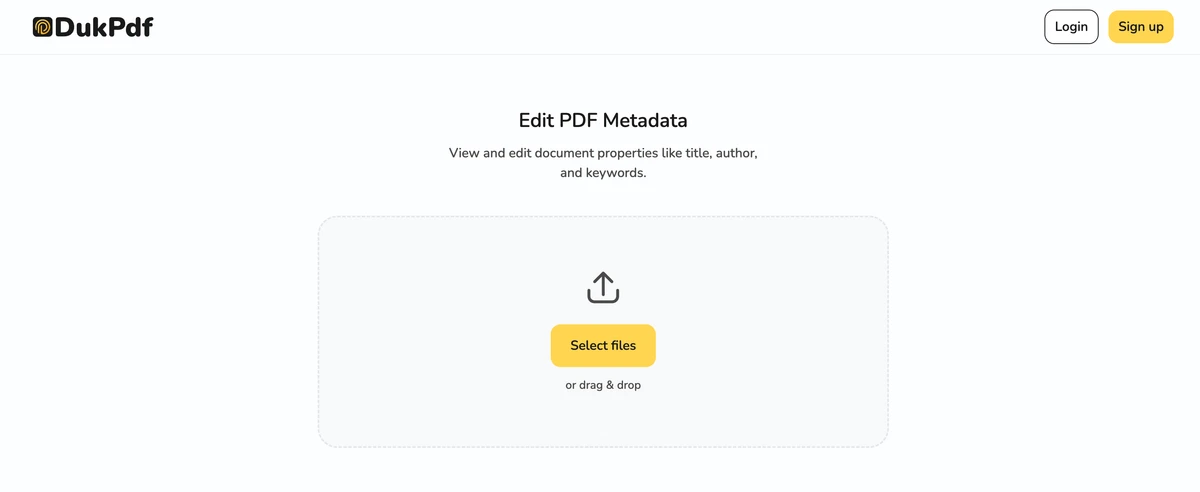
- Open the metadata tool in your browser. Go to the Edit Metadata tool in Chrome, Safari, Firefox, or Edge. The tool loads entirely in your browser.
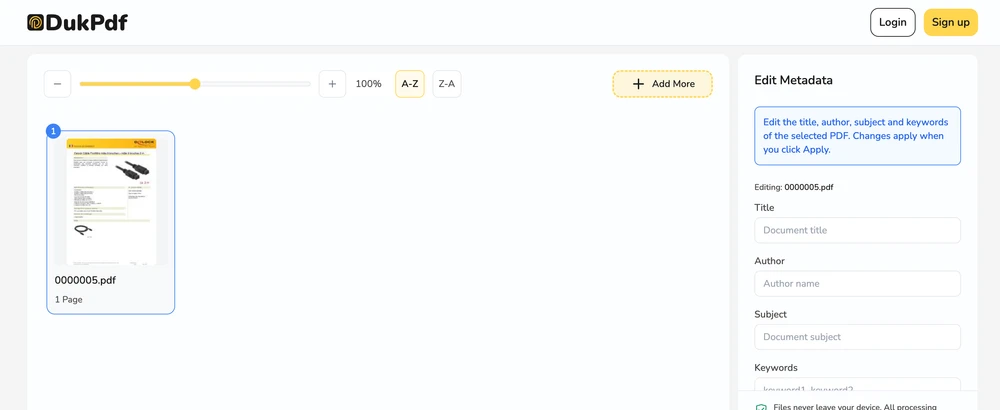
- View and edit the fields. Click Select file or drag and drop your PDF. The current metadata is displayed: title, author, subject, keywords, creator, producer, creation date, and modification date. Edit any field, or click Clear All to remove everything.
- Save and download. Click Save Metadata. The updated file is generated locally and saves to your Downloads. The original file is unchanged.
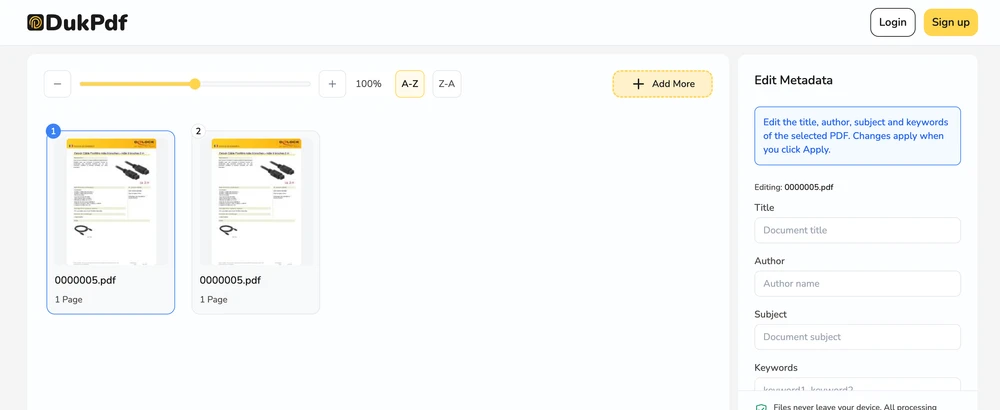
The metadata editing runs entirely in your browser using qpdf compiled to WebAssembly. Open DevTools → Network tab while editing — zero requests carry your file data.
Privacy implications of cloud-based metadata editing
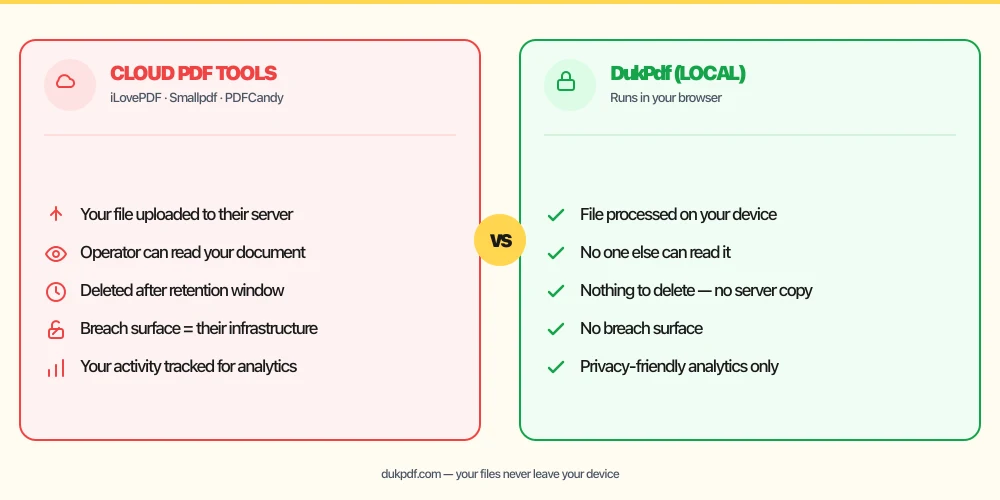
Metadata can leak author names and editing history. Editing it on a cloud server adds another copy to someone else’s infrastructure. This creates a paradox: you are trying to clean metadata from a document to protect privacy, but the tool you use to do so requires uploading the file to a server, which itself creates a privacy risk.
The irony is hard to miss. A document containing sensitive author information is uploaded to a third-party server so that server can scrub the author metadata. The very act of cleaning the metadata exposes the document — including all the metadata you are trying to remove — to the server operator. If the server logs the file, retains it for debugging, or is compromised, the metadata you intended to remove has already been seen.
A local metadata editor eliminates this. The file is read in your browser, the metadata fields are updated in memory, and the result is saved directly to your Downloads. The server never sees the document or its metadata. For more on why sensitive documents should not be uploaded, read our analysis of uploading bank statements to online PDF tools.
Common mistakes when editing PDF metadata
- Editing metadata on a cloud server. The irony of uploading a file to a server to clear its privacy-sensitive metadata is real. Use a local tool so the data never leaves your device.
- Forgetting to clear the author field. The author field often contains the full name of the person whose computer created the PDF. It is the most common metadata privacy leak.
- Not checking the creator and producer fields.The creator field reveals which software generated the PDF (e.g. “Microsoft Word”), and the producer field reveals the PDF engine. Some organizations prefer not to disclose this information.
- Setting misleading metadata. While you can set any author or title, misleading metadata may cause problems in document management systems or legal contexts that rely on metadata accuracy.
- Not checking metadata on redacted files. After redacting sensitive content, the metadata may still contain the original author, creation date, and software information. Always check metadata after redaction.
Metadata editing vs other PDF operations
Metadata editing is usually done alongside other document preparation steps:
- Edit Metadata changes hidden document properties. Use it to clean or set title, author, and keywords.
- Redact PDF removes visible content. Use it before metadata editing so you do not have to handle sensitive content twice.
- Edit PDF adds visible content. Use it after metadata editing if you need to add text or annotations.
How DukPdf edits metadata locally
DukPdf’s Edit Metadata tool lets you view and change the title, author, subject, keywords, and dates of a PDF entirely in your browser using qpdf compiled to WebAssembly. Add your file, edit the fields, and download the result. The metadata is updated locally, so the document never leaves your device.
Because the tool runs locally, you can verify zero network activity by opening DevTools → Network tab. For a document whose author and editing history should be scrubbed before sharing, that is the safe way to edit metadata.
Related reading
How to edit a PDF — add text, shapes, annotations, no server uploads
Add text, shapes, images, and annotations to any PDF — in your browser, without uploading.
How-ToHow to redact a PDF — permanently remove sensitive content
Permanently redact text and images from PDF files — true redaction that destroys the underlying content.
Frequently asked questions
What metadata fields can I edit?
Title, author, subject, keywords, creator (the application that made the file), producer (the PDF generator), creation date, and modification date. You can set any field, clear any field, or leave it unchanged.
Why does metadata matter for privacy?
PDF metadata can reveal the original author’s name, the organization that created the document, the software used, and a detailed editing history. Removing this metadata before sharing externally prevents unintended information leaks.
Will editing metadata change the visible content?
No. Metadata editing only changes the hidden “Properties” information. The visible pages, text, images, and layout are completely unchanged.
Can I remove all metadata at once?
Yes. Most metadata editors have a “Clear All” button that removes every metadata field in one click. The result is a PDF with no title, author, subject, keywords, or dates.
Is my PDF uploaded when I edit metadata?
No. Metadata editing runs entirely in your browser using qpdf compiled to WebAssembly. Open DevTools → Network tab while editing — zero upload requests.