
Edit PDFs without uploading
What does “editing a PDF” mean?
Editing a PDF covers two things. The first is changing the text that is already there: in DukPdf’s editor, pick Edit text, click any line, and retype it in place — the edit keeps the original font wherever the font allows, and lines you don’t touch are unchanged. The second is adding new content — text, shapes, images, drawings, and annotations — on top of the existing pages.
Either way, your source file is safe. When you add new content, you are laying it over the original. The original page content is preserved. When you save, the editor flattens your additions into the PDF, producing a new file that contains both the original content and your edits rendered together.
A browser-based PDF editor is not a word processor. It cannot change the font of existing text, reword a paragraph, or delete a sentence from the middle of a page (that is redaction). What it can do is add text boxes, highlights, underlines, circles, arrows, checkmarks, signatures, images, sticky notes, and freehand drawings anywhere on any page. For many document workflows — filling forms, reviewing drafts, marking up feedback, adding a signature — that is exactly what is needed.
When do you need to edit a PDF?
Editing a PDF is one of the most common document tasks, second only to opening one. Here are the situations where a PDF editor is the right tool:
- Filling out a form. Someone sends you a PDF form that was not designed as a fillable form. You need to type text into the blank fields, check boxes, and add your signature — without printing, filling by hand, and scanning.
- Marking up a draft for review. You receive a draft contract, report, or proposal and need to add comments, highlight important passages, circle sections that need work, and draw arrows to areas of concern.
- Adding a signature or initial. A PDF needs your signature on the last page and your initials in the margin of page 3. An editor lets you place both exactly where they belong.
- Inserting a logo or cover image. A proposal needs a company logo on the cover page, or a report needs a photograph embedded on the first page. The editor places the image and lets you resize and position it.
- Adding annotations for a student or colleague. Highlight key passages in a research paper, add margin notes with explanations, and draw arrows connecting related sections.
How to edit a PDF in 3 steps
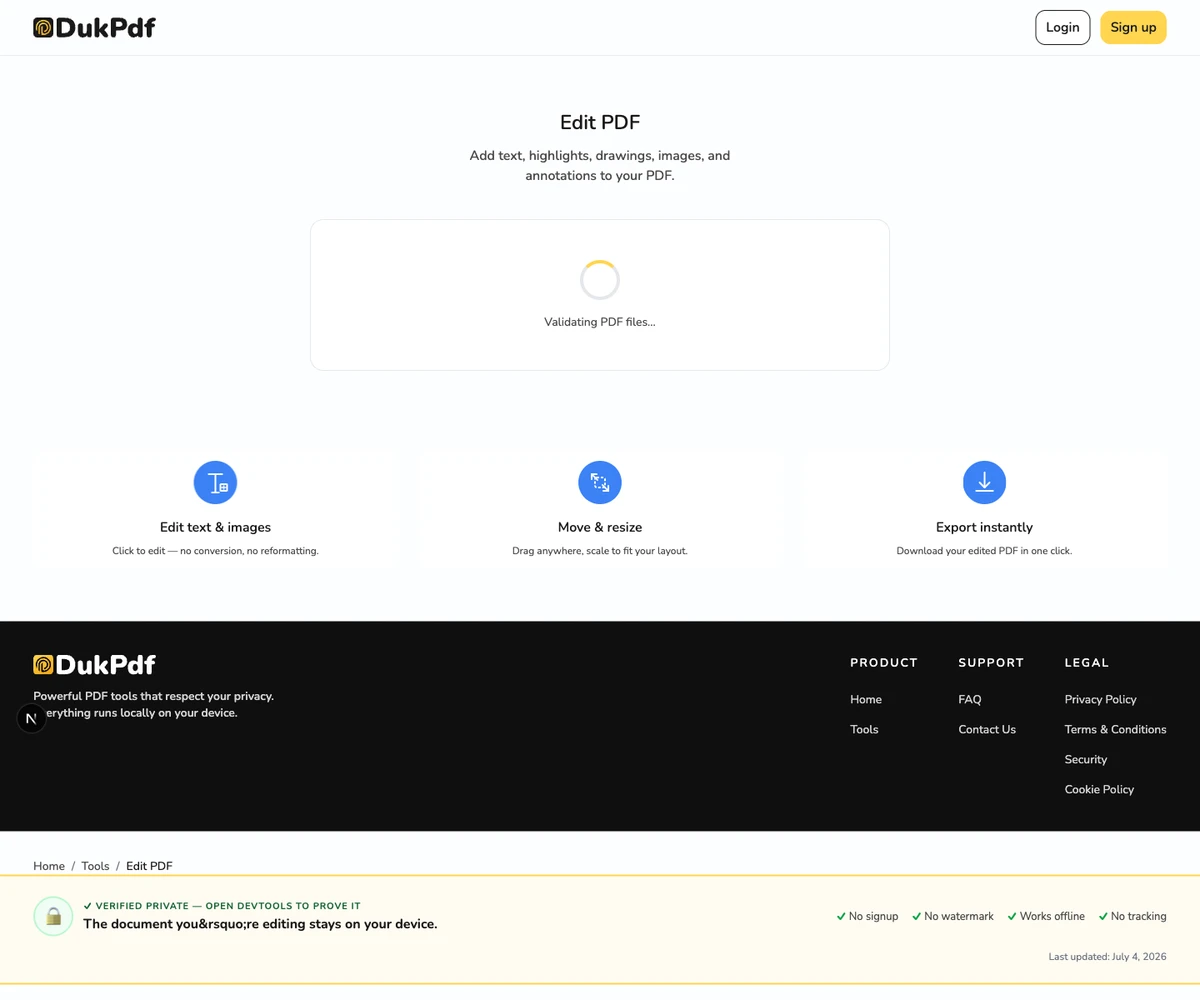
- Open the editor in your browser. Go to the Edit PDF tool in Chrome, Safari, Firefox, or Edge. The editor loads entirely in your browser.
- Add your content. Click Select file or drag and drop your PDF. The document opens as a navigable canvas. Pick a tool from the toolbar — text, rectangle, circle, line, image, or freehand draw. Click on the page to place it. Drag to move, resize, or rotate. Use undo (Ctrl+Z) if you make a mistake.
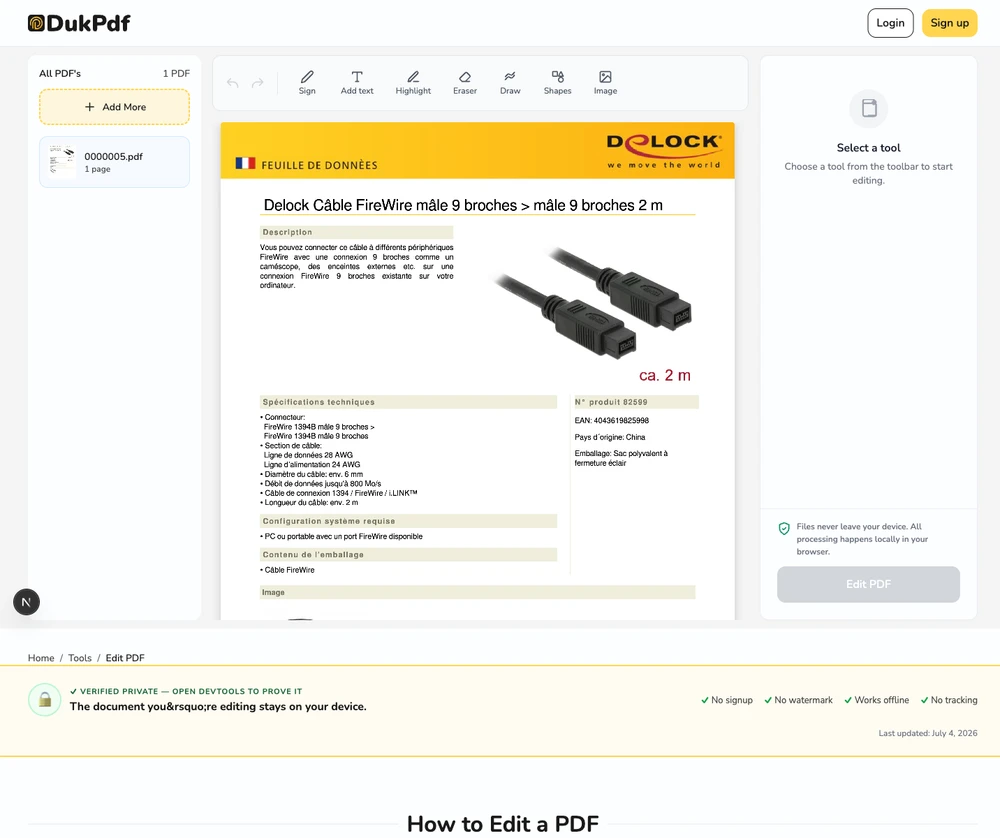
- Save and download. Click Save to flatten your edits into a new PDF. The original is never modified. The edited result downloads automatically.
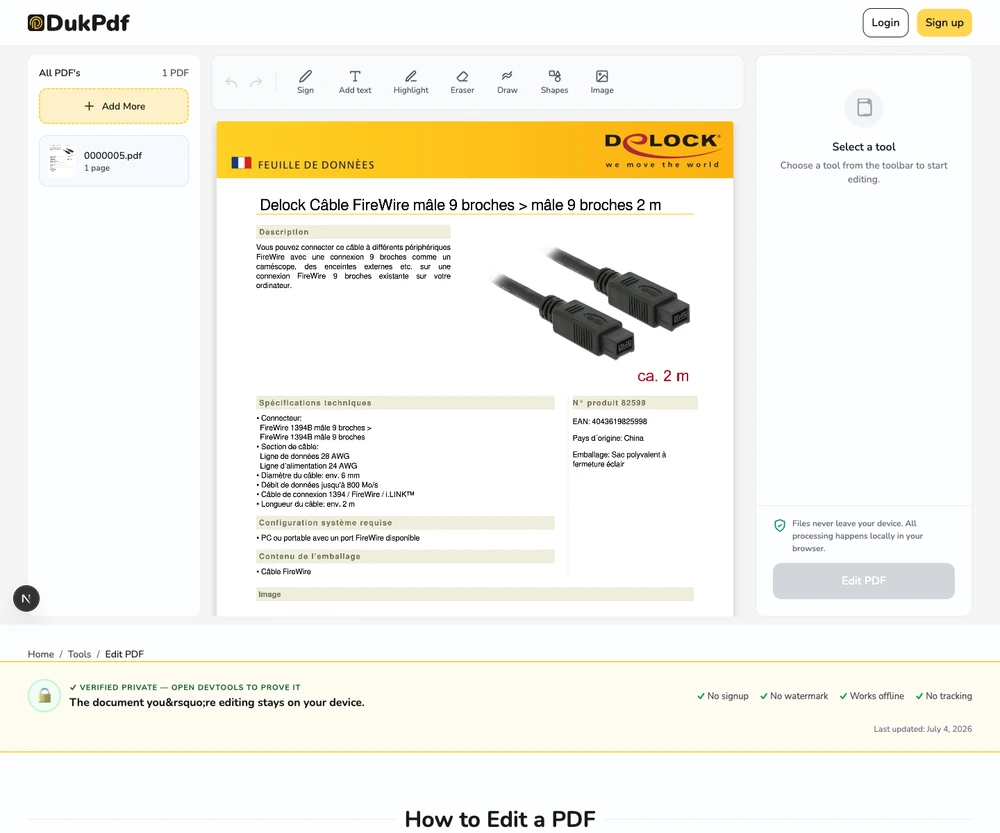
The editor runs entirely in your browser using PDF.js for rendering. Open DevTools → Network tab while editing — zero requests carry your file data.
Privacy implications of cloud-based PDF editing
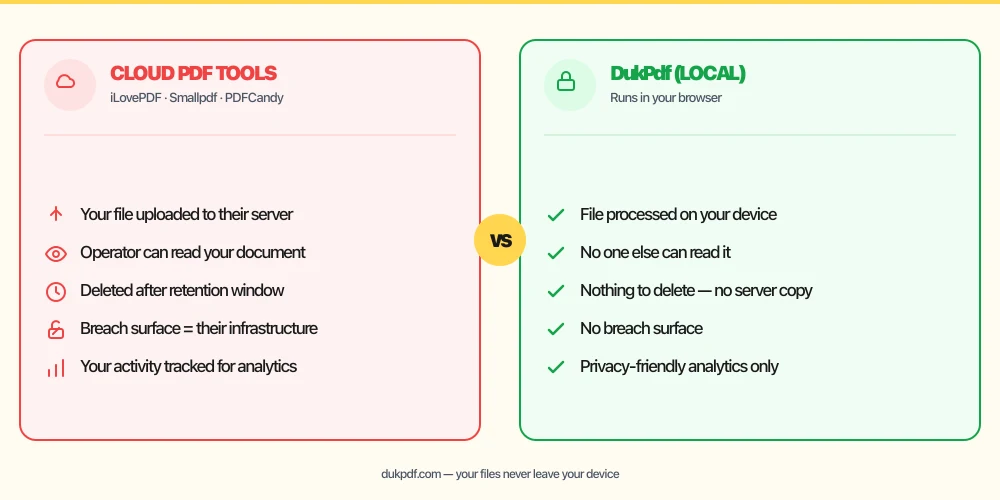
Editing a document on a cloud server means every change you make is processed on someone else’s machine. Each text box you type, each shape you draw, each image you insert — they all pass through the server. The server holds the complete original document and receives every edit you make.
The privacy risk is especially acute for documents you edit precisely because they are sensitive: a confidential contract you need to annotate, a patient intake form you need to fill, a legal brief you need to mark up. These documents contain the very information you most want to keep private, and the editing session exposes every page and every change to the server operator.
A local editor eliminates this. The file is read in your browser, all edits are applied in your device’s memory, and the result is saved directly to your Downloads. No server ever receives a copy. For more on why documents should stay on your device, read our analysis of uploading bank statements to online PDF tools.
Common mistakes when editing a PDF
- Using a cloud editor for a sensitive document. The document you are editing is often more sensitive than the one you created. If it is confidential, edit it locally.
- Confusing edit with redaction. Adding a black rectangle over text in an editor is not redaction. The text underneath is still present and recoverable. Use a dedicated redaction tool for permanent removal.
- Not saving before closing. In-browser editors hold all changes in memory. If you close the tab before clicking Save, your edits are lost.
- Using a font that is not embedded. If the editor uses a font that is not embedded in the PDF, the recipient may see a different font when they open the file. Stick to standard fonts or verify the output.
- Placing text where it overlaps with content. When you add a text box, make sure it does not overlap with existing text or critical content underneath. Preview the result before saving.
Edit vs other PDF content operations
Editing is one of several ways to add content to a PDF. Here is how it relates to the others:
- Edit PDF adds new layers. Use it for annotations, text, shapes, and images.
- Add Watermark stamps a label across every page. Use it for status marks like “DRAFT” or “CONFIDENTIAL.”
- Sign PDF places a signature. Use it for contracts and agreements after editing.
- Redact PDF removes content permanently. Use it before editing if the file contains information that should be destroyed.
How DukPdf edits PDFs locally
DukPdf’s Edit PDF tool lets you add text, shapes, images, and freehand annotations directly on top of any PDF — entirely in your browser. The editor uses PDF.js for rendering and all edits are held in memory until you click Save. Your source file is never modified, and the edited result is saved directly to your Downloads.
Because the editor runs locally, the document stays on your device from the moment you open it to the moment you download the edited copy. Open DevTools → Network tab while editing — zero upload requests. For a contract, a form, or any document you are handling precisely because it is sensitive, that is the safe way to edit.
Related reading
How to add a watermark to a PDF — text and image watermarks, no server uploads
Stamp a text or image watermark on every page of a PDF — adjust opacity, size, and position.
How-ToHow to sign a PDF — free electronic signature, no server uploads
Add an electronic signature to any PDF for free, in your browser, without uploading to a third-party signing service.
Frequently asked questions
Can I edit existing text in the PDF?
Yes — with DukPdf’s Edit PDF, pick Edit text and click any line to retype it in place. The edit keeps the original font wherever the font allows. Most other browser-based editors only add new layers on top; DukPdf does both.
Can I undo my edits?
Yes. Most PDF editors have a full undo and redo history (Ctrl+Z / Ctrl+Shift+Z). Every change is reversible until you click Save to flatten the result.
Will the original PDF be modified?
No. All edits are held in memory as a layer on top of the original. Your source file is never touched. Only the final “Save” produces a new PDF containing both the original and your edits.
Can I edit across multiple pages?
Yes. The toolbar lets you switch between pages. Each page gets its own set of edits. You can also copy an edit from one page and paste it onto others.
Is my PDF uploaded during editing?
No. The editor runs entirely in your browser using PDF.js. No page is sent to a server. Zero upload requests in the Network tab.