
Add watermarks without uploading

What does “adding a watermark to a PDF” mean?
Adding a watermark to a PDF means stamping a text label or an image onto every page — or onto selected pages — of the document. The watermark is rendered as part of the page content, layered on top of the original text and images. Common watermarks include “CONFIDENTIAL,” “DRAFT,” a company logo, a copyright notice, or a date stamp.
Watermarks are typically semi-transparent so the underlying content remains readable. A watermark might sit at the center of the page (diagonally or horizontally), in a corner, or tiled across the page. The opacity, size, rotation, and position are all adjustable. Once applied and the file is saved, the watermark becomes a permanent part of the PDF — it appears on screen, in print, and in any copies made from the file.
It is important to distinguish a watermark from a redaction. A watermark sits on top of the content; the original text and images are still present underneath. A redaction destroys the underlying content. Watermarking says “this is a draft,” while redaction says “this content is gone.” Choosing the wrong one for a sensitive document can have real consequences.
When do you need to add a watermark to a PDF?
Watermarks serve both practical and legal purposes. Here are the most common scenarios:
- Marking a draft or work-in-progress.A document that is not yet final should be clearly labeled “DRAFT” so recipients know it has not been approved. Watermarking every page prevents someone from treating a draft as a final document.
- Confidentiality labeling.Internal memos, financial reports, and legal briefs often carry a “CONFIDENTIAL” or “ATTORNEY-CLIENT PRIVILEGED” watermark to put recipients on notice of the document’s sensitivity.
- Branding corporate documents. A company logo watermarked faintly on every page of a proposal or report signals authorship and professionalism.
- Status stamps.“APPROVED,” “PAID,” “RECEIVED,” “VOID,” or “ARCHIVED” watermarks make the status of a document instantly clear at a glance.
- Copyright protection. Authors and publishers watermark ebooks and sample chapters with a copyright notice to discourage unauthorized distribution.
How to add a watermark to a PDF in 3 steps
- Open the watermark tool in your browser. Go to the Add Watermark tool in Chrome, Safari, Firefox, or Edge. The tool loads entirely in your browser.
- Design your watermark. Click Select file or drag and drop your PDF. Type your watermark text or upload an image. Choose the font, size, color, opacity, and rotation. Position the watermark where you want it — center, diagonal, top-left, bottom-right, or any custom placement.
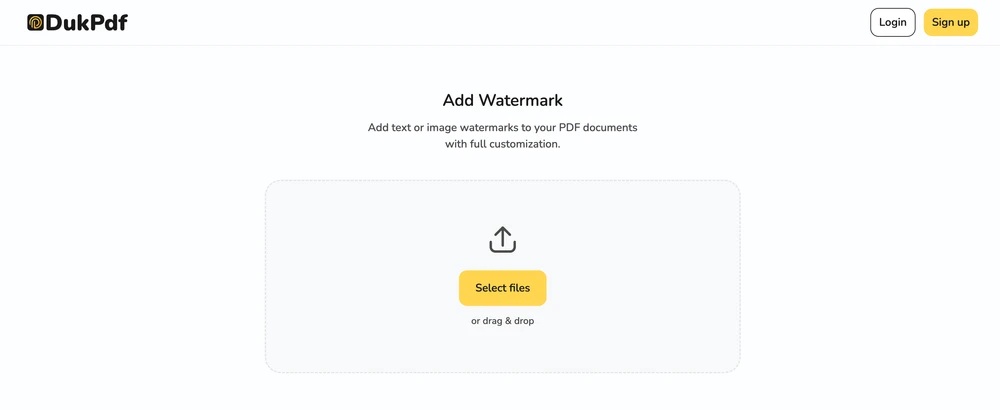
- Apply and download. Click Apply Watermark. The watermark is rendered onto every page (or your selected range) and the file saves to your Downloads.
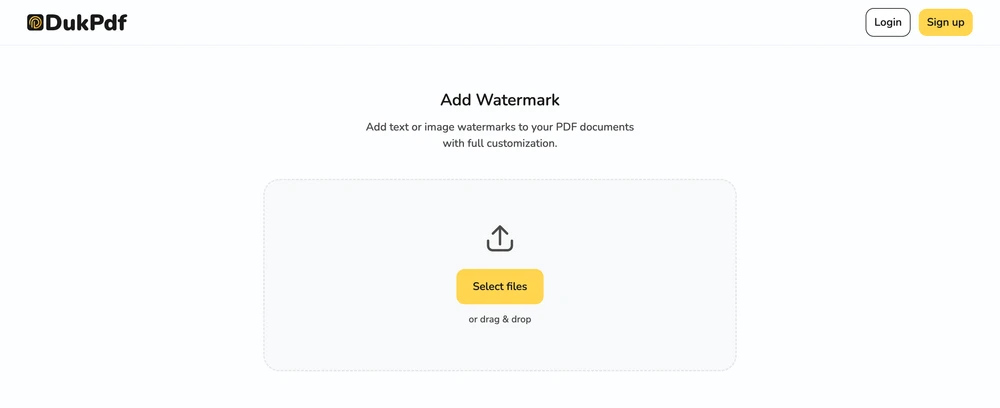
The watermarking runs entirely in your browser. Open DevTools → Network tab while applying — zero requests carry your file data.
Privacy implications of cloud-based PDF watermarking
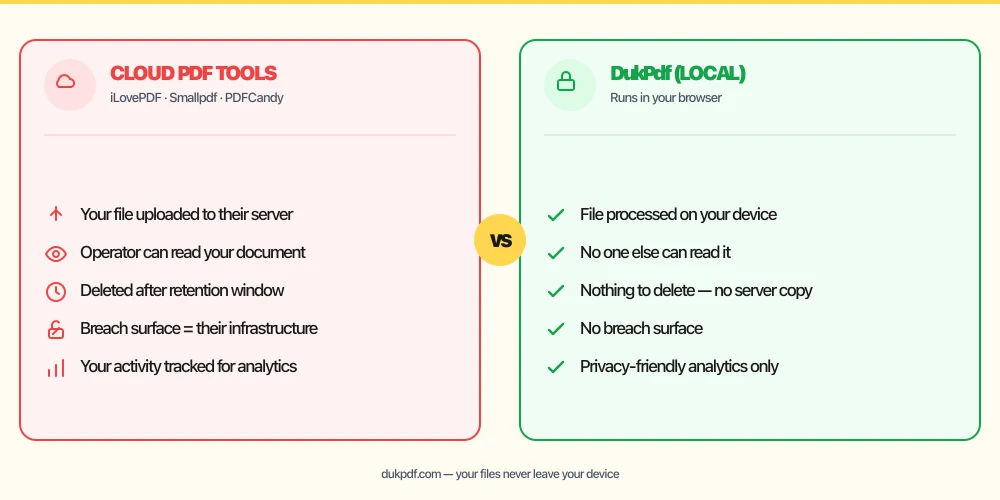
Watermarks are often used for confidential drafts. Adding them on a cloud server means the draft is visible to the operator. This is a paradox: you are applying a “CONFIDENTIAL” label to every page by sending the entire document to a third-party server where it is processed, rendered, and returned. The very act of marking the document as confidential exposes it to the infrastructure of a stranger.
The privacy risk is compounded when the watermark itself contains sensitive information — for example, a “DRAFT — NOT FOR DISTRIBUTION” stamp on a merger document, a “PATENT PENDING” label on a patent application, or a “CONFIDENTIAL — ATTORNEY-CLIENT PRIVILEGE” mark on a legal memo. These labels reveal the nature of the content to the server operator.
A local watermarking tool eliminates this. The file is read in your browser, the watermark is rendered locally, and the result is saved directly to your Downloads. The server never sees the confidential draft or the watermark you applied to it. For more on why documents should stay on your device, read our analysis of uploading bank statements to online PDF tools.
Common mistakes when adding watermarks
- Using a watermark where a redaction is needed. A watermark sits on top of content; the content underneath is still present and recoverable. If you need to permanently remove information, use a redaction tool instead.
- Making the watermark too opaque. A watermark at 80-100% opacity obscures the text underneath. Unless the watermark is meant to completely cover the content (which is what redaction is for), keep opacity at 20-40% so the document remains readable.
- Not watermarking all pages. If the document is confidential, every page should carry the watermark. A single unwatermarked page — especially a cover page or a last page — is often the one that gets shared without the context of the rest of the document.
- Uploading the file to add a watermark you do not want seen.If the watermark itself reveals sensitive information (like “CONFIDENTIAL” on a draft), uploading the file to a server to apply it defeats the purpose.
- Forgetting to keep an unwatermarked original. Watermarks are irreversible. Keep a copy of the clean file if you might need an unmarked version later.
Watermark vs other PDF stamping operations
Watermarking is one of several ways to add content to a PDF without modifying the source. Here is how it compares:
- Add Watermark stamps text or images across every page. Use it for status labels, branding, and confidentiality marks.
- Add Page Numbers stamps numbers in margins. Use it alongside watermarks — numbers in the margin, watermark across the page body.
- Sign PDF places a signature on specific pages. Use it after watermarking if the signed document also needs a confidentiality label.
- Edit PDF lets you add text, shapes, and annotations anywhere on any page. Use it when you need fine-grained control over placement.
How DukPdf adds watermarks locally
DukPdf’s Add Watermark tool stamps text and image watermarks onto every page of a PDF entirely in your browser. Add your file, design your watermark — text, image, opacity, size, position — and download the result. The rendering happens locally, so the document never leaves your device.
Because the tool runs locally, you can verify zero network activity by opening DevTools → Network tab. For a confidential draft that needs a “CONFIDENTIAL” stamp, that is the safe way to mark it.
Related reading
How to edit a PDF — add text, shapes, annotations, no server uploads
Add text, shapes, images, and annotations to any PDF — in your browser, without uploading.
How-ToHow to add page numbers to a PDF — number pages, no server uploads
Add page numbers to any PDF — choose position, format, and whether to skip the first page — in your browser.
Frequently asked questions
Can I use an image as a watermark?
Yes. Upload any PNG, JPG, or SVG image — such as a company logo or signature — as the watermark. The image is placed at your chosen position on every page, with adjustable opacity and scale.
Can I adjust the watermark opacity?
Yes. The opacity slider typically ranges from 10% (barely visible) to 100% (fully opaque). A faint watermark at 20–30% opacity is typical for branding and confidentiality marks.
Can I watermark only some pages?
Yes. Enter specific page numbers or ranges to watermark only those pages. Other pages are left untouched — useful when only the body of a document needs a watermark and the cover page should stay clean.
Can I remove a watermark later?
No. Once the watermark is added and the file is saved, it is part of the page content. There is no way to remove it from the saved PDF. Keep a copy of the original if you might want an unwatermarked version later.
Is my PDF uploaded when I add a watermark?
No. Watermarking runs entirely in your browser using qpdf compiled to WebAssembly. Open DevTools → Network tab while watermarking — zero upload requests.