
Add page numbers without uploading

What does “adding page numbers to a PDF” mean?
Adding page numbers to a PDF means stamping a number — and optionally a total count — onto each page of the document. The numbers are rendered into the page content at a position you choose: top or bottom, left, center, or right. Once added, they become part of the page itself, visible in every PDF reader, every printout, and every copy of the file.
Page numbering in a PDF is a write-once operation. Unlike a Word document where page numbers update automatically when you add or remove pages, PDF page numbers are flat — they do not recalculate. If you add a page to a numbered PDF, the new page will not have a number, and the numbers on subsequent pages will not shift. This is why page numbers are typically one of the last steps in a document workflow, applied after reordering, deletion, and insertion are complete.
The numbering is rendered into the PDF at the specified position by adding a text object to the page content stream. The original content of the page is not modified — the number is added as an additional layer. This means the quality of the original text and images is completely preserved.
When do you need to add page numbers to a PDF?
Page numbers are one of the most common finishing touches for any multi-page document. Here are the situations where they are essential:
- Professional reports and proposals. A client-facing report without page numbers looks unfinished. Numbers make it easy for the reader to reference specific sections in discussion or feedback.
- Legal and court filings.Most courts require page numbers on every page of a filing. A “Page X of Y” format is often preferred so the reviewer knows whether they have the complete document.
- Contracts and agreements.Numbered pages let parties reference specific clauses (“see Section 4 on page 7”) unambiguously. This is critical during negotiation and execution.
- Academic manuscripts and theses. Universities have strict formatting guidelines for page numbering, often requiring Roman numerals for front matter and Arabic numbers for the main body.
- Ebooks and manuals. Readers of long documents — user guides, training manuals, reference works — rely on page numbers to navigate and to follow cross-references.
How to add page numbers to a PDF in 3 steps
- Open the page numbers tool in your browser. Go to the Add Page Numbers tool in Chrome, Safari, Firefox, or Edge. The tool loads entirely in your browser.
- Choose position, format, and options. Click Select file or drag and drop your PDF. Pick the position (top or bottom, left/center/right), the format (1, 2, 3 or i, ii, iii or Page X of Y), and whether to skip the first page. You can also start numbering from a specific number if this document is part of a larger set.
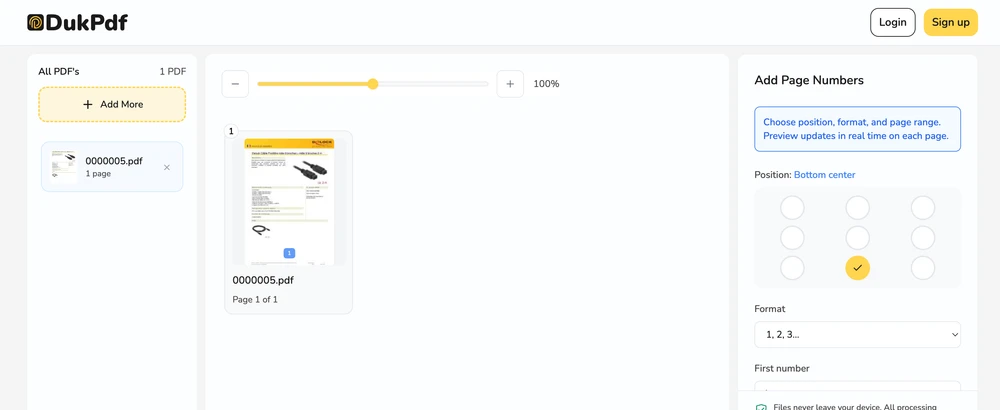
- Add numbers and download. Click Add Numbers. The page numbers are rendered onto every page and the file saves to your Downloads.
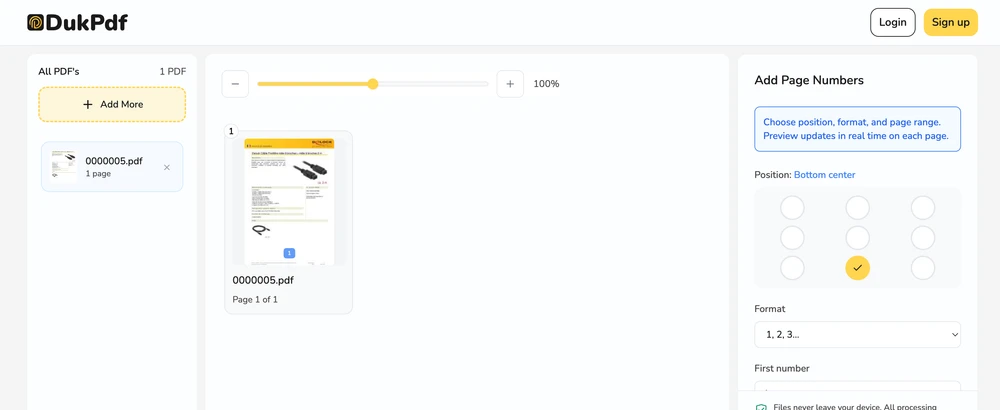
The numbering runs entirely in your browser. Open DevTools → Network tab while adding numbers — zero requests carry your file data.
Privacy implications of cloud-based page numbering
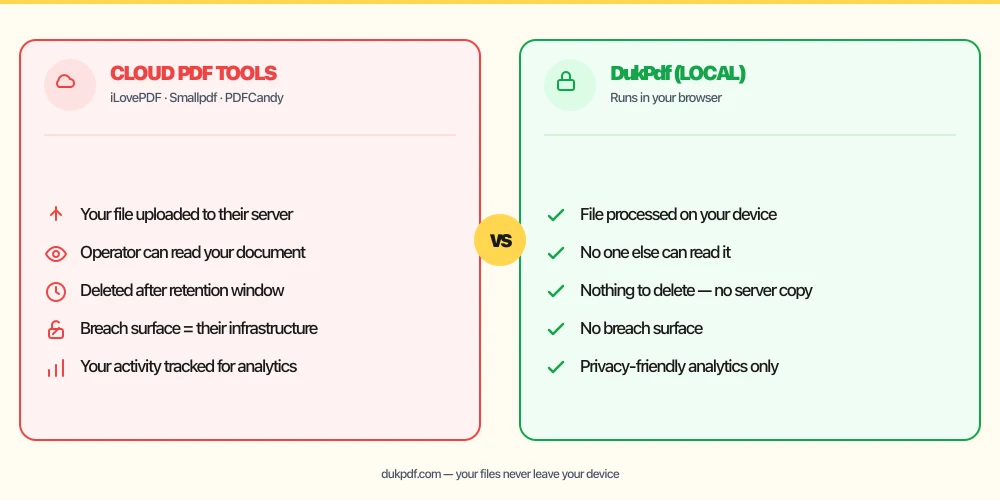
Adding page numbers to a confidential document on a cloud server means the operator processes the entire file. Every page is rendered server-side, the number is stamped onto it, and the result is served back to you. The server holds a complete copy of the document for at least the duration of the operation.
Page numbering is a straightforward rendering operation — stamping text at a coordinate on each page. There is no technical reason the file needs to leave your device, especially when the document contains sensitive content. Yet many online numbering tools work exactly like other cloud PDF tools: upload, process, download.
A local numbering tool eliminates the exposure. The file is read in your browser, the page numbers are added locally, and the result is saved directly to your Downloads. For more on why sensitive documents should not be uploaded for processing, read our analysis of uploading bank statements to online PDF tools.
Common mistakes when adding page numbers
- Adding page numbers before the document is finalized. Once added, page numbers cannot be removed or updated. Always reorder, delete, and insert pages before numbering.
- Numbering the cover page. Most professional documents do not display a page number on the cover or title page. Use the skip-first-page option to leave it unnumbered.
- Using the wrong number format.Roman numerals (i, ii, iii) are standard for front matter like tables of contents and forewords. Arabic numbers (1, 2, 3) are standard for the main body. Check your document’s formatting guidelines.
- Positioning numbers where they overlap content. If your document has content in the bottom margin (footnotes, page footers), placing page numbers at the bottom center may create overlap. Preview the result or choose the top position instead.
- Uploading the file to a cloud tool for this simple operation.Numbering is a straightforward local operation. There is no reason to send the entire document to a server for it.
Page numbering vs other PDF finishing operations
Page numbers are often one of several finishing touches. Here is how they relate:
- Add Page Numbers stamps numbers onto each page. Use it as one of the last steps in your document workflow.
- Add Watermark stamps text or images like “CONFIDENTIAL” or a logo across every page. Use it alongside page numbers — watermarks are typically centered or diagonal, while page numbers are in the margin.
- Edit Metadata changes the document title, author, and other hidden properties. Do this before or after numbering.
How DukPdf adds page numbers locally
DukPdf’s Add Page Numbers tool numbers every page of a PDF entirely in your browser. Add your file, choose the position and format, set options like skip-first-page, and download the result. The numbering is rendered locally, so the document never leaves your device.
Because the tool runs locally, you can verify zero network activity by opening DevTools → Network tab. For a contract, a legal filing, or a confidential report, that is the safe way to add page numbers.
Related reading
How to add a watermark to a PDF — text and image watermarks, no server uploads
Stamp a text or image watermark on every page of a PDF — adjust opacity, size, and position.
How-ToHow to edit PDF metadata — change title, author, keywords, no server uploads
View and edit PDF metadata — title, author, subject, keywords, and dates — in your browser.
Frequently asked questions
Can I skip the first page (cover page)?
Yes. Enable the “Skip first page” option to leave the cover page unnumbered while numbering all subsequent pages starting from 2 (or from a number you choose).
What number formats are available?
Most tools support Arabic (1, 2, 3), lowercase Roman (i, ii, iii), uppercase Roman (I, II, III), and “Page X of Y” formats. You can also start numbering from a specific number, useful when the PDF is part of a larger document set.
Can I choose which pages get numbered?
Yes. Enter specific page numbers or ranges (e.g. 2-10) to number only those pages. Other pages are left unnumbered — useful when the first page is a cover and the last page is an appendix that should not be numbered.
Can I remove page numbers later?
Once the numbers are added and the file is saved, they are part of the page content. There is no “remove page numbers” switch in a PDF viewer. Keep a copy of the original if you might want to remove them later.
Is my PDF uploaded when I add page numbers?
No. Adding page numbers runs entirely in your browser. Open DevTools → Network tab while numbering — zero upload requests.