
Merge PDFs without uploading
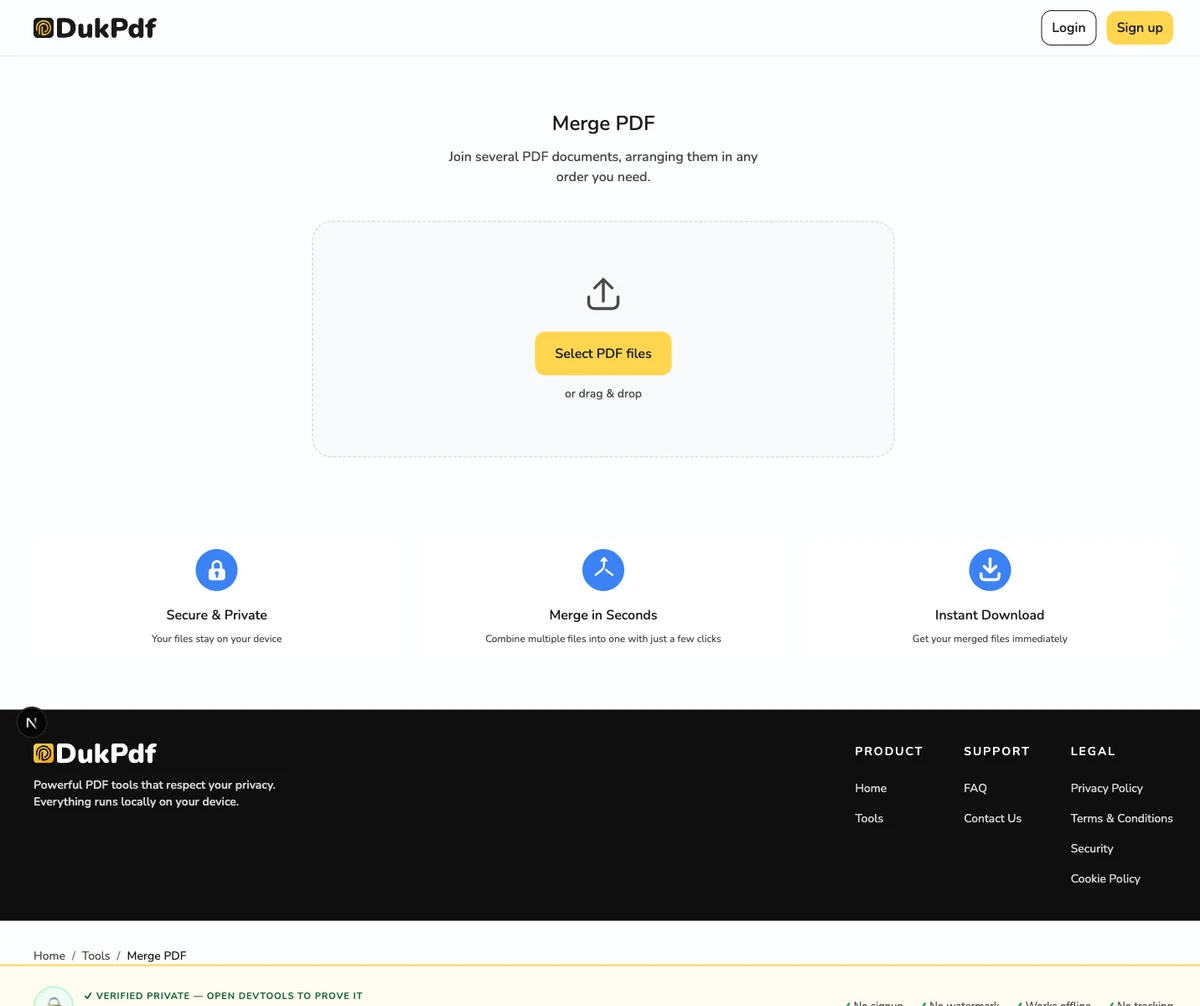
What is PDF merging?
Merging a PDF means combining the pages of two or more PDF files into a single PDF document. The output is one file that opens the same way every PDF does — in any reader, on any device — but contains every page from every input in the order you choose. Page order can be rearranged across files, and individual pages can be rotated before the merge, so the final file reads exactly the way you want.
A real merge is a structural operation, not a visual one. The tool copies the page objects from each source PDF into a new container file. There is no re-rendering, no recompression, and no resolution loss — the pages in the merged file are byte-identical to the pages in the source files. This is what makes merging fast and lossless, even for large documents.
The most common alternative — re-rendering each page as an image and stitching the images together — is a visual merge, not a structural one. The output looks right, but every page has been rasterized: text becomes a picture of text, searchability is lost, and file size balloons. A proper merge is lossless in every sense: text stays text, fonts stay embedded, and the file stays small.
When do you need to merge PDFs?
Merging comes up in almost every workflow that touches PDFs more than once. A few of the most common reasons:
- Court filings and legal exhibits. Lawyers often need to combine a motion, supporting declarations, and exhibits into a single court-ready PDF. Each piece may be created separately; the filed copy is one file.
- Expense reports and invoice batches. An accountant might receive twenty invoices as twenty separate PDFs from a client, and needs to deliver one consolidated file. The same pattern shows up for receipt batches at tax time.
- Compiled reading or research packets. A professor may pull chapters from three different ebooks, append a glossary, and hand one PDF to a class. A researcher does the same with literature reviews and appendices.
- Scanned multi-document batches. A scan-to-email workflow often produces one PDF per page, leaving the recipient with twenty files. Merging turns the batch into one readable document.
- Loan or mortgage applications. Many lenders request pay stubs, W-2s, bank statements, and ID as a single PDF rather than a stack. Merging consolidates them into the requested format.
How to merge PDFs in 3 steps
- Open the merge tool in your browser. Go to the Merge PDF tool in Chrome, Safari, Firefox, or Edge. The tool loads in your browser — nothing is sent to a server.
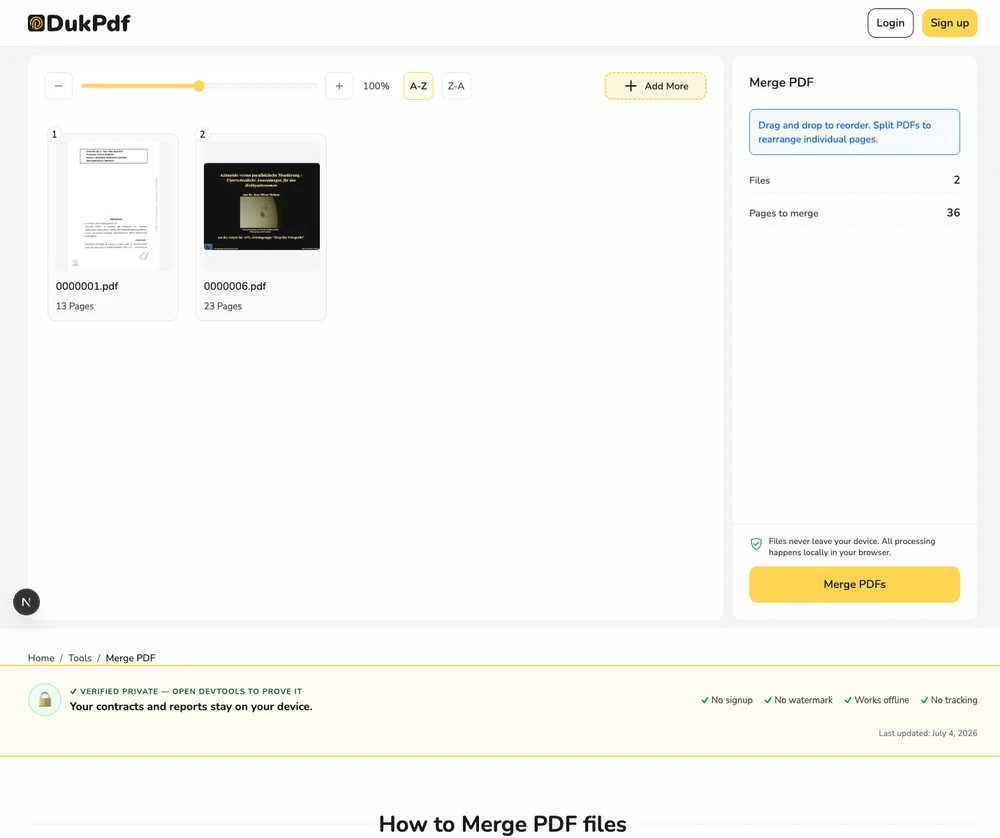
- Add and reorder your files. Click Select files or drag and drop the PDFs you want to combine. Every page from every file appears as a thumbnail in a single grid. Drag any page to move it. Rotate pages with the rotate icon. Cross-file reordering works the same as within a single file.
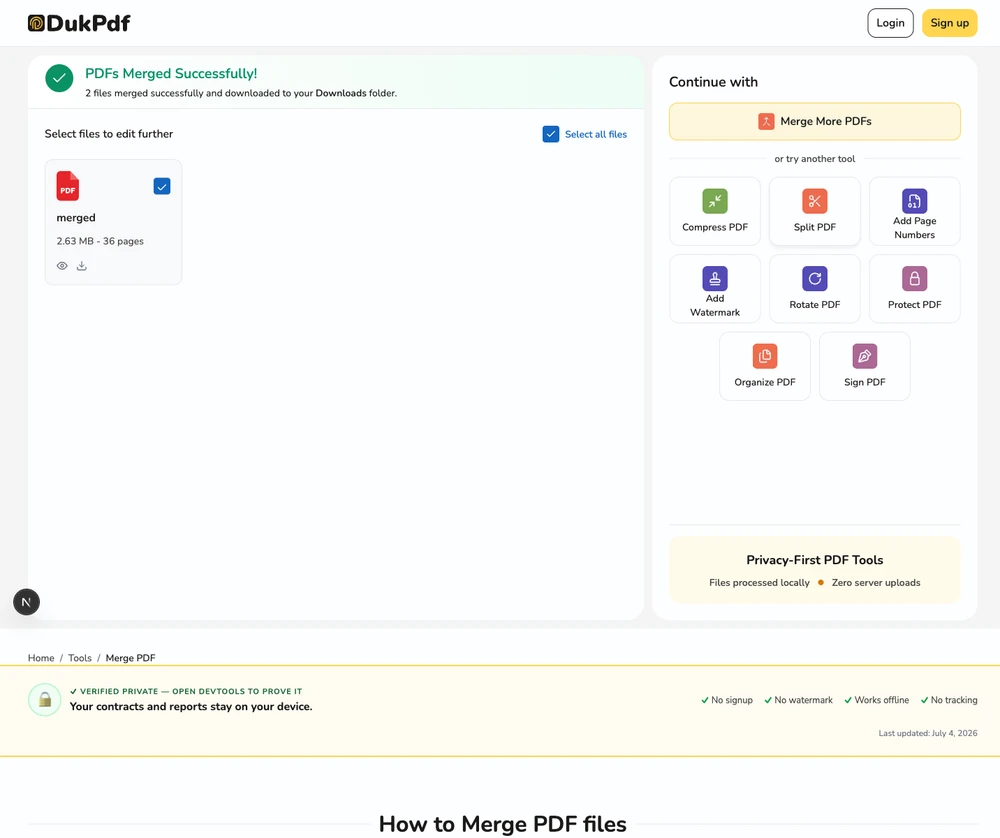
- Merge and download. Click Merge. The combined file is created on your device and saves to your Downloads. The original files are never modified.
The whole operation runs in the browser using qpdf compiled to WebAssembly. To confirm no file transfer happens, open DevTools → Network tab while merging — you will see zero requests carrying your file data.
Privacy implications of cloud-based PDF mergers
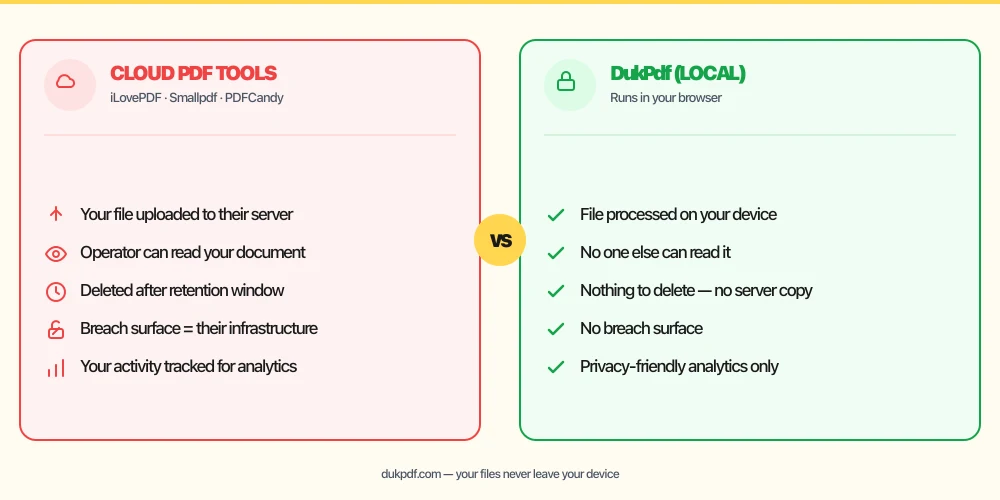
Most online PDF mergers are cloud-based: you upload your files to their server, the server processes them, and you download the result. The merger holds a copy of your document for at least the duration of the merge — and often longer. Reputable services delete files after a short retention window, but deleted later is not the same as never uploaded. During processing the document is on someone else’s infrastructure, where breaches, subpoenas, or a misconfigured access policy can expose it.
For tax documents, contracts, medical records, and bank statements, that upload is the most sensitive version of the file. The structurally simpler choice is a tool that processes the merge locally. Read more about the risk of uploading financial documents in our guide on uploading bank statements to online PDF tools.
There is also a supply-chain risk. A malicious look-alike of a reputable merger can be set up with a near-identical interface and a different domain. Users who navigate to the wrong URL through a search ad or a typo in the address bar end up uploading to a domain designed to harvest documents. The defense is the same: prefer a tool that never receives the file, so a server-side compromise cannot expose what the server never held.
Common mistakes when merging PDFs
- Uploading the originals to a cloud merger. A merge does not need server-side processing. Pick a tool that does the work in your browser, so the unredacted source files never leave your device.
- Forgetting to reorder pages across files. Most tools put all pages from file 1 first, then file 2, and so on. If you need pages interleaved (for example, English then Spanish then English), drag the thumbnails into the order you want before merging.
- Merging scanned pages without OCR.A merged file of scanned images is still a stack of images — you cannot search or copy text. If you need a searchable merged file, run OCR on each input first.
- Assuming metadata follows the merge. Only metadata from the first input file is preserved. If the final document needs a specific title or author, edit the metadata on the result.
- Merging password-protected files with mismatched passwords. If the inputs have different passwords, the tool will prompt for each one. Have them ready before you start, or unlock the files first.
Merge PDF vs alternatives
If you want to combine documents, you have a few options. The right one depends on what is in the files and what you want the output to look like:
- Merge PDF is for combining whole files in a chosen order, with optional page reordering and rotation. Use it when the inputs are full documents and you want one combined document.
- Split PDF is the opposite: it takes one file and produces multiple smaller files by range or by page count. Use it when you want to break a large file into pieces.
- Compress PDF reduces file size. Run it after merging if the combined file is too large to email.
- Append in Acrobat or Word. Both can append one PDF to another, but they are heavier applications, often require a license, and may re-render the document in the process.
How DukPdf merges files locally
DukPdf’s Merge PDF tool runs the entire operation in your browser using qpdf compiled to WebAssembly. The workflow is straightforward: add files, drag thumbnails to set the page order, click merge, and download the result. There are no server uploads and no watermark on the output.
Because the merge runs locally, the file is processed in your device’s memory and never touches a server. Open the browser’s DevTools → Network tab while merging — you will see zero upload requests carrying your file data. For a contract, a tax return, or any other document that should not leave your machine, that is the structurally simpler way to combine files.
Tips for the best merge result
A few practical tips that come up repeatedly when merging real-world documents:
- Standardize page sizes first. Mixing A4 and US Letter pages in the same merged document is technically valid but produces awkward page breaks. If the source files are scans, check that they were all scanned at the same size; if not, re-scan or crop before merging.
- Name your files by content, not source. When you have twenty invoice PDFs from a client, renaming them to
Invoice-001.pdf,Invoice-002.pdfbefore merging makes the merged file easier to navigate than twenty files namedScan-12345.pdf. - Add a cover page.For a packet that will be reviewed by a third party, insert a one-page cover with a table of contents and a date. The cover signals the document’s purpose and gives readers a way to orient themselves quickly.
- Keep the originals. A merged file is a derived artifact. Keep the source files so you can re-merge in a different order, or re-merge after redacting one of the inputs, without starting over.
- Verify the result. After the merge, open the combined file and scroll through it. Confirm the page order is what you intended, that no pages are upside-down, and that the file size looks reasonable for the content.
Related reading
How to redact a PDF without uploading it
Why redacting privileged or confidential documents online is risky, why a black box over text is not real redaction, and how to redact locally so the file never leaves your device.
FinanceIs it safe to upload bank statements to online PDF tools?
The same privacy logic that applies to merging applies to financial documents. Account numbers, balances, and transaction history are sensitive enough that uploading is a risk worth avoiding.
Frequently asked questions
Is it free to merge PDF files?
Yes. There are completely free, no-signup tools that merge PDFs in your browser without any limits for typical use. For very large batches or commercial volume, paid tools (including a Pro tier of some browser-based ones) lift file-size and batch caps.
How do I merge PDFs on a Mac without uploading?
Use a browser-based tool that runs locally. Open the tool in Safari or Chrome, drop in your PDFs, drag the page thumbnails to reorder, and download the combined file. Preview is built in, and your files never leave your Mac.
How do I merge PDFs on an iPhone or Android phone?
The same approach works on mobile. Open the browser-based tool in Safari or Chrome on your phone, add the files from your photo library or Files app, reorder the pages, and download the combined result. No app install is required.
Will merging PDFs reduce the quality of the pages?
No, as long as the tool is doing a real merge rather than re-rendering. A proper merge copies the source pages byte-for-byte into a new file. The output is visually identical to the input — no recompression, no resolution loss.
Can I rearrange pages from different files before merging?
Yes. Good merge tools show every page from every file as a single draggable grid. You can pull page 3 of file B ahead of page 1 of file A, rotate pages, and then merge the whole reordered set into one PDF.