
Convert PowerPoint presentations to PDF without uploading
What does PowerPoint to PDF conversion do?
Converting a PowerPoint presentation to PDF takes the .pptx or .ppt file and renders each slide as a page in a PDF document. The output captures the exact visual state of every slide: fonts, colors, images, shapes, charts, SmartArt, tables, and backgrounds are all preserved. The PDF page size matches the slide dimensions, so the layout is identical to viewing the deck in presentation mode.
The conversion is a rendering operation, not a transcoding. The converter interprets the PowerPoint file’s layout instructions and produces matching PDF page descriptions. This is why the quality of the output depends on the rendering engine. A proper engine like LibreOffice (which powers DukPdf’s converter) produces output indistinguishable from PowerPoint’s own PDF export. Simpler converters that rely on HTML rendering often misplace elements, use wrong fonts, or skip complex slide objects entirely.
There are important format differences to understand. Animations, transitions, embedded video, and audio do not carry over to PDF — the format is inherently static. Speaker notes are also excluded by default. But for the vast majority of use cases — sharing a deck with someone who does not have PowerPoint, printing handouts, or archiving a presentation — the static PDF is exactly what is needed. For related conversions, see the Word to PDF and Excel to PDF tools.
When do you need to convert PowerPoint to PDF?
Converting presentations to PDF is one of the most common document conversion needs:
- Sharing with non-PowerPoint users. Not everyone has PowerPoint installed. A PDF opens in any browser, on any phone, without special software. The recipient sees the same slide layout you created.
- Lecture handouts and course materials. Turning a teaching deck into a PDF handout for students gives them a printable, portable version of the presentation that they can annotate.
- Archiving presentations. PowerPoint files are tied to specific software versions. A deck created in Office 2019 may render differently in Office 365 or web PowerPoint. A PDF eliminates version dependency and renders identically years later.
- Email-friendly format. Large PPTX files with embedded images and video often exceed email attachment limits. Converting to PDF typically reduces the file size significantly while preserving the slide content.
- Regulatory and compliance filings. Many regulatory bodies require slide decks to be submitted as PDFs for review. The PDF format ensures the reviewer sees the same layout regardless of their software.
How to convert PowerPoint to PDF in 3 steps
- Open the PowerPoint to PDF tool. Go to the PowerPoint to PDF tool in your browser. On first visit, the LibreOffice engine downloads and caches (~30MB).
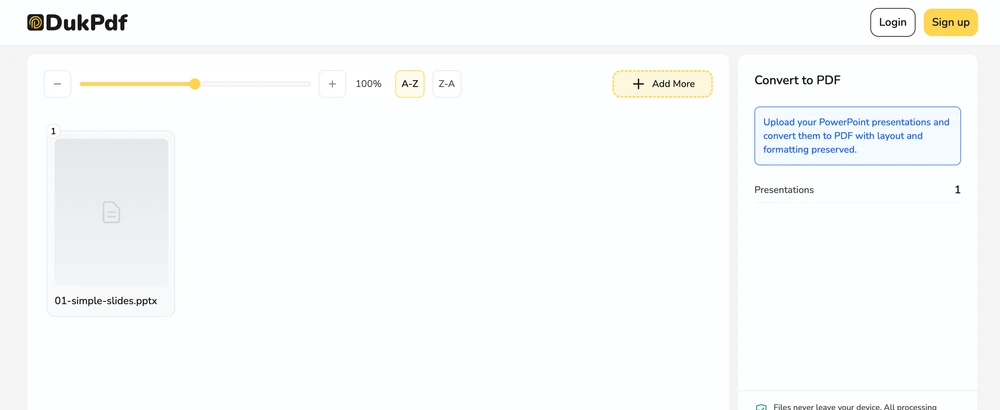
- Add your presentations. Click Select filesor drag and drop one or more .pptx or .ppt files. Batch conversion is supported — add multiple decks and they all process in parallel locally.
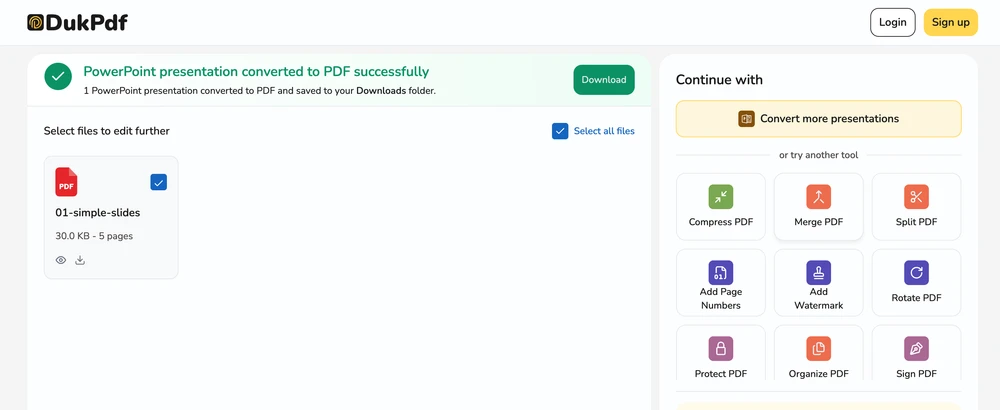
- Convert and download. Click Convert to PDF. Each deck converts to a single multi-page PDF with one slide per page. Downloads start automatically as each conversion completes.
The entire conversion runs locally using LibreOffice WebAssembly. To confirm no deck data is uploaded, open DevTools → Network tab while converting — you will see zero upload requests carrying your presentation.
Privacy implications of cloud-based PowerPoint converters
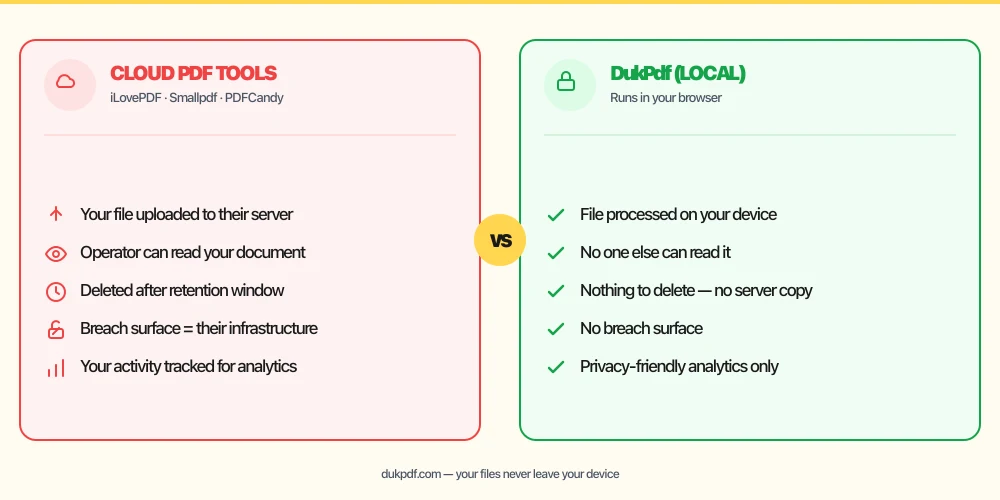
Cloud-based PowerPoint-to-PDF converters require uploading your entire deck to a server. This means every slide, every speaker note, every embedded chart, and every image is transmitted to and processed on someone else’s infrastructure. For internal strategy decks, proprietary product roadmaps, or confidential financial presentations, this is a significant exposure.
The risk is that presentations often contain more than what appears on the slides. Speaker notes may contain off-the-record remarks, pricing strategy, or sensitive context. Hidden slides may contain data meant for internal eyes only. A cloud server that processes the full deck sees all of this. A breach of the converter’s systems exposes the complete deck, including notes and hidden content.
A local converter avoids this entirely. Your deck stays on your device. The LibreOffice engine runs in your browser and renders the slides locally. No data reaches a network interface. For more on why local processing is the safer choice for sensitive documents, see our discussion of uploading bank statements to online PDF tools.
Common mistakes when converting PowerPoint to PDF
- Uploading an internal deck to a cloud converter. A cloud converter processes your entire presentation on its server, including hidden slides and speaker notes. Pick a local tool so the deck never leaves your device.
- Forgetting that animations are lost. Slides with complex build sequences (bullet points appearing one by one) show all elements in their final state in the PDF. If the build order matters, explain it separately or keep the PPTX for live presentations.
- Not removing hidden slides first. Hidden slides are excluded from the PDF by default. Review the deck before converting to confirm no hidden slides should have been unhidden first.
- Expecting embedded video to play in the PDF. Video and audio are not supported in the PDF format. Remove or note the video content separately before converting.
- Skipping a post-conversion review. Complex slide layouts with layered objects, gradients, or transparency effects may render slightly differently in PDF. Always open the result and scroll through to verify the output matches your expectations.
PowerPoint to PDF vs alternatives
Here is how PowerPoint-to-PDF conversion compares to related operations:
- PowerPoint to PDF (Local) converts slides to a static PDF. Use it when sharing, printing, or archiving a deck.
- Word to PDF is for text documents. Use it for reports and proposals.
- Excel to PDF is for spreadsheets. Use it for data reports and financials.
How DukPdf converts PowerPoint files locally
DukPdf’s PowerPoint to PDF tool runs the full LibreOffice presentation engine in your browser via WebAssembly. This is the same engine that reads and renders PPTX and PPT files on desktop Office suites, compiled to run inside a browser sandbox. The first load downloads and caches the engine (~30MB). Subsequent conversions start instantly.
Because the engine runs entirely in your browser, your deck never touches a server. The file is read from your device, rendered by the local engine, and output as a PDF — all within browser memory. Open DevTools → Network tab while converting to confirm zero upload requests. For an internal strategy deck, a confidential roadmap, or any presentation that should not leave your machine, that is the structurally simpler way to convert.
Tips for the best PowerPoint-to-PDF result
To ensure a clean, faithful PDF conversion:
- Use standard fonts. Slides using common fonts (Arial, Calibri, Times New Roman) convert reliably. Custom fonts may be substituted if they are not embedded in the PPTX.
- Check slide size. The PDF page size matches the slide dimensions set in the deck. Widescreen (16:9) and standard (4:3) both work, but verify the result fits your intended use.
- Unhide slides you want in the PDF. Hidden slides are skipped by default. Review the deck in PowerPoint and unhide any slides that should appear in the PDF before converting.
- Consider removing speaker notes. While notes are not included in the PDF output, cleaning them out of the source file is good practice if the deck will be shared widely.
- Keep the source file. The PDF is a static snapshot. Keep the original PPTX if you need to edit slides, re-export, or present live with animations.
Related reading
How to convert Word to PDF — preserve formatting, no server uploads
Convert DOCX and DOC files to PDF while preserving formatting, fonts, and images.
How-ToHow to convert Excel to PDF — preserve formulas and formatting, no server uploads
Convert XLSX and XLS spreadsheets to PDF while preserving column widths and cell formatting.
Frequently asked questions
How are slides laid out in the PDF?
One slide per page, in the order they appear in the original deck. Slide size, fonts, images, shapes, colors, and embedded objects are all preserved. The PDF page size matches the slide dimensions, so the layout is identical to viewing the deck in presentation mode.
Are animations and slide transitions preserved?
No. PDF is a static format — animations, slide transitions, embedded video, and audio are not carried over. The PDF captures the final visual state of each slide. If you need the animated experience, keep the original PPTX file for live presentations.
What about speaker notes?
Speaker notes are not included in the PDF by default. The output is one slide per page with the slide content only. If you need a notes-page layout (slide on top, notes below), use PowerPoint’s built-in “Create PDF/XPS” with the notes page option, or contact us — notes export is a planned addition.
Will the slide order be preserved?
Yes. Slides appear in the PDF in the exact order they appear in the source deck. Hidden slides are excluded by default. If you want hidden slides included, unhide them in PowerPoint before converting.
Is my presentation uploaded during conversion?
No. The conversion runs entirely in your browser using LibreOffice compiled to WebAssembly. Your presentation is read, rendered, and saved on your device. Open DevTools → Network tab while converting — zero upload requests carrying your deck.