
Convert Word documents to PDF without uploading

What does Word to PDF conversion do?
Converting a Word document to PDF takes the .docx or .doc file and renders it into the Portable Document Format. The output is a pixel-perfect replica of how the document would look printed: every heading style, table border, font choice, image position, and page break is captured and frozen into the PDF. Unlike the Word file, which can reflow or change appearance depending on the viewer’s version, installed fonts, and settings, the PDF looks identical on every device.
The conversion is not a simple format swap. A proper Word-to-PDF converter uses a full document rendering engine to interpret the Word file’s layout instructions and produce matching PDF page descriptions. This is why browser-based converters that rely on basic HTML rendering often produce misaligned tables, missing images, or wrong fonts — they are not running a real document engine. Tools like DukPdf that use LibreOffice compiled to WebAssembly deliver the same fidelity as converting on a desktop with full office software installed.
PDF is the standard format for professional document sharing precisely because it is device-independent. A contract drafted in Word and converted to PDF looks the same on a Windows laptop, a Mac, an iPhone, and a Linux desktop. This is why law firms, government agencies, and publishers insist on PDF for final deliverables. If you are sending a proposal, a report, or a resume, converting from Word to PDF ensures the recipient sees exactly what you intended.
When do you need to convert Word to PDF?
The need to convert Word documents to PDF arises in almost every professional setting:
- Sending contracts and legal documents.A Word contract can reflow differently on the recipient’s machine, altering pagination or breaking a signature block across two pages. Converting to PDF locks the layout so every party sees the same thing.
- Submitting to portals and forms.Government portals, grant applications, and immigration systems often require PDF uploads. A Word file may be rejected or rendered incorrectly by the portal’s previewer.
- Long-term archiving. Word files depend on specific software versions and font availability. A PDF can be opened identically decades later on any system, making it the preferred format for document archives.
- Client deliverables. A proposal, report, or resume sent as a PDF signals professionalism. The recipient does not need Word installed to read it, and the formatting is guaranteed.
- Print preparation. Print shops often prefer PDF because it embeds all fonts and high-resolution images. Converting from Word ensures the printed result matches the digital layout.
How to convert Word to PDF in 3 steps
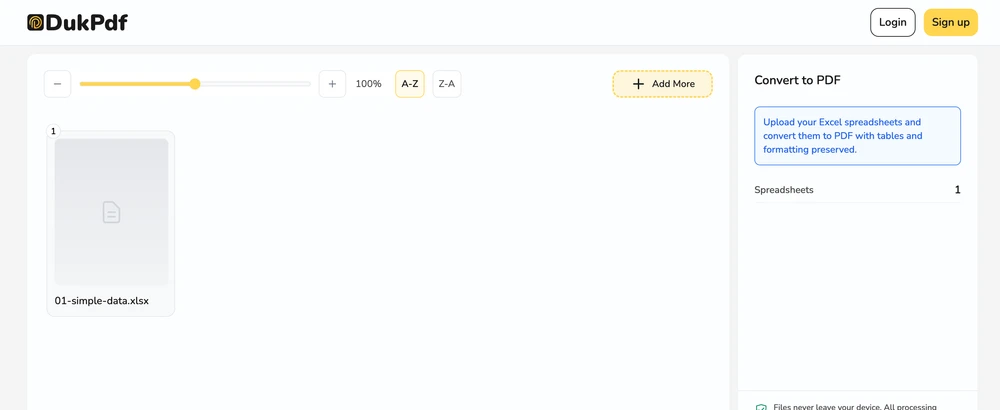
- Open the Word to PDF tool. Go to the Word to PDF tool in your browser. On first visit, LibreOffice (~30MB) downloads and caches in your browser. Subsequent conversions start instantly.
- Add your Word documents. Click Select files or drag and drop one or more .docx or .doc files. Batch conversion is supported. Each file appears in the queue with its filename and page count.
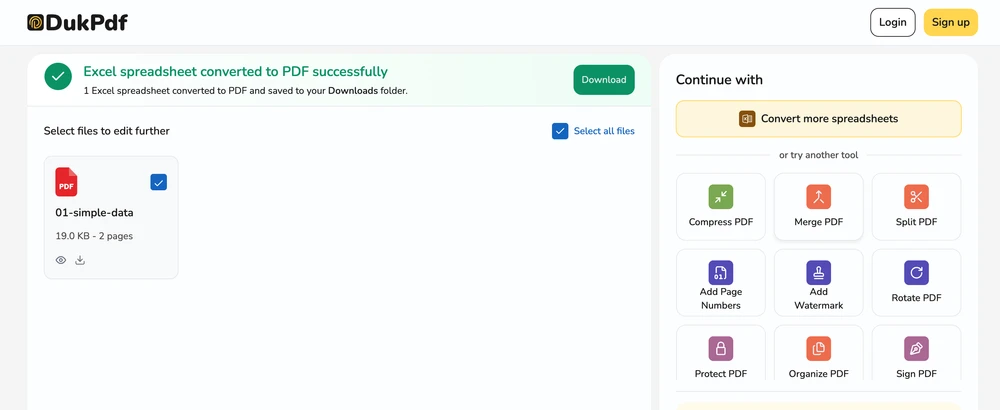
- Convert and download. Click Convert to PDF. Each file processes locally in your browser. Downloads start automatically as each conversion completes — your originals stay untouched on your device.
The entire conversion runs in your browser using LibreOffice WebAssembly. To confirm no document data is uploaded, open DevTools → Network tab while converting — you will see zero upload requests carrying your document.
Privacy implications of cloud-based Word converters
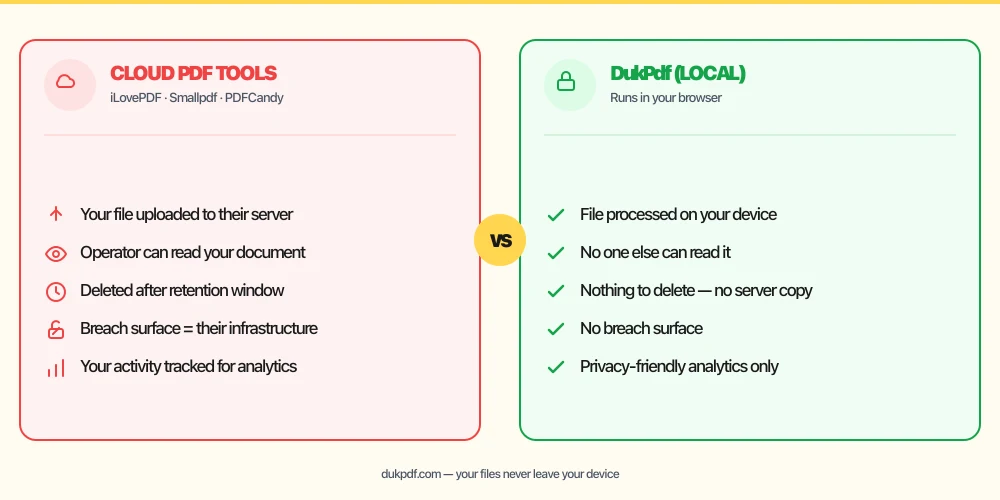
Cloud-based Word-to-PDF converters require you to upload your document to a server. The server runs a conversion engine (often LibreOffice or a proprietary renderer) and returns the PDF. This means the server operator receives every word of your document. For a standard report or newsletter, that might be acceptable. For a confidential contract, a financial proposal, or a document containing personal data, it is a significant risk.
Consider what a cloud converter can see: the entire text of your document, embedded images, tracked changes, comments, document metadata (author name, organization, editing time), and sometimes even deleted content that survived in the file’s revision history. A malicious or compromised cloud service has access to all of it. Free converters often monetize by analyzing uploaded content or selling aggregated insights to third parties.
A local converter eliminates this exposure entirely. LibreOffice runs in your browser as a WebAssembly binary. Your document is read, rendered, and saved on your device. No document data ever reaches a network interface. For more on why this matters for sensitive documents, see our guide on the risks of uploading bank statements to online PDF tools.
Common mistakes when converting Word to PDF
- Uploading a confidential document to a cloud converter.A cloud Word-to-PDF converter reads your entire document on its server. Pick a local tool that processes the file in your browser so the content never leaves your device.
- Not checking the result for layout shifts. Even the best converters can misinterpret complex Word layouts. Always open the output PDF and scroll through it to verify tables, images, and page breaks survived the conversion.
- Relying on “Save as PDF” in Word for sensitive documents.Word’s built-in PDF export is excellent for layout fidelity, but it runs on your computer using the full Office engine. If you do not have Word installed, browser-based converters are the alternative — but choose one that runs locally.
- Forgetting to remove tracked changes before converting.Tracked changes and comments in a Word document may appear as markup or annotations in the PDF. Accept or reject all changes in Word before converting for a clean final document.
- Not embedding fonts before conversion. If the PDF will be printed by a third party or opened on devices without your fonts, embed the fonts in the original Word document first to ensure exact rendering.
Word to PDF vs alternatives
If you need a PDF from a Word document, here are your options and when each makes sense:
- Word to PDF (Local) runs the conversion in your browser. Use it when you do not have Word installed or want to batch-convert without uploading.
- Excel to PDF converts spreadsheets. Use it for XLSX and XLS files that need to be shared as PDFs.
- PowerPoint to PDF converts presentations. Use it for PPTX and PPT deck exports.
How DukPdf converts Word documents locally
DukPdf’s Word to PDF tool runs the full LibreOffice document engine in your browser via WebAssembly. This is not a simplified HTML renderer — it is the same LibreOffice code that powers desktop office suites, compiled to run in a browser sandbox. The first load downloads and caches the engine (~30MB). After that, conversions start instantly.
Because the engine runs entirely in your browser, your Word document never touches a server. The file is read from your device, rendered by the local engine, and output as a PDF — all within browser memory. Open DevTools → Network tab while converting to confirm zero upload requests. For a contract, a confidential proposal, or any document that should not leave your machine, that is the structurally simpler way to convert.
Tips for the best Word-to-PDF result
To ensure a clean, faithful PDF conversion every time:
- Use Word’s built-in styles.Documents that use Word’s heading, paragraph, and list styles convert more reliably than documents that use manual formatting (extra spaces, manual tabs, font size overrides on every paragraph).
- Embed fonts in the original DOCX.In Word, go to File → Options → Save and check “Embed fonts in the file.” This ensures the converter has access to the exact fonts used in the document.
- Remove tracked changes first. Open the document in Word and accept or reject all changes. Save a clean copy before converting to avoid markup appearing in the PDF.
- Check page breaks after conversion. A table or image that fit on one page in Word may break differently in the PDF. Review the output and adjust page breaks in the source document if needed.
- Keep the source file. The PDF is a frozen snapshot. Keep the original DOCX if you need to make changes and re-export later.
Related reading
How to convert Excel to PDF — preserve formulas and formatting, no server uploads
Convert XLSX and XLS spreadsheets to PDF while preserving column widths, formulas, and cell formatting.
How-ToHow to convert PowerPoint to PDF — preserve slides, no server uploads
Convert PPTX and PPT presentations to PDF, one slide per page — in your browser with LibreOffice.
Frequently asked questions
Will my Word formatting be preserved in the PDF?
Yes. DukPdf uses LibreOffice for conversion — the same engine that powers desktop office suites. Fonts, headings, tables, images, page breaks, margin settings, and numbered lists are all preserved faithfully in the output PDF.
What about custom or uncommon fonts?
Fonts embedded in the DOCX file are preserved during conversion. If the document uses a system font not available in the browser environment, LibreOffice substitutes a metrically similar font. For exact font fidelity, embed all fonts in the original Word document before converting.
Are images preserved in the PDF?
Yes. All embedded images — photos, charts, logos, shapes, and SmartArt — are rendered into the PDF at their original resolution and position. The visual layout of the page is identical to what you see in Word.
Does the tool support legacy .doc files?
Yes. Both .docx (Word 2007 and later) and legacy .doc (Word 97–2003) formats are supported. LibreOffice handles both formats natively without requiring Microsoft Word to be installed.
Is my Word document uploaded during conversion?
No. The entire conversion runs in your browser using LibreOffice compiled to WebAssembly. Your document is read, processed, and saved on your device. Open DevTools → Network tab while converting — zero upload requests carrying your document.