
Convert Excel spreadsheets to PDF without uploading

What does Excel to PDF conversion do?
Converting an Excel spreadsheet to PDF takes the .xlsx or .xls file and renders each sheet as a page in a PDF document. The output preserves the exact visual layout of the spreadsheet: column widths, row heights, cell borders, fonts, colors, conditional formatting, charts, images, pivot tables, and more. Every element that appears on screen is captured and frozen into the PDF format.
The key detail is how formulas are handled. Excel files contain formula text (=SUM(A1:A10)) that is evaluated each time the file opens. When converted to PDF, those formulas are evaluated one final time and the resulting values are printed. The PDF shows 45 (the result), not =SUM(A1:A10). This makes the PDF a reliable static snapshot of the spreadsheet at the time of conversion — no more recalculating, no more broken references, no more version-dependent display.
This is particularly important for financial records. A monthly P&L exported to PDF and archived ten years ago still renders identically today, down to the last decimal. The same Excel file from a decade ago might not open correctly in the current version of Excel (due to deprecated functions, macro changes, or formatting shifts). PDF is the archival format for spreadsheets precisely because it freezes the visual output. For more on this, see our guide on compressing PDF files for archiving.
When do you need to convert Excel to PDF?
Converting spreadsheets to PDF is a common requirement in finance, accounting, and data reporting:
- Financial reports and board decks.Monthly P&L statements, balance sheets, and cash-flow forecasts need to be shared with stakeholders who do not use Excel. A PDF guarantees everyone sees the same numbers and formatting.
- Invoices and quotes. An Excel invoice template can be converted to PDF before emailing to clients. The PDF locks the layout so the client sees the same formatted document regardless of their software.
- Tax filings and compliance reports. Government tax authorities and regulatory bodies often require PDF submissions. Converting an Excel-based filing to PDF preserves the exact row-and-column structure the reviewer expects.
- Data archives. Spreadsheets are surprisingly fragile over time. Macros break, add-ins become incompatible, and deprecated functions stop working. Converting important spreadsheets to PDF ensures they remain readable for years.
- Grant and loan applications. Many application portals accept only PDFs. Converting financial spreadsheets to PDF format is often a required step before submission.
How to convert Excel to PDF in 3 steps
- Open the Excel to PDF tool. Go to the Excel to PDF tool in your browser. On first visit, the LibreOffice engine downloads and caches (~30MB).
- Add your spreadsheet and choose sheets. Click Select files or drag and drop one or more .xlsx or .xls files. By default, all sheets are selected for conversion. Deselect any sheets you want to exclude.
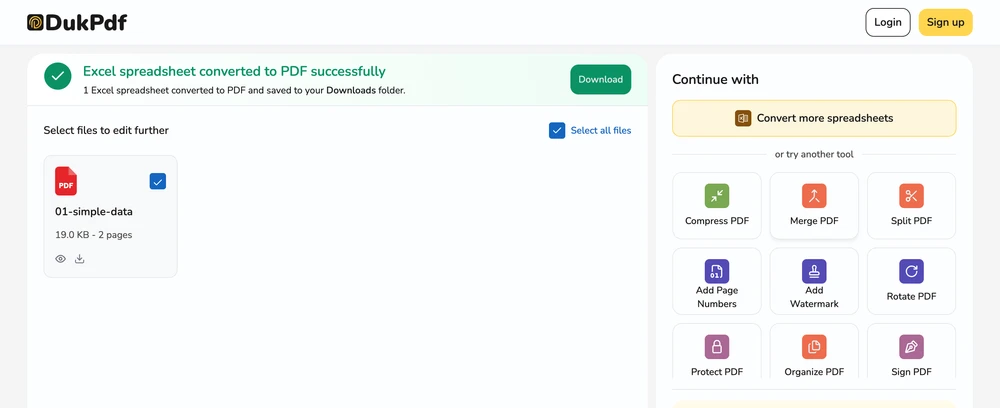
- Convert and download. Click Convert to PDF. Each spreadsheet processes locally. Multi-sheet files produce a single multi-page PDF. Downloads start automatically as each conversion finishes.
The entire conversion runs locally using LibreOffice WebAssembly. To confirm no data is uploaded, open DevTools → Network tab while converting — you will see zero upload requests carrying your spreadsheet data.

Privacy implications of cloud-based Excel converters
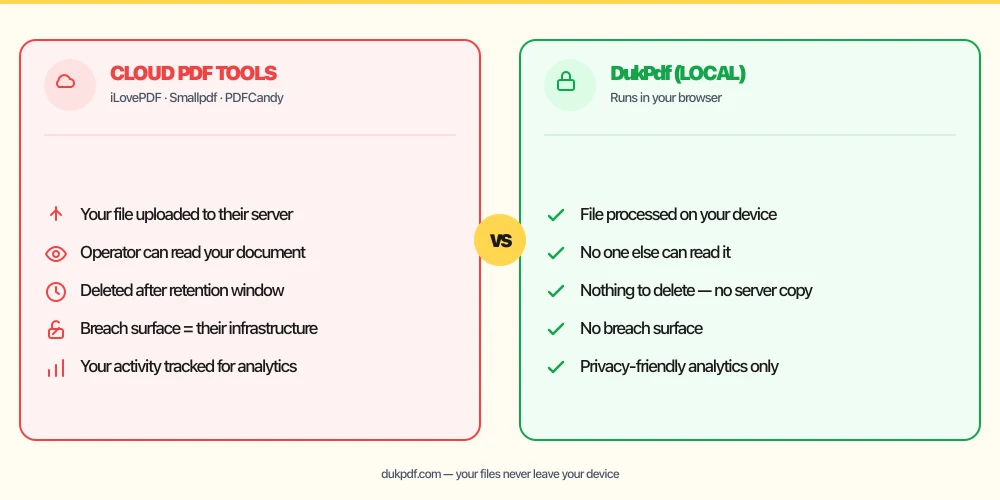
Converting an Excel spreadsheet to PDF on a cloud server means uploading the entire file — every sheet, every row of data, every formula, every chart — to a third party. For financial spreadsheets, this is particularly risky. A P&L statement, a payroll sheet, or a tax filing contains sensitive business data that, if leaked, could harm the organization or individuals.
Cloud converters also introduce timing risk. Some services queue files for processing and store them temporarily. A queued spreadsheet containing salary data or customer information sits on a server for an unknown duration. Even “processing in memory” claims are hard to verify when the server is not under your control. A breach of the converter’s infrastructure exposes every spreadsheet that passed through it.
A local converter eliminates this entirely. LibreOffice runs in your browser as a WebAssembly binary. Your spreadsheet data is read, rendered, and saved on your device. No data ever reaches a network interface. For a deeper look at why this matters for financial documents, see our analysis of uploading bank statements to online PDF tools.
Common mistakes when converting Excel to PDF
- Uploading financial spreadsheets to a cloud converter.A cloud Excel-to-PDF converter receives every row of your data. Choose a local tool that processes the file in your browser so sensitive financial information never leaves your device.
- Not setting the print area first.Excel’s print area setting controls which cells appear on each page of the PDF. If the print area is not set, the PDF may include empty rows and columns or cut off content that overflows the page width.
- Forgetting to handle hidden sheets. Hidden sheets (containing intermediate calculations, reference data, or notes) are included in the PDF by default. Review which sheets are visible before converting.
- Relying on the PDF for formula auditing. The PDF shows calculated values, not the underlying formulas. If you need to audit formulas, keep the original XLSX file alongside the PDF.
- Not checking the output orientation. A wide spreadsheet may render better in landscape orientation. Check the page orientation setting before converting to avoid columns breaking across pages.
Excel to PDF vs alternatives
If you need a PDF of your spreadsheet, here are the available approaches:
- Excel to PDF (Local) runs the conversion in your browser using LibreOffice. Use it when you want a faithful rendering without uploading.
- Word to PDF is for DOCX files. Use it for text-heavy documents with tables.
- PowerPoint to PDF is for presentations. Use it for slide decks.
How DukPdf converts Excel spreadsheets locally
DukPdf’s Excel to PDF tool runs the full LibreOffice spreadsheet engine in your browser via WebAssembly. This is the same engine that reads and renders XLSX and XLS files on desktop Office suites, compiled to run inside a browser sandbox. The first load downloads and caches the engine (~30MB). Subsequent conversions start instantly.
Because the engine runs entirely in your browser, your spreadsheet never touches a server. The file is read from your device, rendered by the local engine, and output as a PDF — all within browser memory. Open DevTools → Network tab while converting to confirm zero upload requests. For a financial report, a payroll spreadsheet, or any data that should not leave your machine, that is the structurally simpler way to convert.
Tips for the best Excel-to-PDF result
To ensure a clean, faithful PDF conversion every time:
- Set the print area in Excel first.Define the range of cells that should appear in the PDF using Page Layout → Print Area → Set Print Area. This prevents empty rows and columns from appearing in the output.
- Check page breaks before converting.Use Excel’s Page Break Preview to see where pages will split. Adjust row heights or column widths if a table breaks awkwardly across two pages.
- Choose the right orientation.Wide spreadsheets benefit from landscape orientation. Use Page Layout → Orientation → Landscape in Excel before converting.
- Unhide any sheets you want included. Hidden sheets are not exported by default. Unhide them before converting or convert each sheet individually.
- Review the PDF after conversion. Scroll through every page to verify that column widths, row heights, fonts, and conditional formatting were preserved as expected.
Related reading
Frequently asked questions
How are Excel formulas handled in the PDF?
Formulas are evaluated and printed as their calculated values. The PDF shows what the spreadsheet would print on paper — the results, not the formula text. Hidden rows and columns are excluded by default. This means the PDF is a reliable snapshot of the spreadsheet at the time of conversion.
Will column widths and row heights be preserved?
Yes. The PDF uses the column widths and row heights set in the source spreadsheet. Print area settings are respected — only the marked print area becomes the PDF page. Content outside the print area is not included unless you adjust the print area beforehand.
Are all sheets included in one PDF?
Yes. By default every sheet becomes a section in a single multi-page PDF. Each sheet starts on a new page. If you need only specific sheets, deselect the ones you do not want before converting. For separate PDFs per sheet, run the tool on each sheet individually.
What about charts and images in the spreadsheet?
Charts, images, shapes, and other embedded objects are rendered into the PDF at their original position and size. The visual layout of each sheet is preserved, including pivot tables, conditional formatting, and data bars.
Is my spreadsheet uploaded during conversion?
No. The entire conversion runs locally using LibreOffice compiled to WebAssembly. Your spreadsheet data is read, processed, and saved on your device. Open DevTools → Network tab while converting — zero upload requests.