
Remove pages from PDFs without uploading
What does removing pages from a PDF mean?
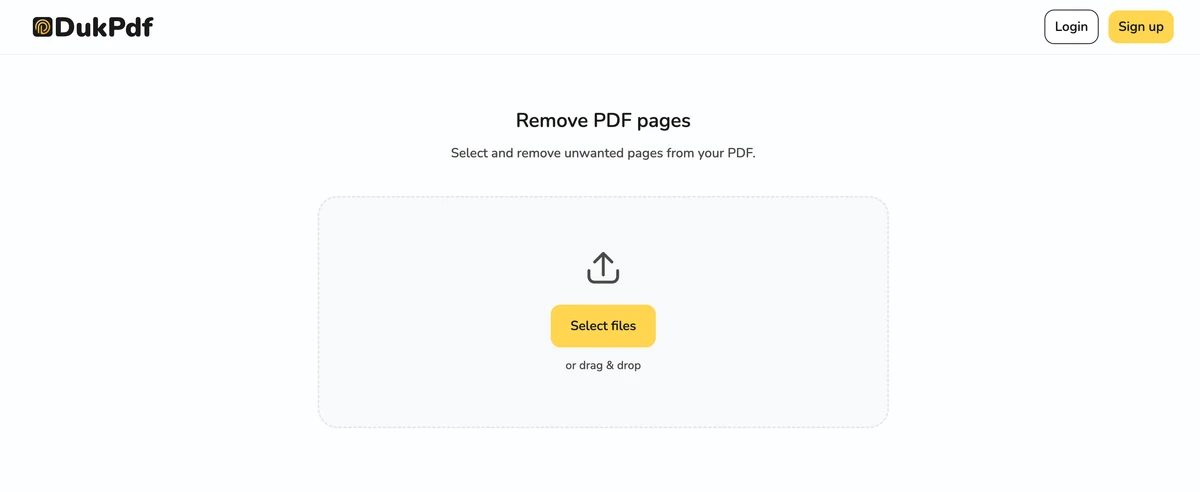
Removing pages from a PDF means selecting one or more pages and deleting them from the document permanently. The result is a new PDF that contains every page from the original except the ones you selected for removal. The remaining pages are re-indexed: if you remove page 3 from a 10-page document, what was page 4 becomes page 3, page 5 becomes page 4, and so on. The original file stays unchanged on your device.
Page removal is a structural operation. The tool copies every page except the removed ones into a new PDF container. There is no re-rendering, no recompression, and no quality loss. The remaining pages are byte-identical to the same pages in the source file. This is what makes page removal fast and lossless, even for large documents.
Removing pages is different from redacting content. Removal deletes entire pages from the document. Redaction removes content from within a page (text, images, or regions) while keeping the page itself. If you need to remove a specific sentence or number from a page, use Redact PDF instead. If you need to remove entire pages, the Remove Pages tool is the right choice. For splitting the document into multiple files (rather than deleting pages), see how to split a PDF.
When do you need to remove pages from a PDF?
Removing pages is one of the most common PDF editing operations. Here are the typical scenarios:
- Removing blank pages. Scanned documents and exported files often include blank pages (scanner sensor pages, printer test sheets, or empty pages in a report). Removing them produces a clean document.
- Removing sensitive pages before sharing. A contract may contain a salary schedule or pricing appendix that should not be included when sharing the main agreement with a third party. Removing those pages prevents accidental exposure.
- Trimming a long report. A 200-page report may have a table of contents, appendices, and index that are not relevant to everyone. Removing those pages sends a shorter, more focused file.
- Removing cover pages. Some portals or submission systems add their own cover page. Removing the extra cover produces a clean PDF for internal filing.
- Preparing for print. A document for double-sided printing may need its last blank page removed, or a print-ready PDF may need to drop registration marks or color bars on separate pages.
How to remove pages from a PDF in 3 steps
- Open the Remove Pages tool. Go to the Remove Pages tool in your browser. The page count appears once the file loads.
- Select pages to remove. Click individual page thumbnails to mark them for removal, or type page numbers and ranges in the selector (e.g., 3, 5-7, 10). Use the preview to confirm which pages are marked before you delete.
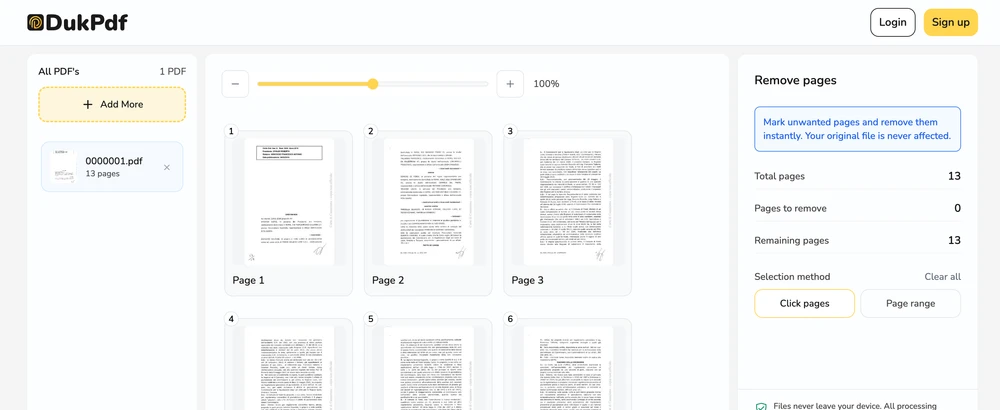
- Remove and download. Click Remove Pages. The new file (with the selected pages deleted) saves to your Downloads. The original file stays unchanged on your device.
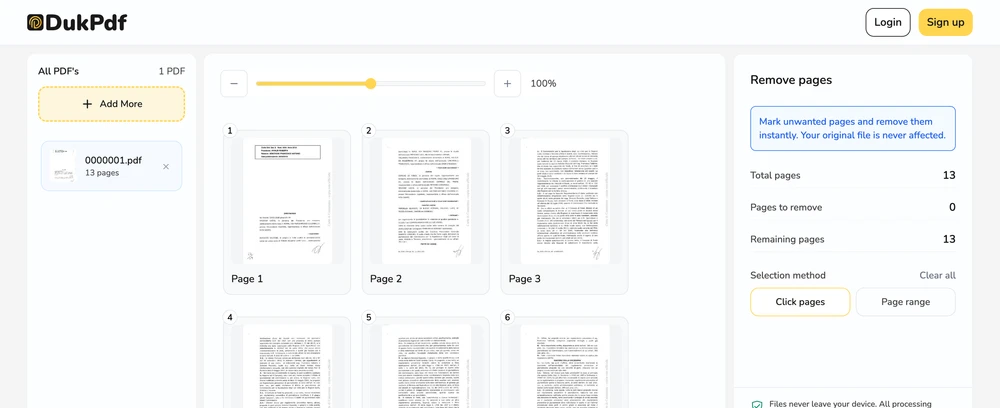
The operation runs entirely in your browser using qpdf compiled to WebAssembly. To confirm no file data is uploaded, open DevTools → Network tab while removing pages — you will see zero upload requests carrying your document.
Privacy implications of cloud-based PDF page removers
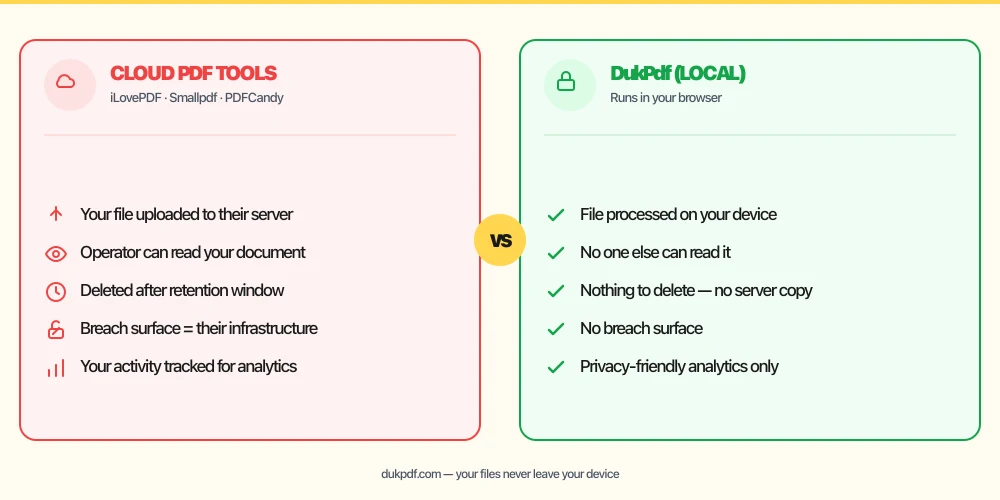
Removing pages from a PDF on a cloud server requires uploading the entire file — including the pages you intend to delete. This is a critical privacy concern. If you are removing pages that contain sensitive information (salary data, account numbers, personal details), the complete original file with every sensitive page intact is transmitted to the server first. The server operator sees everything before any page is removed.
The privacy risk is compounded by the nature of page removal. The very pages you most want to hide are the ones the server has access to during processing. Even if the service promises immediate deletion, the pages were in transit and on the server’s infrastructure during the operation. A breach or a subpoena targeting the cloud service exposes the complete original file, including all the pages you thought you removed.
A local removal tool eliminates this risk. The complete file (including the pages to be removed) stays on your device. The removal happens in browser memory, and only the shortened result is saved. No server ever sees the original or the removed content. For more on why local processing is important for sensitive documents, see our analysis of uploading bank statements to PDF tools.
Common mistakes when removing PDF pages
- Uploading a file with sensitive pages to a cloud remover.The complete original (with every sensitive page) is uploaded to the server. Pick a local tool so the full document never leaves your device.
- Not reviewing the page selection before confirming. It is easy to accidentally select the wrong page number. Always review the thumbnails or page list before clicking the remove button.
- Confusing remove with extract. Removing pages deletes them from the document. Extracting pages saves them as a new file while the original stays intact. Choose the right operation for your goal.
- Forgetting that page numbers shift. If you remove page 3 from a 10-page document, pages 4-10 become pages 3-9. If you need to reference original page numbers after removal, note them before removing.
- Not keeping the original. The shortened file is a derived artifact. Always keep the original PDF in case you need a page back or need to restart with a different selection.
Remove pages vs alternatives
Here is how page removal compares to related PDF operations:
- Remove Pages deletes pages from a PDF. Use it when you want a shorter version of the same document.
- Split PDF produces multiple files from one PDF. Use it when you want separate files for different sections, not a single shortened file.
- Redact PDF removes content within a page. Use it when you need to delete specific text or images while keeping the page itself.
How DukPdf removes pages locally
DukPdf’s Remove Pages tool runs the entire operation in your browser using qpdf compiled to WebAssembly. The workflow is simple: add the PDF, select pages by clicking thumbnails or typing ranges, and click remove. The new file (with the selected pages deleted) is created on your device.
Because the removal runs locally, the complete original file — including the pages you are deleting — stays on your device. Only the shortened result is saved. Open your browser’s DevTools → Network tab while removing pages to confirm zero upload requests. For a confidential document with sensitive pages that need to be removed before sharing, that is the structurally simpler way to proceed.
Tips for using page removal safely
To get the best results when removing pages from PDFs:
- Always keep an unmodified backup. Before removing any pages, save a copy of the original PDF to a separate folder. This gives you a fallback if you remove the wrong pages or need the full document later.
- Review the selection twice. Mistaking page 3 for page 4 is a common error. Count the pages in the thumbnail grid before confirming to make sure you are removing the right ones.
- Use remove before compress for maximum reduction.Removing blank or unnecessary pages reduces the page count, and compressing the result gives you the smallest possible file.
- Check cross-references after removal.If the document contains internal references like “see page 12”, those page numbers will be wrong after pages are removed. Note this in a comment or update the references separately.
- Remove pages before protecting. If the final document needs a password, remove unwanted pages first, then add the password. This avoids having to unlock and re-protect if you realize you need to remove more pages.
Related reading
Frequently asked questions
Is the file uploaded during page removal?
No. Page removal runs entirely in your browser using qpdf compiled to WebAssembly. Your file is read, the selected pages are removed, and the result is saved on your device. Open DevTools → Network tab while removing pages — zero upload requests carrying your document.
Can I restore removed pages later?
No. Once you click “Remove Pages” and download the output, the removed pages are gone from that file. The original source file is unchanged on your device, so you can always start over from the original if you need those pages back.
What is the difference between Remove Pages and Extract Pages?
Remove Pages deletes pages from a PDF — the result is a shorter version of the same file. Extract Pages saves specific pages as a NEW separate PDF while the original stays unchanged. Use Remove to shorten a document, Extract to save a subset as a new file.
Can I remove a range of pages like 5-10?
Yes. Enter “5-10” in the page selector to remove pages 5 through 10. You can also use comma-separated individual pages (3, 7, 12) or a mix (“1-3, 7, 10-12”). The tool handles any combination of ranges and individual page numbers.
Will removing pages affect bookmarks?
Bookmarks pointing to removed pages may be invalidated or removed depending on the PDF structure. Bookmarks pointing to kept pages are generally preserved. Verify the bookmark behavior in the output file, especially for complex PDFs with many cross-references.