
Split PDFs without uploading
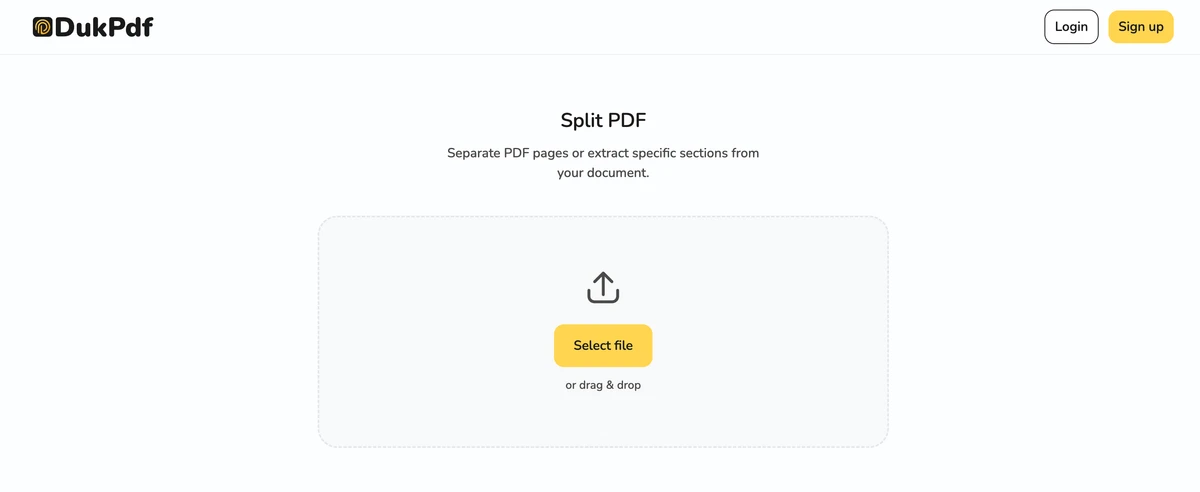
What does splitting a PDF mean?
Splitting a PDF means dividing a single PDF file into multiple smaller files. You can split by page range (pages 1-5 become file one, pages 6-10 become file two), by fixed intervals (every 5 pages), or extract individual pages as separate files. The result is multiple PDF files derived from one source — every page appears in exactly one output file.
Splitting is a structural operation, not a rendering one. The tool copies the relevant pages from the source PDF into new PDF containers. There is no recompression, no re-rendering, and no quality loss. Each output page is byte-identical to the same page in the input. This is what makes splitting fast and lossless, even for very large documents.
Splitting is the inverse of merging. Where Merge PDF combines multiple files into one, splitting takes one file and produces many. The two operations are perfect complements: merge a contract and appendix, split a 200-page report into chapter files, or merge a split file back together in a different order.
When do you need to split a PDF?
Splitting a PDF is useful in many document management scenarios:
- Separating chapters or sections. A long ebook or report can be split into chapter-sized PDFs for easier reading on a phone, tablet, or e-reader.
- Emailing relevant portions. A 50-page contract may have only pages 3-5 that are relevant to a colleague. Splitting extracts just those pages into a small file that fits in an email.
- Organizing scanned batches. A stack of scanned documents may arrive as a single PDF. Splitting separates each document into its own file for proper filing.
- Extracting exhibits for legal filings. A legal discovery PDF may contain multiple exhibits that need to be filed separately. Splitting extracts each exhibit as its own PDF.
- Breaking up a file that is too large to upload. Some portals cap uploads at 10MB or 25MB. Splitting a large PDF into smaller parts lets you upload each section individually.
How to split a PDF in 3 steps
- Open the Split PDF tool. Go to the Split PDF tool in your browser. The tool loads on your device — nothing is sent to a server.
- Choose a split mode.Pick “By range” (e.g. 1-5, 6-10, 11-15), “Every N pages” (e.g., every 2 pages), or “Custom selection” (enter specific page numbers). The page count appears once the file loads.
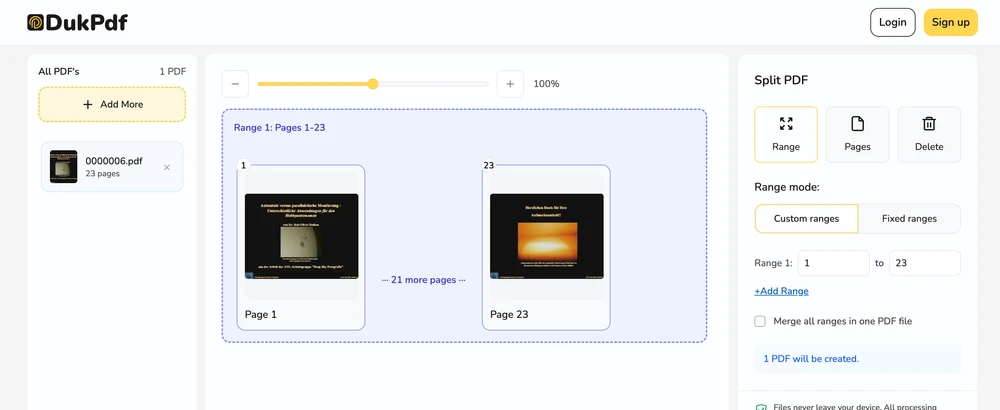
- Split and download. Click Split. Each output file is created in your browser. Multi-file results are bundled in a ZIP automatically and download as a single archive.
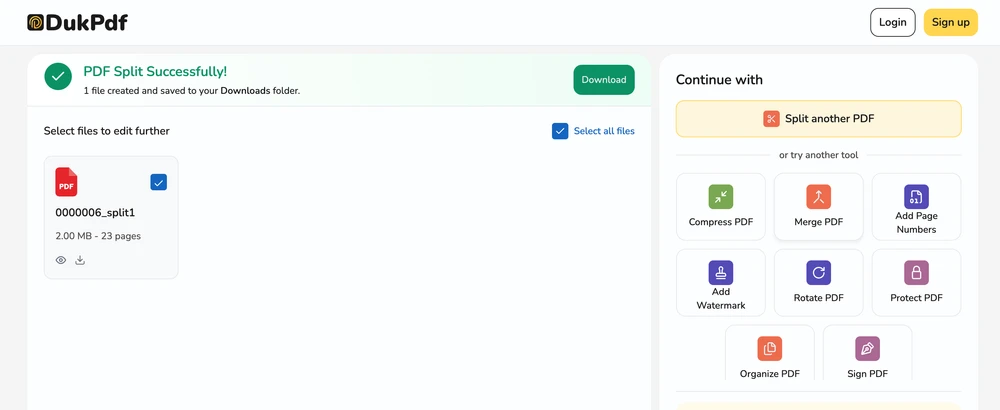
The operation runs entirely in your browser using qpdf compiled to WebAssembly. To confirm no file data is uploaded, open DevTools → Network tab while splitting — you will see zero requests carrying your content.
Privacy implications of cloud-based PDF splitters
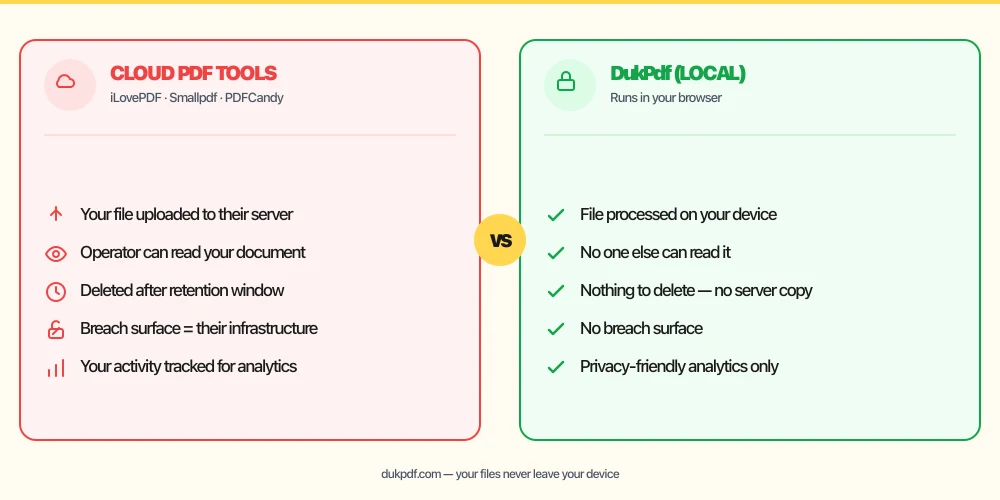
Cloud-based PDF splitting requires uploading your entire document to a server. The server processes every page, creates the split files, and sends them back. This means the full content of your document — every page, every word, every image — passes through a third-party server. For a confidential document containing privileged information, trade secrets, or personal data, this is a significant exposure.
The risk is amplified when splitting because the operator has access to every extracted page. A splitter that processes a confidential contract on its server holds a copy of every page you extracted, potentially across multiple requests. Even if the service claims to delete files after processing, the pages were in transit and on their infrastructure during the operation.
A local split tool eliminates this completely. The split runs in your browser using qpdf. Your file is read, divided, and saved without a single network request carrying your content. For a legal brief, a financial report, or any document that should not leave your device, that is the structurally simpler way to split. For more on the privacy risks of PDF operations, see our analysis of uploading bank statements to online PDF tools.
Common mistakes when splitting PDFs
- Uploading a confidential document to a cloud splitter.A cloud splitter processes every page on its server. The operator holds a copy of every extracted page. Pick a local tool so the document never leaves your device.
- Forgetting overlapping page ranges.A page cannot appear in two split files. Make sure your ranges are contiguous and non-overlapping — 1-5, 6-10, 11-15, not 1-10, 5-15.
- Not verifying the output. Open each split file after download to confirm the correct pages were extracted and the file is valid. A quick visual check of each output saves time later.
- Confusing split with remove pages.Splitting produces new files containing the specified pages. The original stays intact. Removing pages deletes them from the original file — the result is a shorter version of the same file.
- Not checking bookmarks. If the source PDF has bookmarks, they may not transfer to the split files. Verify that bookmarks pointing to the extracted pages still work correctly.
Split PDF vs alternatives
Here is how splitting compares to related PDF page operations:
- Split PDF produces multiple files from one PDF. Use it when you want separate documents from a single source.
- Merge PDF is the inverse. Use it to combine split files back into a single document.
- Remove Pages deletes pages from the file itself. Use it when you want a shorter version of the same file, not separate files.
How DukPdf splits PDFs locally
DukPdf’s Split PDF tool runs the entire operation in your browser using qpdf compiled to WebAssembly. The workflow is simple: add the file, choose the split mode, and click split. Every page is copied into new PDF files on your device. Multi-file results are zipped automatically.
Because the split runs locally, your file is processed in your device’s memory and never touches a server. Open your browser’s DevTools → Network tab while splitting — you will see zero upload requests carrying your document data. For a confidential report, a legal filing, or any document that should not leave your machine, that is the structurally simpler way to split.
Tips for the best split result
A few practical tips for getting exactly the split you need:
- Plan your ranges before you start. Know which pages go in each output before opening the tool. A quick note of the ranges saves re-splitting later.
- Use “Every N pages” for uniform splits. If you need every 10 pages as a separate file (e.g., for batch upload to a portal that caps pages per file), the interval mode is the quickest way.
- Split before redacting. If only some pages need redaction, split those pages into a separate file first, redact that file, then merge back. This is faster than applying redactions to the full document.
- Keep the original. The split files are derived artifacts. Keep the source PDF in case you need different ranges later.
- Verify ZIP contents. If you split into many files, the ZIP archive contains numbered files. Rename them after extraction for easier identification.
Related reading
How to merge PDF files — free, no server uploads, any device
Combine multiple PDF files into one document — the complement to splitting.
How-ToHow to remove pages from a PDF — delete specific pages, no server uploads
Delete unwanted pages from any PDF — by page number, range, or visual selection.
Frequently asked questions
What is the difference between Split and Extract Pages?
Split produces multiple files (one per range or selection). Extract Pages produces a single new PDF containing only the selected pages. Use Split when you want separate files (e.g., chapters as individual PDFs); use Extract Pages when you want one consolidated file with just the pages you need.
Can I split a PDF into individual single pages?
Yes. Choose the “Every 1 page” mode or the “Custom selection” mode with all page numbers. Every page becomes a separate file, and the results are bundled in a ZIP archive for easy download.
Can I split password-protected PDFs?
Yes. You will be prompted for the password before splitting starts. The output files are saved without the password. You can re-protect individual split files with a new password afterwards.
Will splitting reduce page quality?
No. Splitting only copies pages from the source to new files. It does not re-render or recompress the content. Each output page is byte-identical to the corresponding page in the source PDF — no quality loss whatsoever.
Is my PDF uploaded during splitting?
No. Splitting runs in your browser using qpdf compiled to WebAssembly. Your file is read, split, and saved without a single network request carrying your content. Open DevTools → Network tab while splitting — zero upload requests.