
Extract pages without uploading
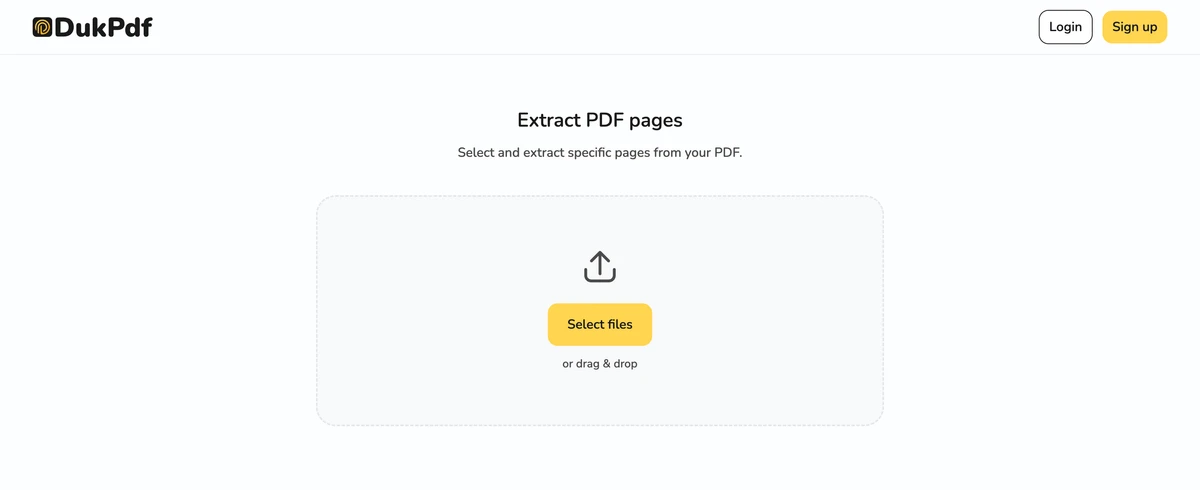
What does “extracting pages from a PDF” mean?
Extracting pages from a PDF means copying a subset of pages from the source document into a brand-new PDF file. The original file remains untouched. The result is a standalone PDF that contains only the pages you selected — page 3 through page 7 of a contract, for example, or every page that contains a specific chart.
Extraction is a structural copy, not a visual re-render. The tool reads the page objects from the source PDF and writes them into a new container. Text stays text, fonts stay embedded, images stay at their original resolution, and searchability is preserved. A page extracted this way is byte-identical to the same page in the source file.
This is different from screenshotting a page or printing to PDF. Those approaches rasterize the content into an image, which destroys searchability, balloons the file size, and reduces quality. A proper extraction is lossless in every respect.
When do you need to extract pages from a PDF?
The need to extract a subset of pages arises in dozens of everyday document workflows. Here are the most common scenarios:
- Emailing only the relevant pages. A 50-page contract contains the signature page and the pricing schedule you need to send. Extract those two pages instead of attaching the entire file.
- Pulling an exhibit for a filing. A legal discovery PDF has 300 pages, but you need only pages 45-52 as an exhibit for a motion. Extract them into a clean standalone exhibit PDF.
- Sharing a chapter from a book. An ebook or manual runs hundreds of pages. Extract the single chapter a colleague needs and send it as a compact, self-contained PDF.
- Building a reading packet. Pull selected pages from multiple articles or textbooks into individual PDFs, then merge the results for a custom reading packet.
- Saving a specific version of a page. A living document like a project charter gets updated weekly. Extract the current version of a key page to archive it as a snapshot before the next revision overwrites it.
How to extract pages from a PDF in 3 steps
- Open the extract tool in your browser. Go to the Extract Pages tool in Chrome, Safari, Firefox, or Edge. The tool loads in your browser — nothing is sent to a server.
- Select the pages you want to extract. Click Select file or drag and drop your PDF. All pages appear as thumbnails. Click individual pages to select them, or type page numbers and ranges (e.g. 1, 3-5, 8) in the selector. The preview updates in real time so you can confirm you have the right pages.
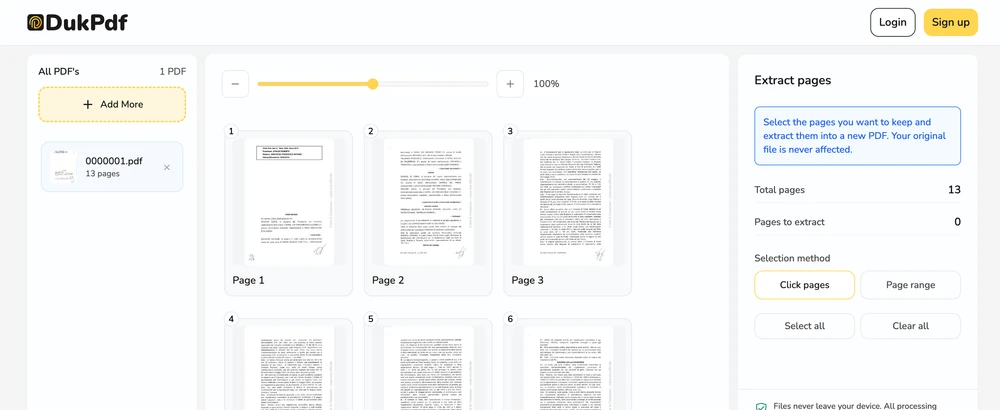
- Extract and download. Click Extract. The new PDF containing only the selected pages is generated locally and saves to your Downloads. The original file is unchanged.
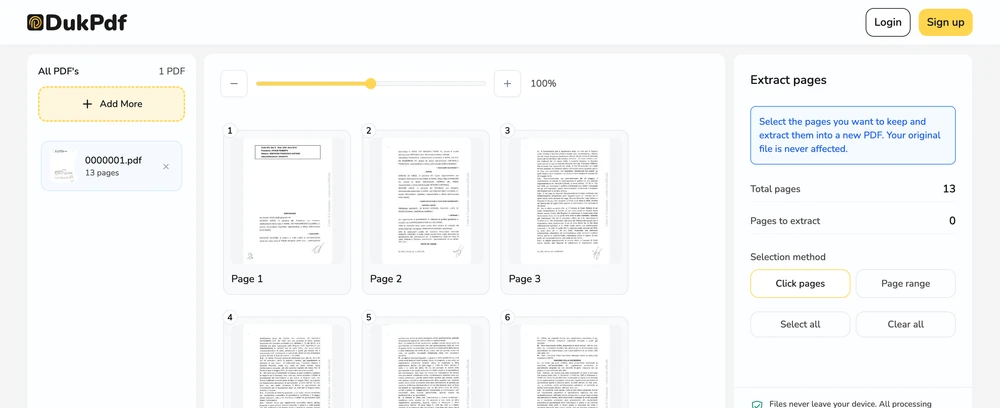
The extraction runs entirely in your browser using qpdf compiled to WebAssembly. Open your browser’s DevTools → Network tab while extracting — you will see zero requests carrying your file data.
Privacy implications of cloud-based PDF extraction
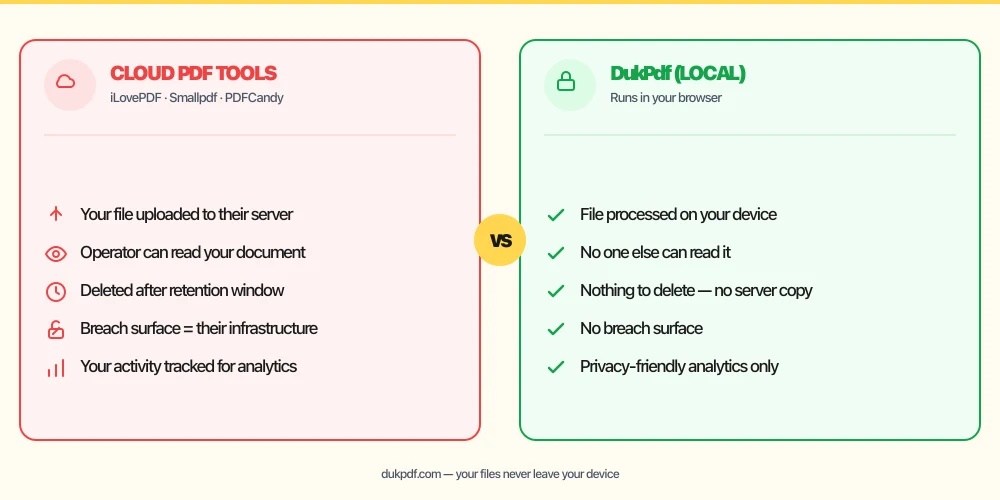
Extracting pages from a confidential PDF on a cloud server means the operator still processes every page. Even if you only want pages 3-5, most cloud tools upload every page of the document to their server before letting you select a subset. The tool cannot extract pages it has not received, so the server ends up with a complete copy of your file regardless of which pages you keep.
This is a subtle but important privacy gap. You might think you are sharing only the three relevant pages, but behind the scenes the server processed every page to let you make that selection. If the server is breached, logs a mistyped URL, or retains files longer than advertised, your entire document is exposed.
A local extraction tool eliminates this entirely. The file is read in your browser, the chosen pages are copied into a new PDF in your device’s memory, and the result downloads directly — no copy of the file ever reaches a server. For more on why this matters for sensitive documents, read our guide on the risks of uploading bank statements to online PDF tools.
Common mistakes when extracting PDF pages
- Using a cloud tool that uploads the whole file first. If the tool requires a full upload before you can select pages, it has a copy of every page. Pick a tool that processes the file locally so the server never receives it.
- Confusing extract with remove. Extract copies pages into a new file. Remove deletes pages from the existing file. If your goal is to shorten the file you already have, use a remove-pages tool instead.
- Forgetting to check page numbering. PDF page numbers in the reader toolbar may not match the page numbers printed on the document. Verify which pages contain the content you need before entering ranges.
- Extracting pages that reference content on other pages. An index entry that points to page 25 means nothing in a PDF that only contains pages 1-10. For standalone extracts, cross-references and bookmarks to omitted pages are lost.
- Not keeping the original. The extracted file is a derived copy. Keep the source PDF in case you need to extract a different set of pages later.
Extract vs other PDF operations
Extraction is one operation in a broader toolkit. Here is how it relates to the ones closest to it:
- Extract Pages saves selected pages as a new PDF. Use it when you want a subset as a separate file.
- Split PDF divides a PDF into multiple files by range or by every-N-pages. Use it when you need many separate files, not one combined subset.
- Remove Pages deletes pages from the source file. Use it when you want to shorten the file you already have.
- Merge PDF combines multiple PDFs into one. Use it after extraction to combine your extracted pages with other documents.
How DukPdf extracts pages locally
DukPdf’s Extract Pages tool runs entirely in your browser using qpdf compiled to WebAssembly. Select the file, choose the pages by number or by visual selection, and download the result. The extraction happens on your device, so the source file — including every page you do not extract — never leaves your machine.
Because the extraction is local, you can verify zero network activity by opening DevTools → Network tab. For a contract, a tax return, medical records, or any document with pages you want to keep private, that is the structurally simpler way to save a subset.
Related reading
How to merge PDF files — free, no server uploads, any device
Combine multiple PDF files into one document for free, without uploading anything to a server.
How-ToHow to split a PDF — extract page ranges, no server uploads
Split a PDF into separate files by page ranges or extract all pages individually — in your browser.
Frequently asked questions
Can I extract pages from a password-protected PDF?
Yes. You will be prompted for the password before extraction begins. The output file is saved without the password. If you need to re-protect it, use a protect-PDF tool after extraction.
Is extracting the same as removing pages?
No. Extract copies selected pages into a new PDF and leaves the original untouched. Remove deletes pages from the original. Use Extract when you want to save a subset; use Remove when you want to shorten the source.
Will the extracted pages keep their formatting?
Yes. Extraction copies pages from the source to the output without re-rendering. Text, images, fonts, and layout are byte-identical to the original.
Can I extract pages from multiple PDFs into one file?
Some tools support extracting from multiple files. With DukPdf, extract pages from one file at a time, then use a merge tool to combine the results into a single PDF.
Is my PDF uploaded when I extract pages?
No. Extraction runs entirely in your browser using qpdf compiled to WebAssembly. Open DevTools → Network tab while extracting — zero upload requests.