
OCR scanned PDFs without uploading
What does OCR on a PDF mean?
OCR stands for Optical Character Recognition. It is the process of analyzing an image of text and converting the visual patterns into machine-readable characters. When applied to a PDF, OCR adds a hidden text layer on top of the scanned images. The visible page does not change — the original scan is still there — but now a text layer sits invisibly behind it. This text layer enables three critical capabilities: you can search the document with Ctrl+F, you can select and copy text, and screen readers can read the content aloud.
A scanned PDF without OCR is essentially a stack of images. Your computer displays the pages visually, but it has no idea what any of the words say. Searching for a term across a 200-page scanned contract yields zero results because the computer sees only pixels, not letters. Adding an OCR layer transforms the document from an image archive into a functional, searchable PDF.
The OCR engine (Tesseract in DukPdf’s case) works by identifying shapes that match known character patterns. It analyzes each page, segments it into lines and words, and recognizes each character. The recognized text is then positioned page-by-page into the PDF’s invisible text layer. The result is a hybrid document: the original scan is untouched on screen, but the text layer makes it behave like a digital-native PDF. For more ways to work with PDFs, see our merge PDF guide.
When do you need to OCR a PDF?
OCR is essential whenever a PDF was created from a scanner or camera rather than directly from a digital source:
- Digitizing old paper archives. Boxes of printed reports, contracts, and correspondence are scanned to PDF, but without OCR, the resulting files are just pictures. OCR makes decades of paper records searchable in seconds.
- Legal discovery. Law firms often receive thousands of pages of scanned evidence. OCR turns those image stacks into searchable documents, allowing attorneys to find relevant terms across entire document sets.
- Research and academia. Journal articles, book chapters, and archival materials scanned as PDFs become fully searchable with OCR. Researchers can search across a library of scanned PDFs without re-typing citations.
- Accessibility compliance. Screen readers require text content to read aloud. OCR adds the text layer that makes scanned PDFs accessible to users with visual impairments.
- Receipt and invoice management. Scanned receipts become searchable by vendor, date, and amount once OCR is applied. No more squinting at image files during expense reporting.
How to OCR a PDF in 3 steps
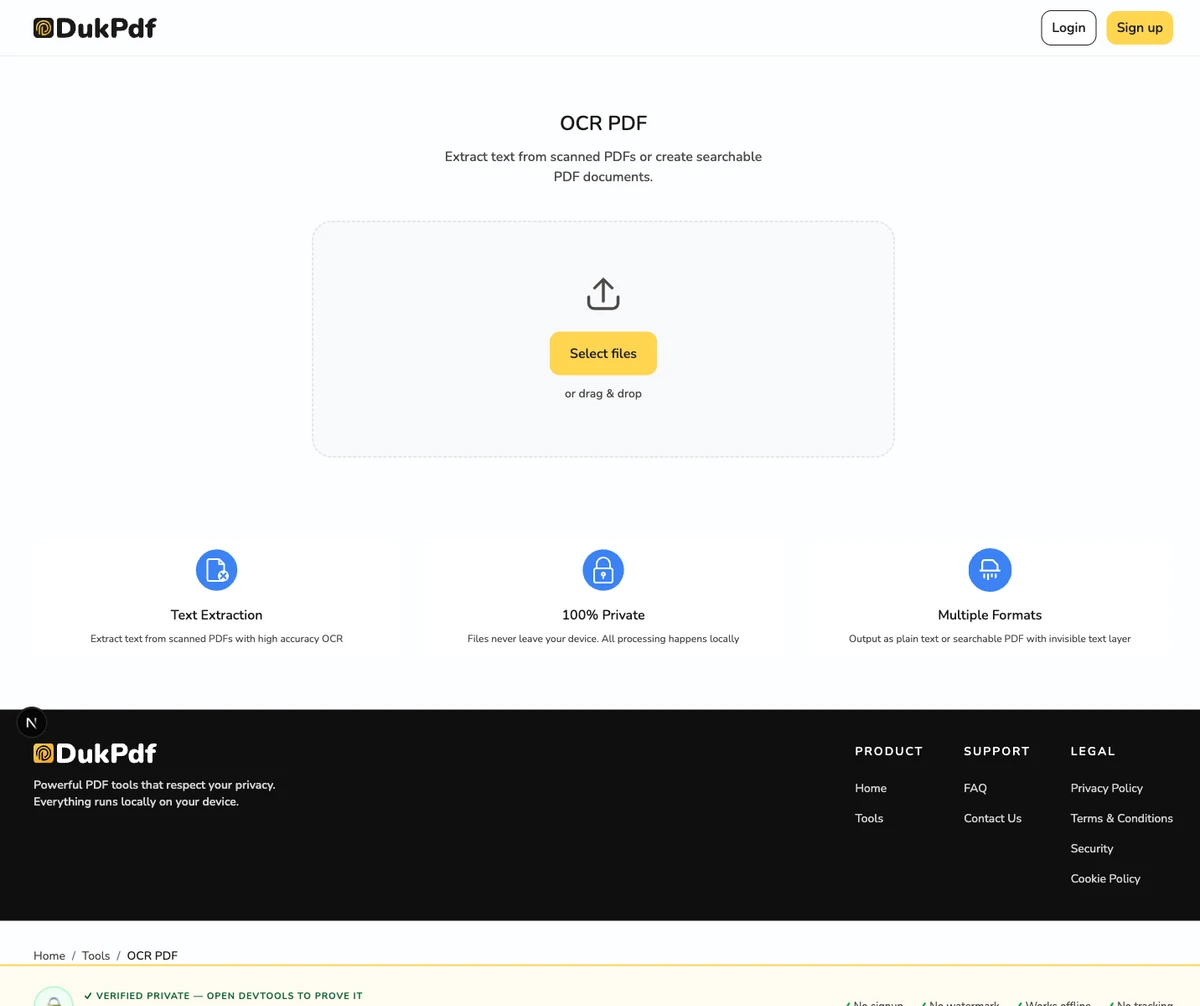
- Open the OCR PDF tool. Go to the OCR PDF tool in your browser. On first visit, the Tesseract OCR engine (~10MB) downloads and caches.
- Select your scanned PDF and choose a language. Click Select file or drag and drop a scanned or image-based PDF. Pick the primary language of the document from the 100+ language options. Better language matches produce better recognition accuracy.
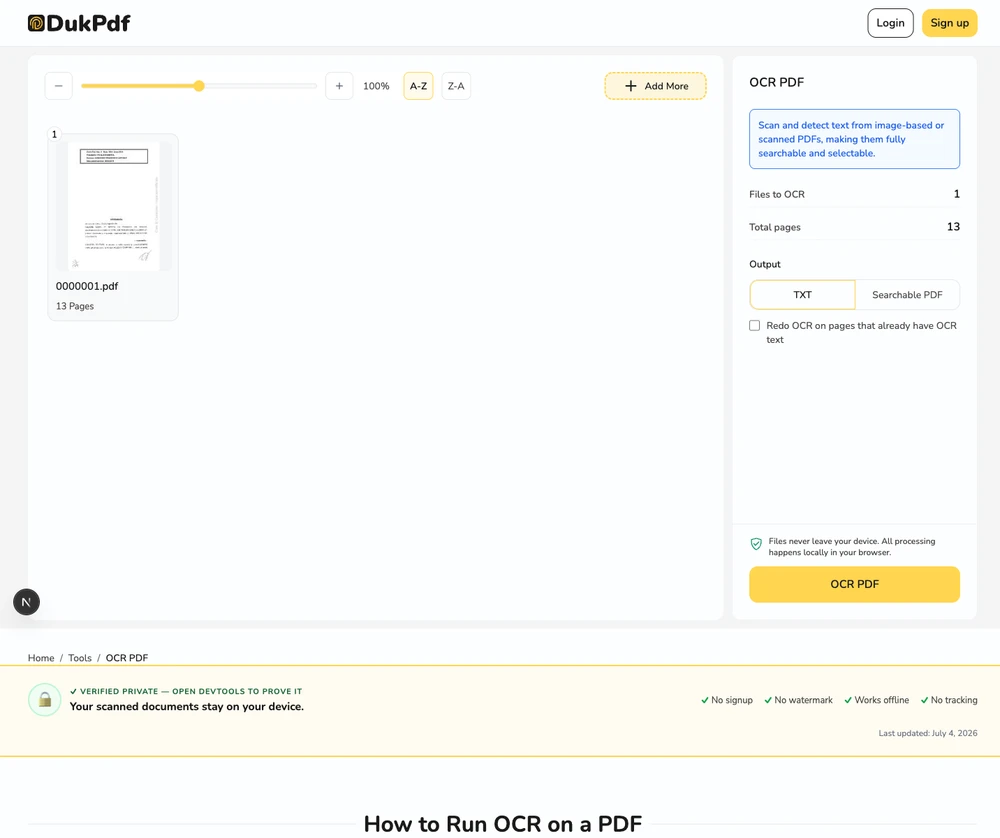
- Run OCR and download. Click Run OCR. The engine processes each page in your browser, recognizes the text, and embeds the text layer into the PDF. The output is a new PDF that looks identical but is now searchable and selectable.
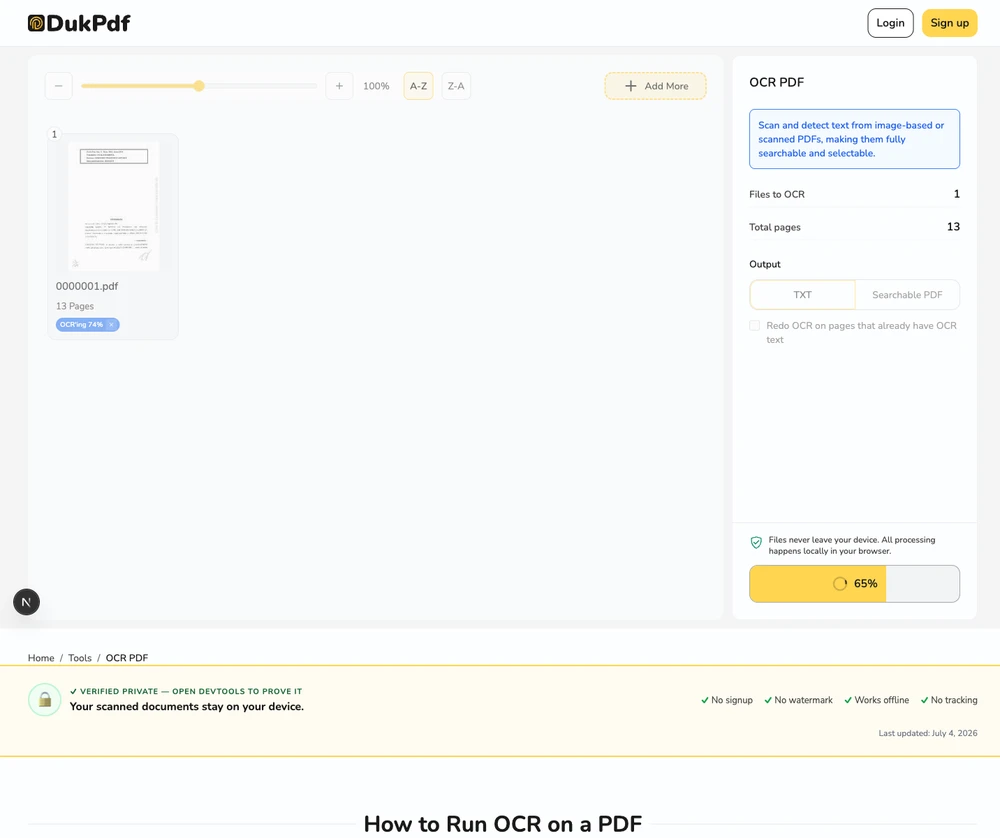
The OCR runs entirely in your browser using Tesseract.js. To confirm no page data is uploaded, open DevTools → Network tab while OCR is running — you will see zero upload requests carrying your document.
Privacy implications of cloud-based OCR services
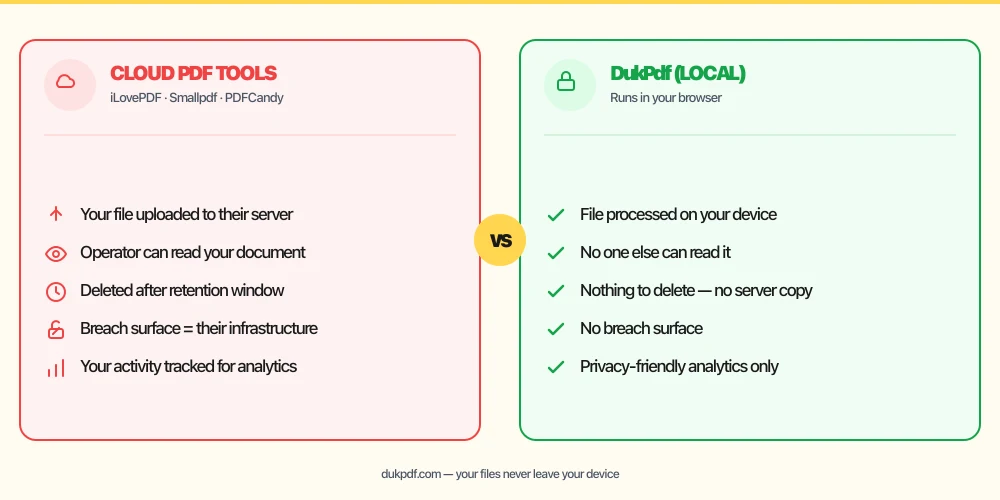
OCR is one of the most privacy-sensitive PDF operations because the process requires analyzing the content of every page. Cloud-based OCR services receive your PDF, decode every page image, run the recognition algorithm on their servers, and return the result. This means the service operator sees every character on every page of your document.
For sensitive documents — medical records, legal briefs, financial statements, or personal correspondence — this is a serious concern. Many OCR services are“free” because they use the uploaded content for training, analytics, or advertising. Even paid services that promise not to store your files still process them in memory on their servers, where a breach or a subpoena could expose the content.
Local OCR eliminates this risk. Tesseract.js runs the full recognition engine in your browser. Your scanned pages are decoded and analyzed on your device. No page image, no recognized text, and no document metadata ever leaves your machine. This is especially important when OCR is applied to documents containing protected health information (PHI) or attorney-client privileged material. For more context on the privacy risks of PDF operations on sensitive content, see our guide on redacting without uploading.
Common mistakes when OCRing PDFs
- Uploading scans to a cloud OCR service. Cloud OCR processes every page of your document on its server. The operator reads every line. Choose a local OCR tool so your document content never leaves your device.
- Using low-resolution scans. OCR accuracy drops significantly below 200 DPI. For best results, scan documents at 300 DPI or higher. A clean, high-resolution input produces the most accurate text recognition.
- Not checking the language setting. Running English OCR on a German document produces garbled text. Select the correct language before running OCR to get meaningful results.
- Expecting perfect accuracy on every page.OCR is not perfect. Unusual fonts, noisy backgrounds, stains, and skewed pages all reduce accuracy. Always proofread critical text — numbers in particular (dates, amounts) are common error points.
- Forgetting to rotate pages first.A sideways page cannot be OCR’d accurately. Rotate the PDF before running OCR so the text direction is upright and the engine can recognize characters properly.
OCR vs alternatives
OCR is the right tool for making scanned or image-based PDFs searchable. Here is how it compares to related operations:
- OCR PDF adds a searchable text layer to scanned pages. Use it when your PDF is a stack of images and you need to search, copy, or select text.
- Redact PDF removes content permanently. Run OCR first to make text selectable, then redact specific terms.
- Compress PDF reduces file size. Run it after OCR to shrink the text-layered result.
How DukPdf OCRs PDFs locally
DukPdf’s OCR PDF tool runs the full Tesseract OCR engine in your browser via Tesseract.js. This is the same open-source OCR engine used by major document management systems, compiled to JavaScript and running entirely in a browser sandbox. The first run downloads and caches the language data (~10MB). Subsequent OCR jobs start instantly with the cached data.
Because the engine runs entirely in your browser, your scanned document never touches a server. Each page is decoded, recognized, and annotated with a text layer within browser memory. Open DevTools → Network tab while OCR is running to confirm zero upload requests. For a medical record, a legal brief, or any document that needs to stay private, that is the structurally simpler way to add searchability.
Tips for the best OCR result
To maximize OCR accuracy and get the most out of your scanned documents:
- Scan at 300 DPI or higher. Higher resolution gives the OCR engine more pixel data to work with, producing significantly better accuracy. 300 DPI is the industry standard for document OCR.
- Ensure pages are straight. Skewed text (even a few degrees off horizontal) reduces recognition accuracy. Deskew the scans before OCR or use a PDF rotate tool to correct orientation.
- Choose the right language.Select the primary language of the document. For multilingual documents, some engines support multiple languages — select the main language for best results.
- Use clean source images. Stains, creases, background noise, and handwritten margin notes all interfere with character recognition. Clean scans produce clean OCR.
- Proofread critical numbers. Dates, prices, account numbers, and other numeric data are common OCR error points. Always verify these against the original scan.
Related reading
Frequently asked questions
What languages does the OCR support?
100+ languages including English, Spanish, French, German, Italian, Portuguese, Dutch, Russian, Arabic, Hindi, Chinese (Simplified and Traditional), Japanese, Korean, and many more. Pick the primary language of your document for best recognition accuracy.
How accurate is the OCR?
Tesseract achieves 95%+ accuracy on clean, high-resolution scans with standard fonts. Accuracy drops with low resolution (under 200 DPI), skewed pages, unusual fonts, or noisy backgrounds. For best results: scan at 300 DPI, ensure pages are straight, and avoid decorative or script fonts.
Can OCR handle handwritten text?
Recognition of handwritten text is limited. Tesseract is optimized for printed text. It works for very clean block letters but struggles with cursive, stylized, or messy handwriting. For handwritten documents, accuracy is significantly lower than for printed text.
Is my scanned PDF uploaded during OCR?
No. OCR runs entirely in your browser using Tesseract.js. Your scanned document never leaves your device. Open DevTools → Network tab while running OCR — you will see zero upload requests carrying your document pages.
How long does OCR take?
Roughly 2–5 seconds per page on a modern device. A 50-page document may take 2–4 minutes. Processing is local, so faster hardware finishes faster. The first run loads the Tesseract engine (~10MB download, then cached), and subsequent OCR jobs start immediately.