
Rearrange pages without uploading
What does “rearranging PDF pages” mean?
Rearranging pages in a PDF means changing the order in which the pages appear in the document. Page 5 becomes page 2. Page 1 becomes the appendix. The cover moves to the end. The operation is purely structural — the content of each page stays exactly the same, but the sequence changes.
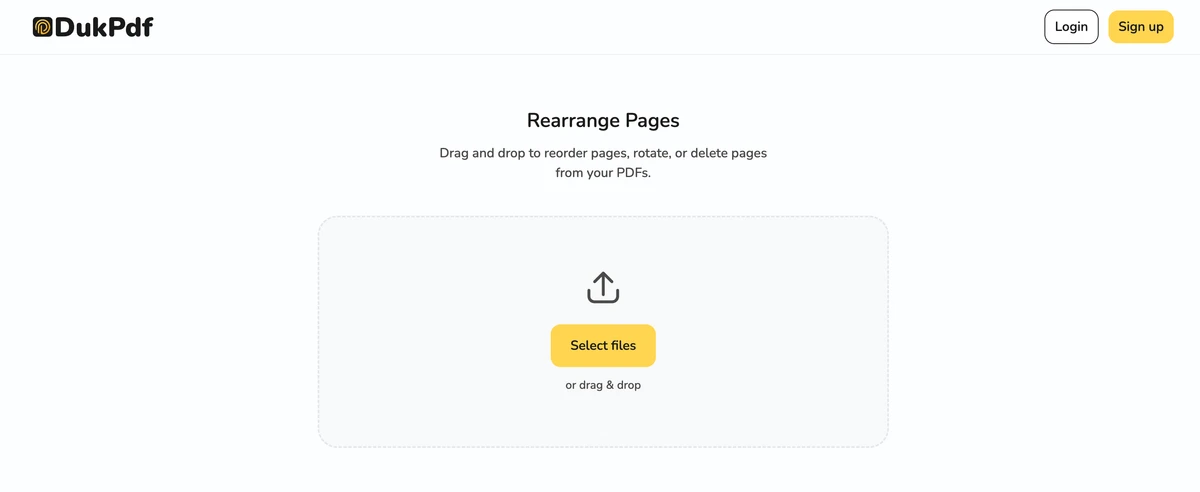
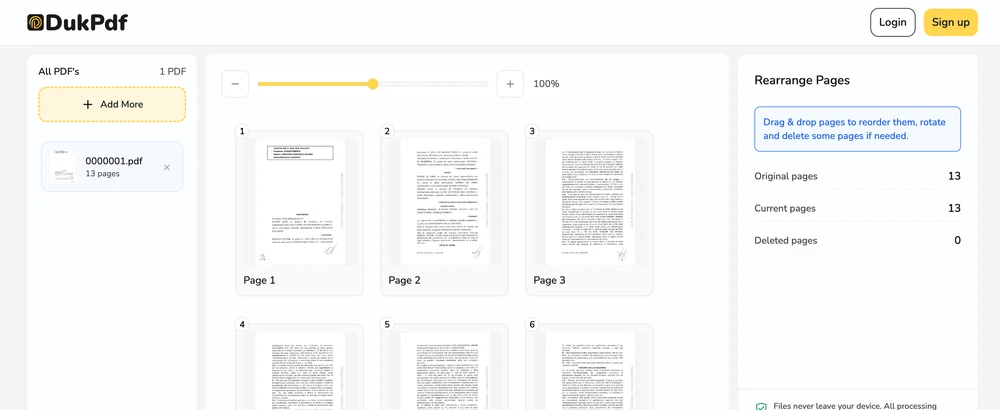
A PDF page reorder tool shows every page as a thumbnail in a grid or strip. You click and drag a thumbnail to a new position. A visual indicator shows where the page will land. When you release, the page order is updated in memory. The original file is not modified until you click Save.
Rearrangement is a pure page-tree operation. The tool reads the PDF’s internal page tree — the ordered list of pages — and reorders the entries. The page objects themselves (the content streams, fonts, images, and annotations on each page) are not re-encoded or recompressed. This is why reordering is instant and lossless, even for files hundreds of pages long. The only thing that changes is which page comes first, second, third, and so on.
When do you need to rearrange PDF pages?
Pages end up in the wrong order more often than you might expect. Here are the most common scenarios:
- Fixing scan order. A multi-page document scanned in an automatic document feeder often loads pages in the wrong sequence — page 10 ends up between pages 2 and 3. Drag the thumbnails back into the correct reading order.
- Moving an appendix forward. A report has an appendix that was placed at the end, but the reader needs to reference it from the middle. Drag the appendix pages to appear right after their corresponding chapter.
- Reordering book chapters. An ebook or manuscript compiled from separate chapter files may have chapters in the wrong order. Drag them into the correct sequence before publishing or submission.
- Moving the cover page. A PDF was created with the cover page at the end. Drag it to the beginning so the document opens with a proper title page.
- Preparing a presentation or handout. Slides or handout pages may need to be reordered after conversion from a presentation format where the original order is not the desired reading order.
How to rearrange PDF pages in 3 steps
- Open the rearrange tool in your browser. Go to the Rearrange Pages tool in Chrome, Safari, Firefox, or Edge. The tool loads entirely in your browser.
- Drag to reorder. Click Select file or drag and drop your PDF. All pages appear as draggable thumbnails. Click and hold any page thumbnail, then drag it to its new position. A visual indicator shows where the page will land. Release to drop. To move multiple pages at once, Shift-click or Cmd/Ctrl-click to select a group, then drag them together.
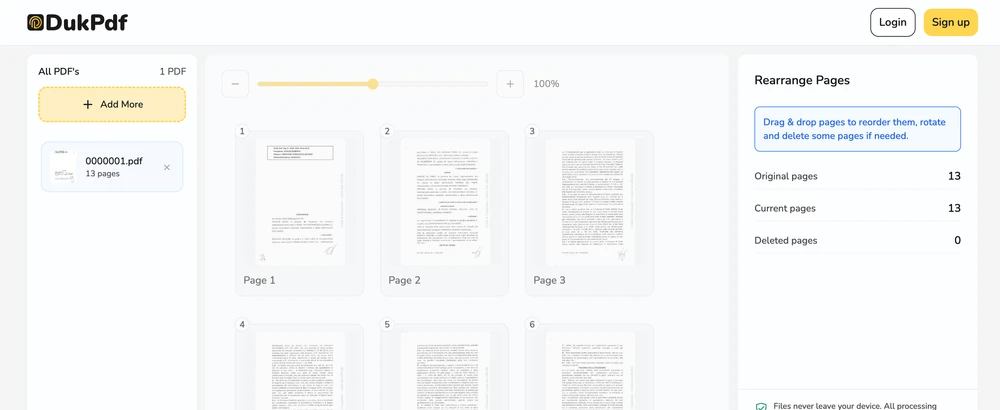
- Save and download. Click Save. The reordered file is generated locally and downloads to your device. The original file is never modified.
The reordering runs entirely in your browser using qpdf compiled to WebAssembly. Open DevTools → Network tab while rearranging — zero requests carry your file data.
Privacy implications of cloud-based PDF reordering
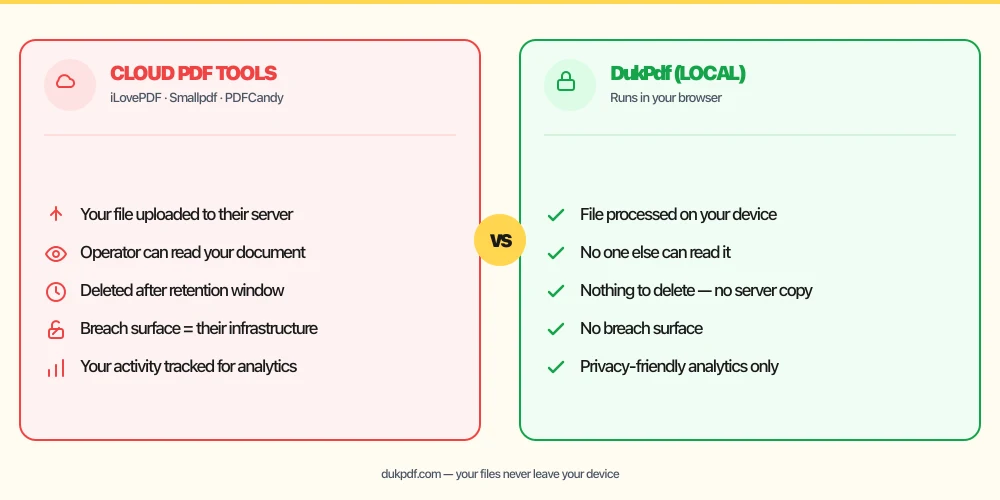
Rearranging pages on a cloud server means the operator holds a copy of every page you reorder. Even though the operation is simple — changing the order of pointers in a page tree — most cloud tools require uploading the entire document to their server, processing it, and returning the result.
The privacy concern here is the same as with any cloud PDF tool: the server receives a complete copy of the document. For a confidential report, a draft manuscript, or a document containing personal information, that exposure is unnecessary. Reordering is a trivial local operation that does not require server-side processing power or specialized infrastructure.
A local rearrange tool eliminates the risk entirely. The file is read in your browser, the page tree is reordered in memory, and the result is saved directly to your Downloads. The server never sees a single page. For more on why documents should stay on your device, read our analysis of uploading bank statements to online PDF tools.
Common mistakes when rearranging PDF pages
- Reordering without checking cross-references.A table of contents entry that says “Chapter 3 starts on page 12” will be wrong after reordering. Update the TOC and any in-text page references after the reorder.
- Uploading the file to a cloud tool for a simple reorder.Reordering is one of the simplest PDF operations. There is no reason the file needs to leave your device. Pick a local tool.
- Not saving after reordering. In-browser editing holds all changes in memory. If you close the tab before clicking Save, the reorder is lost and you start over.
- Breaking numbered pages. If the PDF already has page numbers printed on each page, reordering will make them incorrect. You may need to re-add page numbers after reordering.
- Not verifying the final order. After downloading the reordered file, scroll through every page to confirm the sequence is correct. A single page in the wrong position can make a document confusing to read.
Rearrange vs other page ordering tools
Rearranging is one of several page management operations. Here is how it relates:
- Rearrange Pages reorders pages only. Use it when the document is otherwise correct and you just need to fix the sequence.
- Organize PDF does everything — reorder, rotate, delete, insert. Use it when you need to fix the order and also handle upside-down pages, remove blanks, and add new pages.
- Remove Pages deletes pages. Use it when you want to shorten the document, then reorder the remaining pages.
How DukPdf rearranges pages locally
DukPdf’s Rearrange Pages tool reorders pages in a PDF with simple drag-and-drop — entirely in your browser using qpdf compiled to WebAssembly. Add your file, drag thumbnails to reorder, and download the result. The reordering happens on your device, so the document never leaves your machine.
Because the tool runs locally, you can verify zero network activity by opening DevTools → Network tab. For a document whose page order needs fixing but whose content should stay private, that is the safe way to rearrange.
Related reading
How to organize PDF pages — reorder, rotate, delete in one tool, no server uploads
Reorder, rotate, delete, and insert PDF pages in one interface — in your browser, without uploading.
How-ToHow to remove pages from a PDF — delete specific pages, no server uploads
Delete unwanted pages from any PDF — by page number, range, or visual selection — in your browser.
Frequently asked questions
Can I move multiple pages at once?
Yes. Shift-click or Cmd/Ctrl-click to select multiple page thumbnails, then drag the selection as a group. The selected pages move together to the new position, preserving their relative order.
What is the difference between Rearrange and Organize?
Rearrange is a single-purpose tool: just reorder pages. Organize is a full page management suite: reorder, rotate, delete, and insert pages in one interface. Use Rearrange when you only need to reorder; use Organize for more complex page operations.
Will bookmarks be updated after reordering?
Yes. Bookmarks and links that point to moved pages are updated automatically to reflect the new page numbers. Bookmarks to pages that no longer exist after deletion are removed.
Can I undo my reordering?
Yes. The editor has a full undo and redo history. Every drag is reversible until you click Save to finalize. Use Ctrl+Z (Cmd+Z on Mac) to undo.
Is my PDF uploaded when I rearrange pages?
No. Reordering runs entirely in your browser using qpdf compiled to WebAssembly. Open DevTools → Network tab while rearranging — zero upload requests.