
Organize PDF pages without uploading

What does “organizing a PDF” mean?
Organizing a PDF means restructuring its pages — reordering them, rotating individual pages, deleting unwanted ones, and inserting blank pages where needed. An organize tool combines all these operations into a single interface so you can fix a messy document in one session instead of switching between four separate tools.
The key difference between an organize tool and individual page tools is workflow efficiency. With individual tools, you would reorder pages in one tool, download the result, upload it to a rotation tool, rotate the upside-down pages, download again, upload to a deletion tool, remove the blank pages, and download a third time. An organize tool lets you do all of that in one place: drag pages to reorder, click to rotate, click to delete, and click to insert — all before a single save.
Every operation in an organize tool is a structural change to the PDF’s internal page tree. There is no re-rendering, no recompression, and no quality loss. Pages that are not modified are copied through byte-for-byte. The result is a clean, restructured PDF that matches the original quality.
When do you need to organize a PDF?
A disorganized PDF is the norm, not the exception, in many workflows. Here is when the organize approach is most valuable:
- Cleaning up a scanned document. A multi-page scan often produces blank pages (from the scanner feeding empty sheets), upside-down pages (from duplex scanning), and pages in the wrong order (from loading the document backwards). Organize lets you fix all three issues at once.
- Restructuring a long report. A report may have its appendix in the middle, a chart that needs rotating, and a blank verso page that should be deleted. Organize handles the whole cleanup in one pass.
- Preparing a manuscript for print. A book manuscript needs its chapters in the right order, landscape pages rotated correctly, and blank pages inserted for section dividers — all before submission to a printer.
- Assembling a course packet. Pull chapters from multiple source documents, remove duplicated pages, rotate sideways pages, and insert blank dividers — all in one organized workflow.
How to organize PDF pages in 3 steps
- Open the organize tool in your browser. Go to the Organize PDF tool in Chrome, Safari, Firefox, or Edge. The tool loads entirely in your browser.
- Reorder, rotate, delete, and insert. Click Select file or drag and drop your PDF. All pages appear as thumbnails in a grid. Drag any page to reorder it. Click the rotate icon on a page to turn it 90 degrees. Click the trash icon to delete a page. Use the insert button to add a blank page at any position. The file is only modified in your browser’s memory until you save.
- Save and download. Click Save. The organized file is generated locally and downloads to your device. The original file is never modified.
The entire operation runs locally using qpdf compiled to WebAssembly. Open DevTools → Network tab while organizing — zero requests carry your file data.
Privacy implications of cloud-based PDF organization
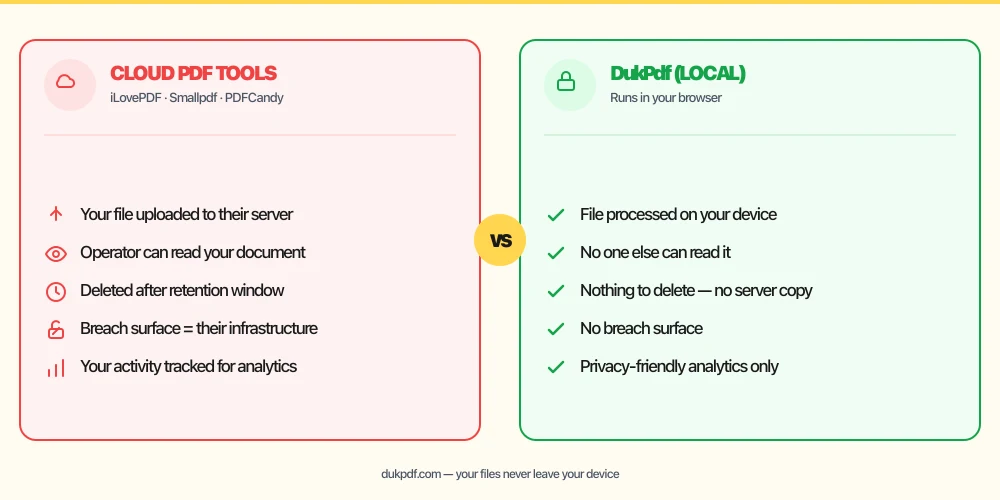
Organizing pages on a cloud server means the operator holds a copy of every page. Even though you might only be rotating a single page or deleting one blank page, the server processes the entire file. Every page passes through their infrastructure, creating an opportunity for unauthorized access, logging, or retention.
The risk is compounded because organization typically involves uploading the file, waiting for it to process, making changes in a web interface, and then downloading the result. During that entire session, the file sits on the server. If you are working with a confidential draft, a patient record, or a legal document, that window of exposure is unnecessary — every operation in an organize tool can be performed locally.
A local organize tool eliminates the risk. The file is read in your browser, the page tree is modified in memory, and the result is saved directly to your Downloads. The server never sees a single page. For more on the privacy risks of uploading documents, read our analysis of uploading bank statements to online PDF tools.
Common mistakes when organizing PDFs
- Changing page order without checking cross-references.If the document has a table of contents, index, or cross-references like “see page 12,” those page numbers become wrong after reordering. Update the TOC after organizing.
- Deleting a page that contains important metadata. Embedded file attachments, form fields, and annotations can live on pages you might delete. Check each page thoroughly before removing it.
- Inserting blank pages in the wrong size. If your document uses US Letter and you insert an A4 blank page, the mismatch will be obvious. Check the source page size first.
- Forgetting to save before closing the tab. In-browser editing holds all changes in memory. If you close the tab before clicking Save, your page order changes, rotations, and deletions are lost.
- Using a cloud tool for a simple reorder. If you only need to reorder a few pages, a full cloud upload is unnecessary. Use a local tool.
Organize vs individual page tools
The organize approach is a superset of several individual tools. Here is how they relate:
- Organize PDF combines reorder, rotate, delete, and insert. Use it when you need multiple operations on the same document.
- Rearrange Pages is a focused tool for just reordering. Use it when that is all you need.
- Remove Pages is for deletion only. Use it when you know exactly which pages to remove.
- Rotate PDF handles rotation in bulk or by range. Use it for quick fixes.
- Add Pages inserts blank pages. Use it when you know exactly where a blank page is needed.
How DukPdf organizes PDFs locally
DukPdf’s Organize PDF tool provides a full page management interface entirely in your browser. Add your PDF, then reorder, rotate, delete, and insert pages through a visual thumbnail grid. Every operation is immediately visible and fully undoable until you click Save.
Because the tool runs locally using qpdf compiled to WebAssembly, the file never leaves your device. Open DevTools → Network tab while organizing — zero upload requests. For a contract, a tax return, or any document too sensitive to upload, that is the structurally safer way to restructure your pages.
Related reading
How to rearrange PDF pages — drag-and-drop reordering, no server uploads
Reorder PDF pages with simple drag-and-drop — move pages individually or in bulk, in your browser.
How-ToHow to remove pages from a PDF — delete specific pages, no server uploads
Delete unwanted pages from any PDF — by page number, range, or visual selection — in your browser.
Frequently asked questions
What is the difference between Organize PDF and Rearrange Pages?
Organize PDF is a full page management toolkit: reorder, rotate, delete, and insert pages in one interface. Rearrange Pages is simpler — just drag-and-drop reordering. Use Organize when you need multiple page operations; use Rearrange when you only need to reorder.
Can I undo changes while organizing?
Yes. Most organize tools have a full undo and redo history. Every operation — reordering, rotation, deletion — is reversible until you click Save to finalize the changes.
Will bookmarks and links be preserved after organizing?
Bookmarks and links that point to moved pages are typically updated automatically. Bookmarks pointing to deleted pages are removed. Internal links to other pages in the same document are preserved but may point to the new page number.
Can I rotate only some pages during organization?
Yes. Click the rotate icon on any individual page thumbnail. You can rotate some pages clockwise, others counter-clockwise, and leave the rest unchanged — all in the same editing session.
Is my PDF uploaded when I organize pages?
No. All page operations run entirely in your browser using qpdf compiled to WebAssembly. Open DevTools → Network tab while organizing — zero upload requests.