
Repair PDFs without uploading
What does “repairing a PDF” mean?
Repairing a PDF means fixing structural damage that prevents the file from opening correctly in a PDF reader. A PDF is more than a visual document — it is a structured container with cross-reference tables, object streams, and internal pointers that tell the reader where to find each page, font, and image. When that structure gets damaged, the reader cannot navigate the file, and you see errors like “file is damaged and cannot be repaired” or “this PDF may be corrupted.”
A repair tool analyzes the damaged file, rebuilds the broken structures (cross-reference tables, object streams, trailer dictionaries), and produces a new PDF that conforms to the PDF specification. The visible content — text, images, fonts, layout — is preserved as long as the underlying data is present in the file. If some objects are missing or corrupted beyond recovery, the tool recovers what it can and reports the gaps.
It is important to understand what repair is not. Repair is not magic — it cannot recreate data that was never written to the file or that was physically erased from the storage medium. It can, however, fix the vast majority of structural corruption caused by incomplete downloads, software crashes, and transmission errors.
When do you need to repair a PDF?
A corrupted PDF is almost always a surprise. You try to open a file and your reader refuses. Here are the situations where repair is most often the answer:
- Incomplete download. A PDF downloaded from email, a cloud drive, or a website failed mid-transfer. The file is truncated — it is missing the end, which contains the cross-reference table that readers use to navigate.
- Software crash during save. An application that was saving a PDF crashed before the write completed. The file contains most of the content but the trailer and cross-reference table are missing or incomplete.
- Failing storage media. A PDF on an aging hard drive, USB stick, or SD card developed bad sectors. Some bytes are corrupted but most of the content is intact.
- Email gateway truncation. A corporate email server or attachment scanner truncated the PDF to fit a size limit, damaging the file structure while leaving the beginning of the file readable.
- Old or malformed PDFs. A PDF created by a very old tool or a non-compliant generator may violate the PDF specification in ways that modern readers reject. A repair tool can often normalize the structure.
How to repair a PDF in 3 steps
- Open the repair tool in your browser. Go to the Repair PDF tool in Chrome, Safari, Firefox, or Edge. The tool loads in your browser — nothing is sent to a server.
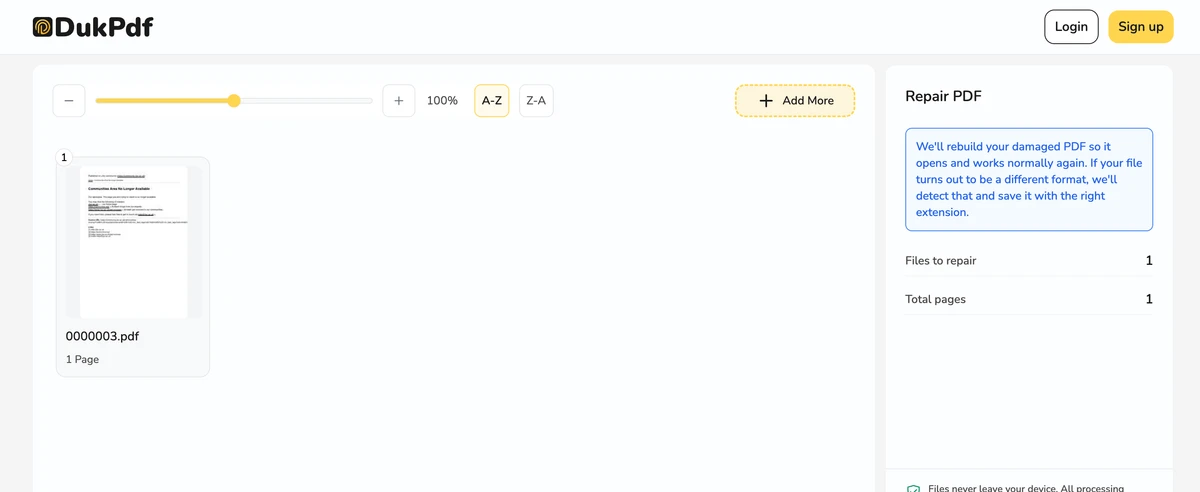
- Select your damaged PDF. Click Select file or drag and drop the corrupted PDF. The tool reads the file locally and analyzes its structure. It reports the type of damage found — missing cross-reference table, truncated file, corrupted object streams, or other issues.
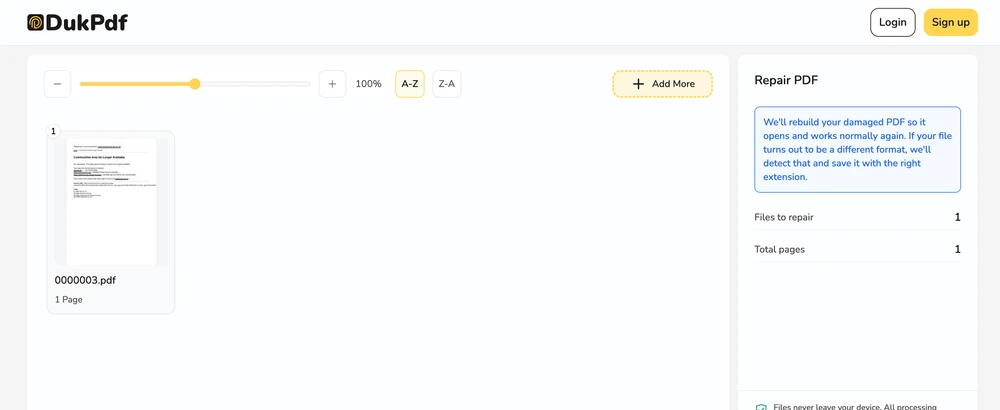
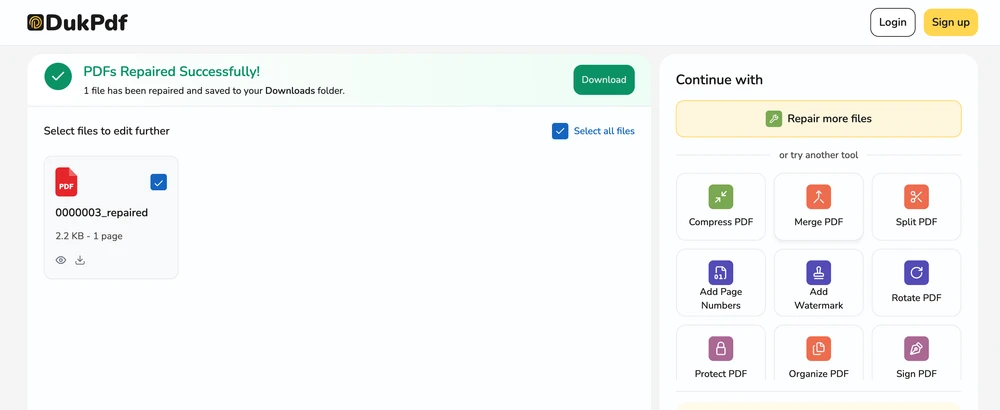
- Run repair and download. Click Repair. The tool rebuilds the PDF structure and recovers as much content as possible. The repaired file saves to your Downloads. If only some pages are recoverable, you get a partial PDF with a summary of what was salvaged.
The repair runs entirely in your browser using qpdf compiled to WebAssembly. Open DevTools → Network tab while repairing — zero requests carry your file data.
Privacy implications of cloud-based PDF repair
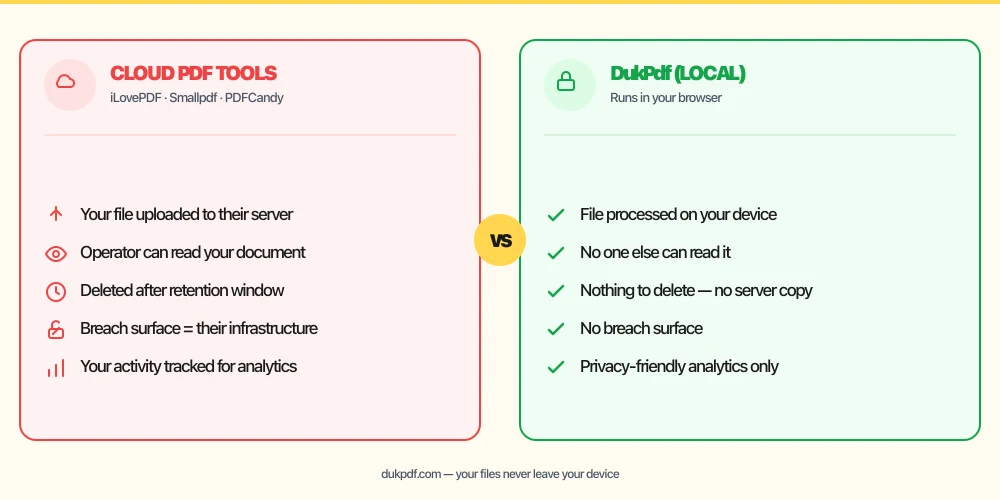
Repairing a damaged document on a cloud server means sending the corrupted file to someone else’s infrastructure. This is particularly problematic because damaged files often contain the very content you are most concerned about protecting — a contract that was truncated mid-transfer, a medical record that saved incorrectly, a legal filing that crashed during export. The corruption does not reduce the sensitivity of the content; it increases the urgency of recovery, which makes the privacy risk easier to overlook.
Cloud repair tools also present an asymmetry: the server receives the complete file, processes it, and returns the result. If the server logs the file for debugging, retains it for analytics, or is compromised during processing, the damage to your privacy is permanent — the corrupted file contains the same sensitive information as the intact version would.
A local repair tool eliminates this entirely. The damaged file is read in your browser, analyzed, rebuilt, and saved without ever reaching a network interface. For more on why sensitive documents should never be uploaded for processing, read our guide on uploading bank statements to online PDF tools.
Common mistakes when repairing PDFs
- Uploading a corrupted file to a cloud repair tool. A damaged PDF may contain the same sensitive content as the intact version. Sending it to a server for repair adds unnecessary exposure. Use a local tool.
- Assuming repair is always possible. If the file was never fully written to disk (for example, a download that completed only 30%), there is nothing to repair. Recovery is limited to whatever data the file contains.
- Repairing a file you already have a backup of. Before attempting repair, check whether you have a backup, a cached copy in email, or a previous version in cloud storage. The backup may be faster and more complete.
- Not checking the repaired file thoroughly. A successful repair produces a PDF that opens, but some content may be missing. Scroll through every page to verify that text, images, and formatting were fully recovered.
- Repairing in place. Repair tools produce a new file. They do not modify the original. Keep the original damaged file in case you need to try a different repair approach.
Repair vs other PDF recovery strategies
Repair is one option for dealing with a damaged PDF. Here are the alternatives and when each makes sense:
- Repair PDF rebuilds the file structure. Use it when the PDF is structurally damaged but the content data is present.
- Compress PDF can sometimes force a reader to re-serialize a partially damaged file. If repair fails, try compressing the file — the re-serialization may produce a readable result.
- Merge PDF can sometimes extract pages from a damaged file. If the cross-reference table is broken but the pages are intact, a merge tool may be able to pull them out.
- Open in an alternative reader. Some PDF readers handle corruption better than others. Try opening the file in Chrome, Firefox, or a different version of Acrobat before assuming the file is hopeless.
How DukPdf repairs PDFs locally
DukPdf’s Repair PDF tool fixes corrupted PDFs entirely in your browser using qpdf compiled to WebAssembly. The tool analyzes the damaged file, rebuilds the cross-reference table and object streams, and recovers as much readable content as possible — all on your device.
Because the repair runs locally, the damaged file never touches a server. This is especially important when the corrupted document contains sensitive information that you were already handling carefully. Open DevTools → Network tab while repairing — zero upload requests.
Related reading
How to compress PDF files without losing quality — free guide
Reduce PDF file size for email attachments and upload forms without uploading your documents.
How-ToHow to merge PDF files — free, no server uploads, any device
Combine multiple PDF files into one document for free, without uploading anything to a server.
Frequently asked questions
Can any corrupted PDF be repaired?
Not always. Structural corruption (broken cross-reference tables, missing object streams, truncated files) can often be fixed. Content that was never written to the file or is physically missing from the disk cannot be recovered. The tool recovers as much readable content as possible and reports what was salvaged.
What causes a PDF to become corrupted?
Common causes include: incomplete download from email or the web, a server or network interruption during upload, a failing hard drive or USB stick, software crashes while saving, and truncation by an email gateway or file-size limiter.
Will the repaired file look the same as the original?
If the repair succeeds, the visual content is identical. The tool rebuilds the internal structure — cross-reference tables, object pointers, stream lengths — without changing the visible pages, text, images, or formatting.
What if only some pages are recoverable?
The tool extracts the pages it can read and saves them as a partial PDF. You get a summary of what was recovered. From there, use an extract-pages tool to save specific pages from the recovered file.
Is my damaged PDF uploaded during repair?
No. The repair runs entirely in your browser using qpdf compiled to WebAssembly. The damaged file (which may contain sensitive or irreplaceable content) never leaves your device. Open DevTools → Network tab while repairing — zero upload requests.