
Unlock PDFs without uploading

What does “unlocking a PDF” mean?
Unlocking a PDF means removing the password or restriction that prevents the file from being opened, edited, printed, or copied. PDFs support two layers of protection. An open password (also called a user password) requires the viewer to enter it before the document renders at all. An owner password(also called a permissions password) restricts operations such as printing, copying text, or making edits — but the document opens without it. Many PDFs use both: the open password controls access, and the owner password controls what the viewer can do once inside.
Unlocking is the inverse of protecting. When you encrypt a PDF with a password, the file wraps its content in an encryption layer that only the correct key can peel back. Unlocking removes that layer, producing a standard unprotected PDF. The process is entirely reversible — you can re-protect the unlocked file with a different password later using a tool like Protect PDF.
Importantly, unlocking a PDF is not the same as cracking it. Cracking implies breaking the encryption without the password. Unlocking assumes you have the password and are using it to produce a decrypted copy. Legitimate scenarios include removing a password from a document you created yourself, stripping inheritance restrictions from a file passed down through an organization, or preparing a protected file for automated processing that cannot handle password prompts.
When do you need to unlock a PDF?
Password-protected PDFs are common, and the need to unlock them arises in several everyday situations:
- You forgot you set a password.You protected a PDF six months ago, and now you need to open it on a new device or share it with a colleague — but the password is in the way. If you remember the password, unlocking takes seconds.
- A former employee protected shared files. An ex-colleague password-protected a set of invoices or reports before leaving. Your organization knows the password (it was shared), but every file needs individual decryption.
- You need to batch-process protected documents. Automated workflows (merge, split, OCR, compress) often fail on password-protected files. Unlock each document first, then run the pipeline on the unprotected copies.
- Printing or editing restrictions. Some PDFs come with an owner password that blocks printing or copying, even though the open password is known. Removing the owner password unlocks the full functionality.
- Migrating documents between systems. An old document management system may have applied protection that newer systems do not understand. Unlocking normalizes the file for modern tools.
How to unlock a PDF in 3 steps
- Open the unlock tool in your browser. Go to the Unlock PDF tool in Chrome, Safari, Firefox, or Edge. The tool loads entirely in your browser — nothing is sent to a server.
- Select your protected PDF and enter the password. Click Select fileor drag and drop the password-protected PDF. Type the open password into the prompt. The decryption runs locally on your device — the password is processed in browser memory and never transmitted over the network.
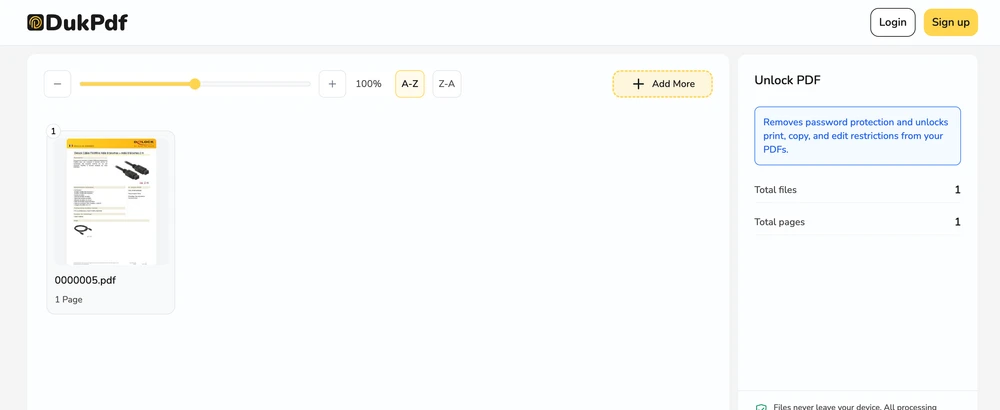
- Download the unlocked file. Click Unlock. The decrypted PDF saves to your Downloads folder without any password. The original protected file stays unchanged on your device. If you need to re-protect the result, use Protect PDF with a new password.
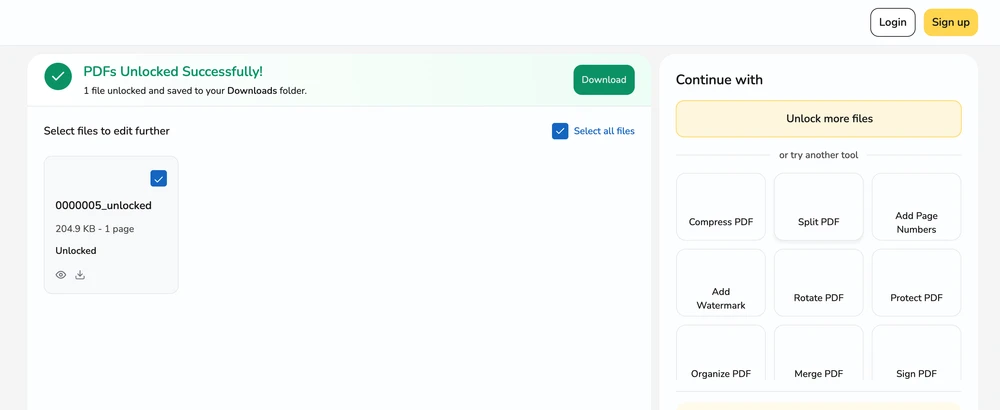
The entire operation runs locally using qpdf compiled to WebAssembly. To confirm no passwords or documents are uploaded, open your browser’s DevTools → Network tab while unlocking — you will see zero requests carrying your password or file data.
Privacy implications of cloud-based PDF unlock tools
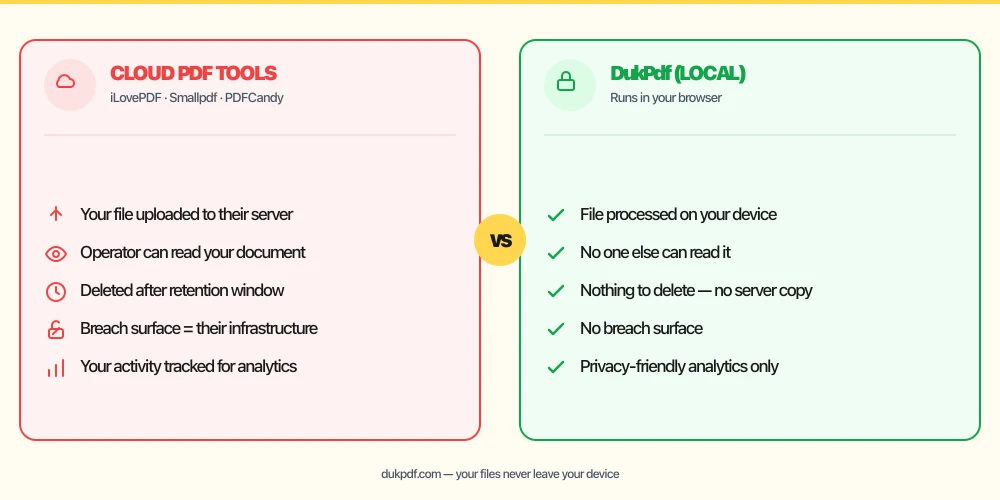
Most online PDF unlock tools work on a server: you upload the protected file, the server decrypts it, and you download the result. This means you are sending your password and your document to someone else’s infrastructure. The password you type into a web form on a cloud service is processed on their server. Even if the service promises not to store passwords, the transmission exposes both the decryption key and the content to the operator.
The privacy risk is compounded because the password is the only thing protecting the document. If the cloud tool is compromised, the attacker has both the encrypted file and the password you just sent. A server-side breach of a cloud unlock tool is catastrophic — the attacker gains access to every document and every password submitted during the breach window.
A local unlock tool eliminates this attack surface entirely. The password you provide is processed in your browser’s memory, used to decrypt the file, and discarded. It never appears in a server log, never crosses a network interface, and cannot be intercepted. This is the structurally simpler privacy choice: a server that never receives your password cannot leak it. For more on why local processing matters for sensitive documents, read our guide on the risks of uploading bank statements to online PDF tools.
Common mistakes when unlocking PDFs
- Using a cloud unlock tool that asks for your password.A tool that uploads your file to a server to decrypt it also receives your password. That is two sensitive values (password and document) in someone else’s hands. Pick a tool that decrypts locally so neither leaves your device.
- Typing the wrong password into a tool that sends it to a server.Even a mistyped password reveals information about your password pattern. Local tools keep every attempt on your device.
- Forgetting to re-protect the unlocked file. After unlocking, the file has zero protection. If you need to share it, add a new password usingProtect PDF before sending.
- Unlocking a file you do not have permission to access.If you know the password but are not authorized to unlock the document, doing so may violate terms of service or data protection policies. Only unlock files you own or have explicit permission to decrypt.
- Confusing unlock with redaction. Unlocking removes the password. It does not remove content. If the file contains sensitive information that should not be visible, use Redact PDF after unlocking to permanently remove the sensitive content.
Unlock PDF vs other PDF operations
Unlocking is one step in a broader PDF workflow. Here is how it fits with related operations:
- Unlock PDF removes password protection. Use it when you have the password and need an unprotected file for sharing or further processing.
- Protect PDF is the opposite — it adds password protection. Use it after unlocking if the file needs to be re-secured with a new password.
- Redact PDF removes content permanently. Unlock first, then redact, then protect if needed.
How DukPdf unlocks PDFs locally
DukPdf’s Unlock PDF tool decrypts password-protected PDFs entirely in your browser using qpdf compiled to WebAssembly. The workflow is straightforward: select the protected file, enter the password, and download the unlocked result. The decryption runs in your device’s memory — the password is processed locally and never transmitted.
Because the unlock runs locally, the password and the document never touch a server. Open your browser’s DevTools → Network tab while unlocking — you will see zero upload requests carrying your data. For a password-protected contract, a tax return, or any other document whose decryption key should stay private, that is the structurally simpler way to remove protection.
Tips for managing password-protected PDFs
A few practical practices to make password management with PDFs less painful:
- Store passwords in a password manager.If you password-protect a PDF, save the password in your password manager immediately. A PDF password is just as important as any other credential — losing it is the same as losing access.
- Use a passphrase, not a single word. PDF passwords are case-sensitive and accept spaces. A passphrase like
correct horse battery stapleis harder to crack thanP@ssw0rd123and easier to remember. - Keep the original protected file. If you unlock a PDF and later need the protected version (for auditing, compliance, or re-sharing), the original is the authoritative encrypted copy. Do not delete it until the unlocked copy has fulfilled its purpose.
- Unlock before running batch operations. Tools like merge, compress, and split sometimes fail on password-protected files. Unlock all files in the batch before running the operation to avoid mid-workflow failures.
- Verify the unlocked file opens. After unlocking, open the result in your PDF reader to confirm the password was accepted and all pages rendered correctly. A successful unlock produces a file that opens without any prompt.
Related reading
How to password protect a PDF — encryption, AES, no server uploads
Encrypt and password-protect PDF files using AES encryption — entirely in your browser.
How-ToHow to redact a PDF — permanently remove sensitive content
Permanently redact text and images from PDF files — true redaction that destroys the underlying content.
Frequently asked questions
Can I unlock a PDF if I forgot the password?
No. You must know the current password to unlock the file. DukPdf processes the password locally to decrypt the document — it cannot bypass or recover a forgotten password. If you forgot the password, try a password manager, ask the document creator, or check for common passwords you may have used.
Does unlocking a PDF change the content?
No. Unlocking only removes the password protection. The pages, text, images, fonts, bookmarks, and metadata are identical to the original. The output file is a byte-exact copy of the input minus the encryption layer.
What types of PDF passwords can DukPdf remove?
DukPdf removes open passwords (required to view the document) and owner passwords (required to edit, print, or copy). Both are decrypted locally once you provide the correct password. The tool handles standard PDF encryption including AES-128 and AES-256.
Is it safe to enter my PDF password in a browser tool?
It is safe when the tool processes the password locally. DukPdf runs the decryption in your browser using qpdf compiled to WebAssembly — the password is used on your device and never sent to a server. Open DevTools → Network tab while unlocking to see zero upload requests carrying your data. Cloud-based unlock tools that send the password to a server present a very different risk profile.
Can I unlock a PDF on my phone or tablet?
Yes. The unlock tool works in any modern browser — Safari on iPhone, Chrome on Android, or any tablet browser. No app install is required. The decryption runs locally on the device, so your password stays on your phone or tablet.