
Add pages without uploading
What does “adding pages to a PDF” mean?
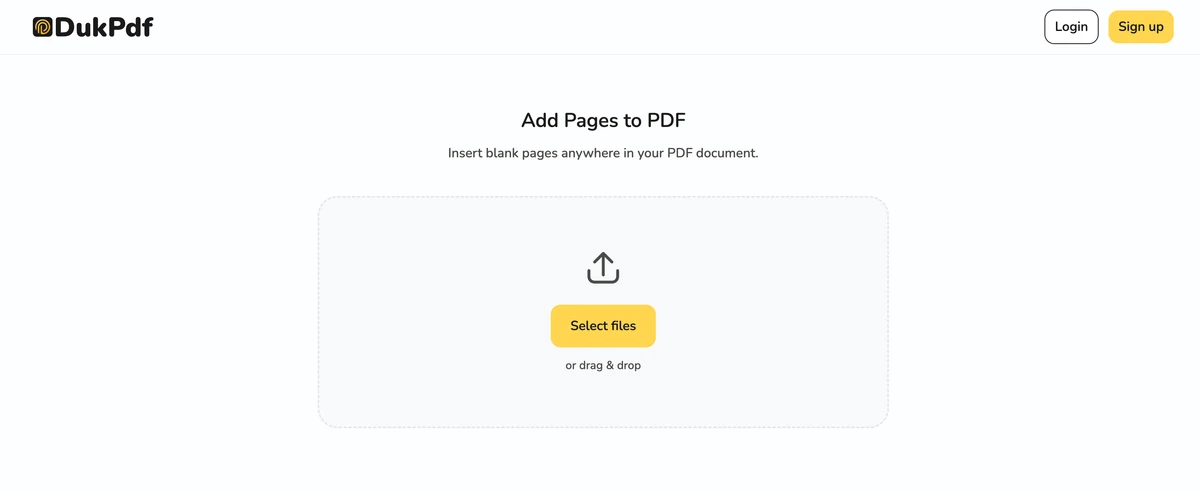
Adding pages to a PDF means inserting one or more blank pages into an existing document at a position you choose. The result is a new PDF that contains all the original content plus the new blank pages exactly where you placed them. The original file is not modified.
The blank pages are true empty pages — no headers, footers, watermarks, or content of any kind. They are simply blank sheets at the specified page size. Once inserted, they behave like any other page in the document: they appear in the page count, can be printed, and can be filled with content later using an edit-PDF or add-text tool.
Adding blank pages is a structural operation. The tool creates a new page object at the specified size, inserts it into the PDF’s page tree at the position you chose, and writes the updated file. No re-rendering of existing pages occurs — the original content is copied through unchanged.
When do you need to add pages to a PDF?
Adding blank pages might sound like a niche operation, but it comes up regularly in document preparation workflows:
- Adding a cover page. Insert a blank page at the beginning of a report, proposal, or manuscript so you can later add a title page or cover design.
- Section dividers. Insert blank pages between chapters of a long document to act as visual dividers when the file is printed or viewed in presentation mode.
- Double-sided printing prep. Many printers and binding services require an even number of pages. Add a blank page at the end of an odd-page document to meet the requirement.
- Space for handwritten notes. Insert blank pages at the end of a contract or form so there is room for handwritten signatures, amendments, or notes before printing.
- Padding for binding. When binding a document, extra blank pages at the beginning or end can protect the content from wear near the spine or cover.
How to add pages to a PDF in 3 steps
- Open the add-pages tool in your browser. Go to the Add Pages tool in Chrome, Safari, Firefox, or Edge. The tool loads entirely in your browser.
- Choose position, size, and number of pages. Click Select file or drag and drop your PDF. Select the page size (A4 or Letter), how many blank pages to insert, and where to place them — before a specific page, after a specific page, or at the very end of the document.
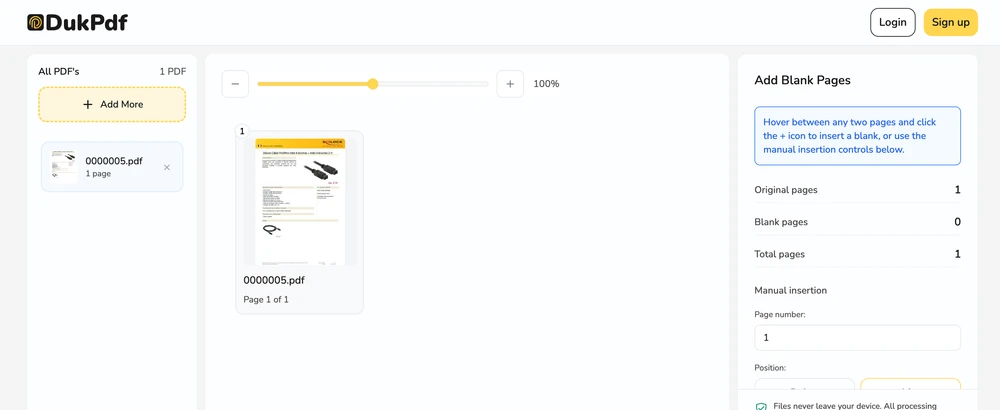
- Insert and download. Click Add Page. The tool creates the new PDF with the blank pages inserted at your chosen positions and saves it to your Downloads.
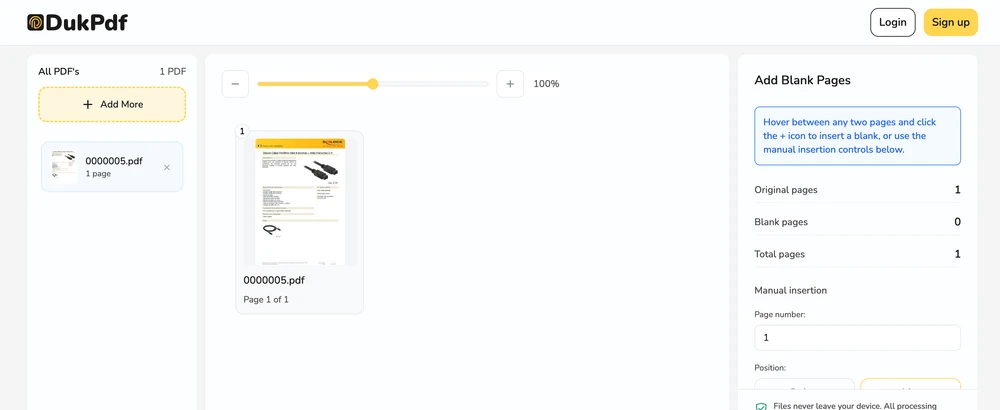
The entire operation runs locally using qpdf compiled to WebAssembly. Open DevTools → Network tab while inserting — zero requests carry your file data.
Privacy implications of cloud-based page insertion
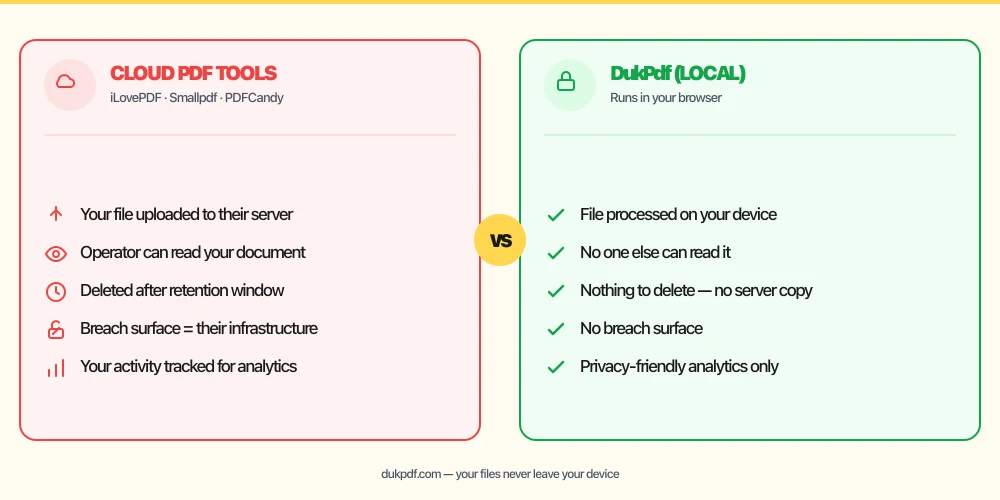
Inserting pages into a confidential document on a cloud server means the operator processes every page. Even though the operation is simple — adding a blank page at position 3 — the tool needs to rewrite the entire PDF to insert the new page object. The cloud server receives a full copy of the document, processes it, and returns the result.
The privacy risk is not proportional to the simplicity of the operation. A single blank page insertion exposes the entire document to the operator’s infrastructure. If you are working with a confidential draft, a client contract, or a document containing personal data, that exposure is unnecessary.
A local tool eliminates this. The file is read, modified, and saved in your browser. The server never sees the document, and no network request carries the page content. For more on why processing documents locally protects your privacy, read our analysis of uploading financial documents to online PDF tools.
Common mistakes when adding pages to a PDF
- Using a cloud tool for a trivial operation. Adding a blank page is one of the simplest PDF operations. There is no reason to upload the whole file to a server for this. Pick a local tool.
- Adding the wrong page size. If the document is US Letter and you add an A4 blank page, the mismatch is obvious when printed or viewed side by side. Check the document page size before inserting.
- Adding too many pages at once. Inserting fifty blank pages at the end of a document adds fifty pages to the file size. Only add what you actually need.
- Forgetting to add content to the blank page. Blank pages stay blank. If you inserted a cover page, remember to fill it with a title, date, and author using an edit tool before sharing.
- Not keeping the original file. After adding pages, keep the source PDF in case you inserted them at the wrong position and need to start over.
Add pages vs other PDF operations
Adding pages is one operation in the page management toolkit. Here is how it compares:
- Add Pages inserts blank pages. Use it when you need empty pages for printing, binding, or later content.
- Remove Pages deletes pages. Use it when you have too many pages and need to shorten the document.
- Organize PDF combines reordering, rotation, deletion, and insertion in one interface. Use it when you need multiple page operations in a single session.
How DukPdf adds pages locally
DukPdf’s Add Pages tool inserts blank pages into a PDF entirely in your browser using qpdf compiled to WebAssembly. Select the file, choose the page size and position, and download the result. The insertion happens on your device, so the document never leaves your machine.
Because the operation is local, you can verify zero network activity by opening DevTools → Network tab. For a draft contract, a confidential report, or any document that should not reach a third-party server, that is the safest way to add pages.
Related reading
How to remove pages from a PDF — delete specific pages, no server uploads
Delete unwanted pages from any PDF — by page number, range, or visual selection — in your browser.
How-ToHow to organize PDF pages — reorder, rotate, delete in one tool, no server uploads
Reorder, rotate, delete, and insert PDF pages in one interface — in your browser, without uploading.
Frequently asked questions
Can I add multiple blank pages at once?
Yes. Specify how many blank pages to insert and their positions. The tool adds all of them in one pass, so you can insert five blank pages at the end of a chapter without running the tool five times.
What page size will the blank page be?
Most tools let you choose A4 or US Letter. The blank page matches the size you select, independent of the existing pages. This is useful when the document has mixed page sizes and you need the new pages to match a printer or binding requirement.
Can I add a page in the middle of a document?
Yes. You can insert a blank page before or after any specific page number. Choose “Before page X” or “After page X” to position the new page exactly where you need it.
Will the blank page have headers, footers, or page numbers?
No. An inserted blank page is completely empty — no header, no footer, no page number, no content of any kind. If you need page numbers on the new page, use an add-page-numbers tool after insertion.
Is my PDF uploaded when I add pages?
No. Adding pages runs entirely in your browser using qpdf compiled to WebAssembly. Open DevTools → Network tab while adding — zero upload requests.