
Crop PDF pages without uploading
What does cropping a PDF mean?
Cropping a PDF means selecting a rectangular region of each page to keep, and discarding everything outside that region. The result is a PDF where each page only shows the content inside the crop box. Content outside the crop area — whether it is a margin, a page number, a running header, or a binding shadow from a scanned book — is removed from the visible page.
Cropping has two modes. “Trim content” hides the cropped-out area but keeps the original page dimensions. The hidden content is still present in the PDF file but outside the visible page boundary. “Resize page” actually changes the page dimensions to match the crop box, producing a smaller PDF page. The right choice depends on your goal: trim for screen display where you want standard page sizes; resize for e-reader formatting or print preparation.
Cropping is not the same as content removal. The content outside the crop box is still present in the file (in trim mode) and can be recovered by expanding the crop box or opening the file in a full PDF editor. For permanent removal of content (such as sensitive text or images), use redaction instead. To understand the difference between visual hiding and permanent removal, see our guide on redacting PDFs.
When do you need to crop a PDF?
Cropping is one of the most common PDF page operations. Here are the typical use cases:
- Removing headers and footers. Scanned documents often have page numbers, document titles, or date stamps in the header or footer area that you want to trim before sharing or printing.
- E-reader formatting. PDF pages designed for print have large margins that waste screen space on a Kindle, Kobo, or phone. Cropping the margins makes the text fill the screen, improving readability.
- Removing scanned book artifacts. Book scans often include the binding shadow, finger shadows, and edge artifacts. Cropping removes these visual distractions, leaving only the clean page content.
- Isolating a chart or table. A single page may contain a chart, diagram, or table that you want to extract visually. Cropping around that element produces a PDF that shows only the relevant content.
- Print preparation. Trim marks, registration targets, and color bars from a print production PDF can be removed by cropping to the live area before distributing the file.
How to crop a PDF in 3 steps
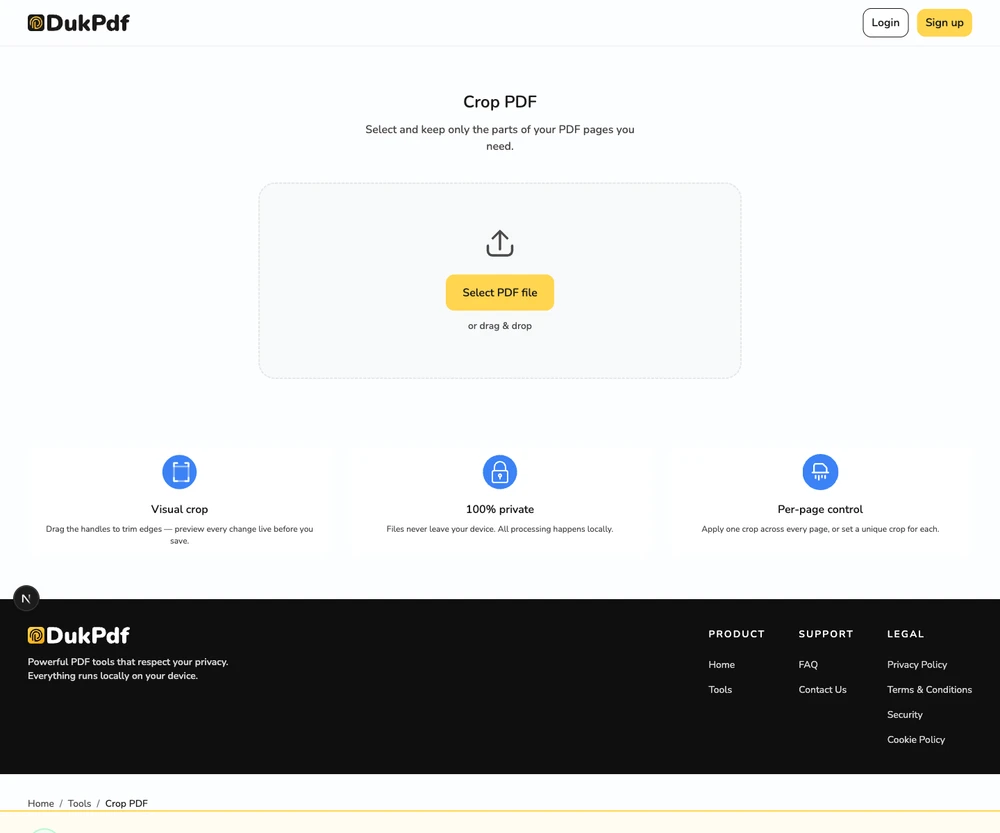
- Open the Crop PDF tool. Go to the Crop PDF tool in your browser. The first page renders with a draggable crop box overlay.
- Adjust the crop box.Drag the edges or corners of the crop box to set the visible area. Use the “Apply to all pages” toggle to copy the same crop to every page, or switch to per-page mode to crop each page individually.
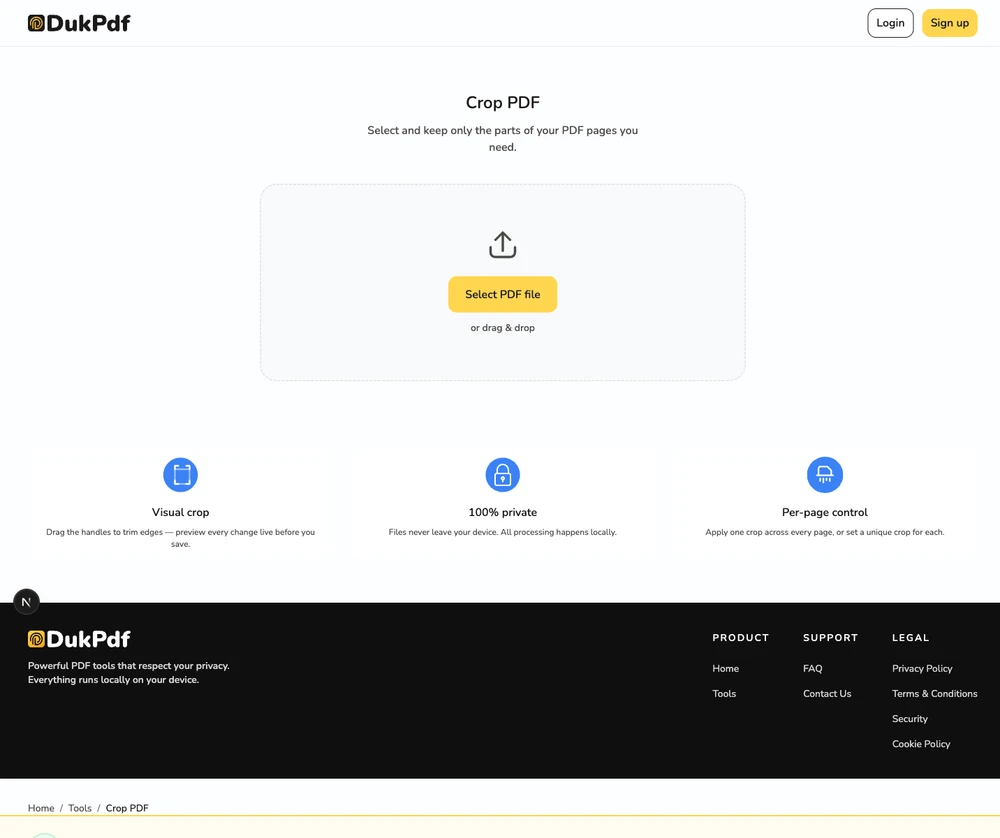
- Crop and download. Click Crop. The cropped PDF is generated in your browser and downloads automatically. The original file stays unchanged on your device.
The crop runs in your browser using PDF.js. To confirm no page data is uploaded, open DevTools → Network tab while cropping — you will see zero upload requests carrying your content.
Privacy implications of cloud-based PDF cropping
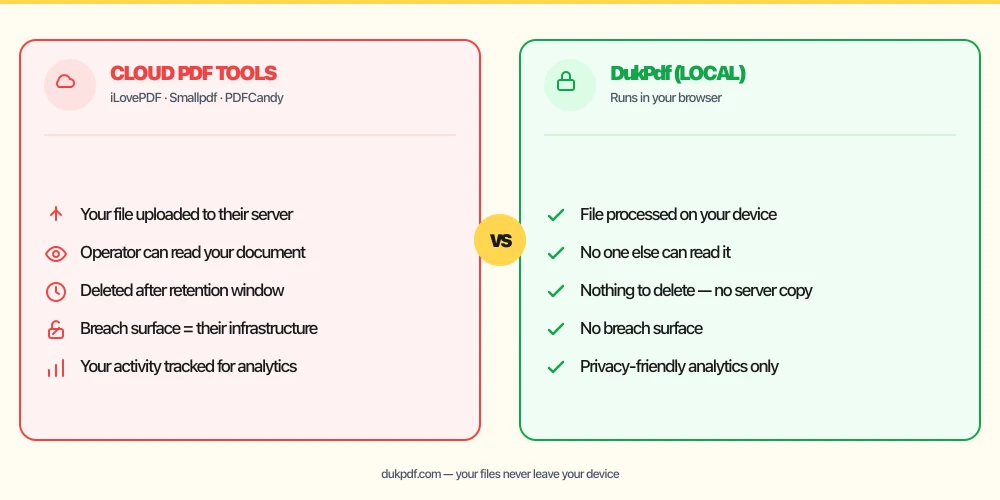
Cropping a PDF on a cloud server requires uploading the entire file. The server processes every page to apply the crop and returns the result. This means the server operator has access to the full content of every page — including the areas you are cropping out. If you are cropping to remove a sensitive margin note or a confidential watermark, the original version (with the note still visible) is processed on the server.
The privacy angle is particularly subtle with cropping. Users sometimes crop a PDF to hide sensitive information in the margins before sharing. If done on a cloud server, the uncropped original (with the sensitive data visible) is uploaded to the server first. The server sees everything before the crop is applied. This defeats the purpose of cropping for privacy.
A local crop tool avoids this entirely. Your file is read, rendered with the crop box, and saved on your device. The uncropped original is never exposed to a third party. Open DevTools → Network tab while cropping to confirm zero upload requests. For more on the importance of local processing for sensitive documents, see our guide on redacting without uploading.
Common mistakes when cropping PDFs
- Uploading to a cloud cropper to remove sensitive margins.A cloud cropper processes the full page (including the content you want to crop out) on its server. The operator sees the uncropped original. Crop locally so the raw page never leaves your device.
- Using crop when you need redaction. Cropping hides content outside the crop box, but the cropped-out content may still be recoverable from the file. For permanent removal of sensitive text or images, use Redact PDF instead of Crop.
- Not checking the result on every page. If the crop is applied to all pages but the document has mixed layouts (portrait and landscape pages, or different margin sizes), some pages may have too much or too little content visible.
- Cropping too tightly. A crop box that is too close to the text may cut off descenders (the tails on letters like g, j, p, q, y) or line art on some pages. Leave a small margin buffer inside the crop box.
- Forgetting to check “Resize page” for e-readers.Trimming the margins without resizing the page keeps the original page size, which may leave large white space on an e-reader screen. Enable resize to match the page dimensions to the cropped area.
Crop PDF vs alternatives
Cropping is one way to adjust what appears on a PDF page. Here is how it compares to related operations:
- Crop PDF changes the visible page area. Use it to trim margins, remove headers, or resize pages for specific devices.
- Remove Pages deletes entire pages. Use it when entire pages contain unwanted content, not just margins.
- Rotate PDF changes page orientation. Rotate before cropping for correct alignment.
How DukPdf crops PDFs locally
DukPdf’s Crop PDF tool lets you visually select the crop area on each page, directly in your browser. The tool uses PDF.js to render the page and an interactive crop overlay for precise selection. Apply the same crop to all pages or crop each page individually.
Because the crop runs in your browser, your file is read, displayed, and cropped on your device. No page image or document data is sent to a network. Open DevTools → Network tab while cropping to confirm zero upload requests. For a scanned book, a confidential report, or any document where the margins contain sensitive content, that is the structurally simpler way to crop.
Tips for the best crop result
To get clean, professional-looking cropped PDFs:
- Use per-page mode for facing pages. Left and right pages in a scanned book often have different margins. Crop each page individually for a consistent look across the whole document.
- Zoom in for precise selection. Use the zoom feature to position the crop box edges exactly at the margin boundary. A 1-pixel misalignment is visible when the PDF is printed or displayed at full screen.
- Use “Resize page” for e-readers. If you are preparing a PDF for Kindle or phone reading, enable resize so the page dimensions match the cropped content. The text will fill the screen without large borders.
- Crop before compressing. Cropping first (especially with resize enabled) reduces the page area, which may reduce file size. Then compress the cropped result for maximum reduction.
- Keep the original. The cropped PDF is a derived artifact. Keep the original in case you need a different crop area later.
Related reading
Frequently asked questions
Can I crop each page individually?
Yes. By default, the crop applies to all pages, but you can switch to per-page mode and crop each page independently. Navigate through the page list to adjust individual crops. This is useful when a scanned book has different margin sizes on left and right pages.
Does cropping change the page size?
You can choose. “Trim content” hides content outside the crop box but keeps the original page dimensions. “Resize page” actually changes the page dimensions to match the crop box. Use resize for fitting on e-readers; use trim when you want to hide content without changing the page boundary.
Will cropping reduce image quality?
No. Cropping only changes which portion of the page is visible. The underlying content — images, fonts, and vector graphics — are unchanged. The cropped area is not re-rendered, so there is no quality loss.
Can I crop a password-protected PDF?
Yes. You will be prompted for the password before cropping starts. The cropped output is saved without the password. You can add a new password using Protect PDF after cropping if needed.
Is my PDF uploaded during cropping?
No. Cropping runs in your browser using PDF.js. Your file is read, cropped, and saved without a single network request carrying your content. Open DevTools → Network tab while cropping — zero upload requests.