
Convert images to PDF without uploading
What does JPG to PDF conversion do?
Converting a JPG (or any image) to PDF takes a picture file and embeds it into a PDF document as a full-page image. Each image becomes one page in the output. A batch of images produces a multi-page PDF, with each image on its own page in the order you specify. The result is a standard PDF that opens in any reader, on any device, without requiring special software.
The conversion itself is not a re-encoding. The image is placed inside a PDF container without recompression or quality loss. An 8-megapixel JPG embedded in a PDF looks identical to the original when viewed at 100%. The PDF acts as a wrapper that keeps all your images in one portable file, which is far easier to email, upload, or archive than a folder of loose images.
This also works in reverse. If you have a PDF and need individual image files, tools like PDF to JPG extract each page as a separate JPG image. Both operations are lossless in the sense that the visual quality is preserved, though the PDF format itself is not designed for pixel-level editing the way a photo editor is.
When do you need to convert JPG to PDF?
Converting images to a single PDF comes up in a wide range of scenarios, from personal projects to professional workflows:
- Photo albums and vacation compilations. You have a folder of photos from a trip and want to share them as a single PDF with friends or family. A PDF is smaller than a ZIP of originals and opens on any phone without special software.
- ID document scans.You photographed your passport, driver’s license, and insurance card for a visa application or rental agreement. Combining them into one PDF keeps related documents together without uploading the individual scans to a cloud service.
- Expense report receipts. You took photos of receipts from a business trip. Merging them into one PDF before submitting to your accounting system is cleaner than attaching a dozen separate files.
- School assignments. You photographed hand-written math work or textbook pages and need to submit them as a single PDF to a learning management system.
- Scanned document batches. A scanner app may export each page as a separate image. Converting the batch to PDF reassembles the document into its proper multi-page form.
How to convert JPG to PDF in 3 steps
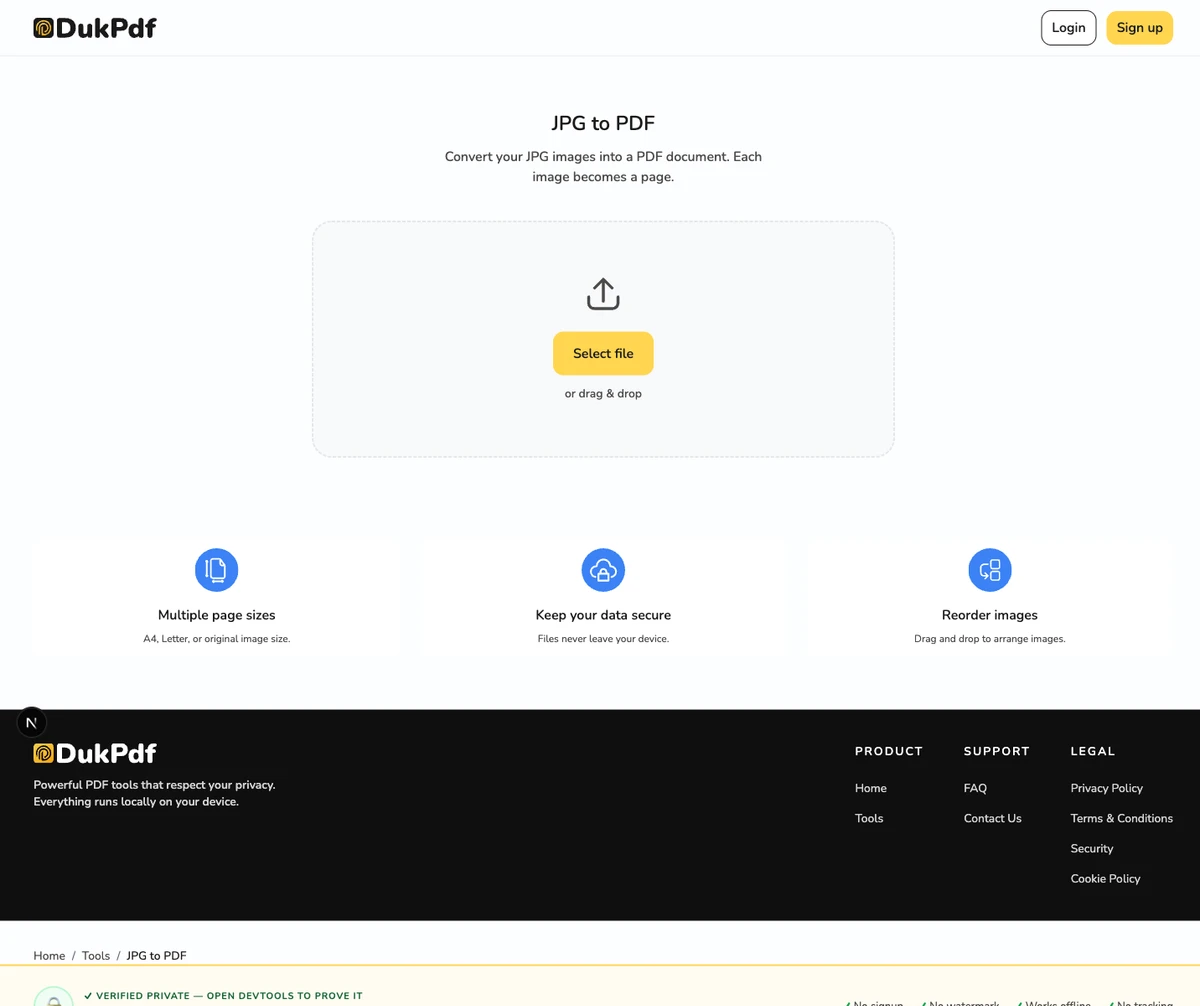
- Open the JPG to PDF tool in your browser. Go to the JPG to PDF tool in Chrome, Safari, Firefox, or Edge. The tool loads in your browser — nothing is sent to a server.
- Add and reorder your images. Click Select images or drag and drop JPG, PNG, or WebP files into the upload area. Each file appears as a thumbnail. Drag thumbnails to set the page order. Choose your page size (A4 or Letter) and orientation.
- Convert and download. Click Convert to PDF. A single PDF containing all your images saves to your Downloads folder. The original images are never modified and stay on your device.
The entire operation runs in your browser using WebAssembly. To confirm no images are uploaded, open DevTools → Network tab while converting — you will see zero requests carrying your image data.
Privacy implications of cloud-based image converters
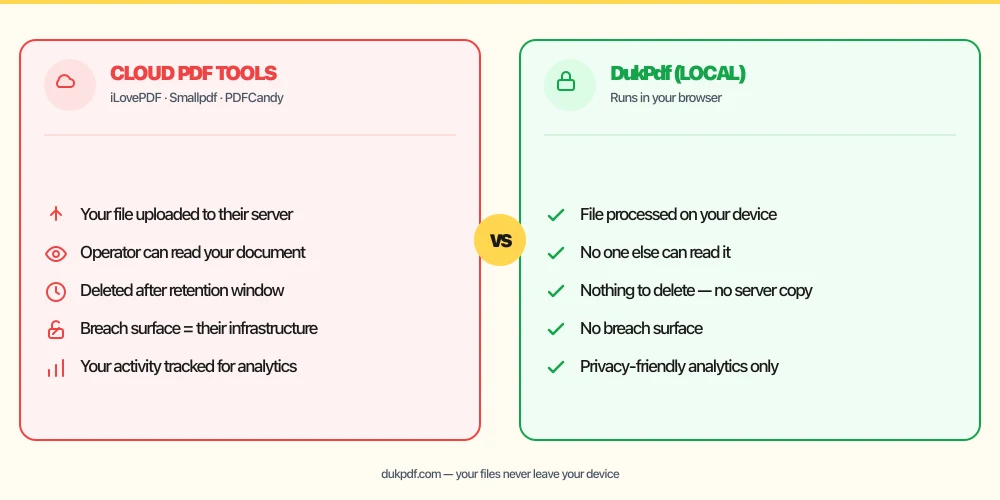
Most online JPG-to-PDF converters work by uploading your images to a server. The server receives every photo you drop in, processes them, and sends back the PDF. This means every personal photo, ID scan, or receipt image you convert passes through someone else’s infrastructure. For personal photos, that might feel like a minor privacy concern. For ID documents, bank card photos, or medical records, it is a significant exposure.
The privacy risk scales with the content. A passport photo uploaded to a cloud converter is on that company’s server, potentially in a log, a cache, or a training dataset. Many free services fund their operations by analyzing uploaded content or selling aggregated data. Even services with good intentions are vulnerable to breaches — a server-side compromise exposes every image that passed through the service.
A local conversion tool eliminates this attack surface. Your images never leave your device. The conversion happens in browser memory, and the output PDF is saved directly to your Downloads folder. No server sees your photos. This is especially important when the images contain sensitive information such as account numbers, addresses, or personal identification. For more on the risks of uploading sensitive documents, see our discussion of bank statements and PDF tools.
Common mistakes when converting JPG to PDF
- Uploading personal photos to a cloud converter. A vacation photo or ID scan uploaded to a server is out of your control. Pick a tool that processes images locally, so your personal photos stay on your device.
- Forgetting to reorder images before converting. The output PDF follows the order of the thumbnails. If your receipt photos are out of order, the PDF will be too. Rearrange thumbnails before clicking convert.
- Mixing different image resolutions. A very low-resolution image next to a high-resolution photo will look inconsistent in the PDF. Try to keep source images at similar resolutions for a uniform result.
- Not checking the page size setting. A photo meant for US Letter printed size will look different on an A4 page. Choose the page size that matches your intended use before converting.
- Assuming the PDF is editable like an image. Once an image is embedded in a PDF, you cannot edit individual pixels with standard PDF tools. If you need to edit a photo, do it before converting to PDF.
JPG to PDF vs alternatives
If you need to turn images into a document, you have several options. The best choice depends on what you want the output to look like:
- JPG to PDF embeds each image as a full page in a PDF. Use it when you want a portable document of your images that opens anywhere.
- Merge PDF combines existing PDF files. Use it after conversion if you have multiple image-based PDFs to merge.
- Insert inline in a document. If you want images alongside text (not full-page images), insert them directly into a Word or Google Doc and export to PDF from there.
How DukPdf converts images to PDF locally
DukPdf’s JPG to PDF tool processes images entirely in your browser. The workflow is simple: add images, reorder thumbnails, choose page size, and click convert. The tool reads your images into a canvas context, arranges them as PDF pages, and generates the output file — all on your device.
Because the conversion runs in the browser, your photos never leave your computer or phone. Open the browser’s DevTools → Network tab while converting — you will see zero upload requests carrying your image data. For personal photos, ID scans, and any image containing sensitive information, that is the structurally simpler way to create a PDF.
Tips for the best JPG-to-PDF result
A few practical tips to get the best-looking result:
- Use consistent image sizes. If you mix landscape and portrait photos, the PDF pages will have different aspect ratios. Crop or resize images to a common aspect ratio before converting for a uniform look.
- Name your files before converting. Rename images to something descriptive (
Receipt-01.jpg,Receipt-02.jpg) before conversion. The filenames are visible in the thumbnail grid and help with reordering. - Optimize image size first. Very large photos (10MB+ each) produce large PDFs. Compress your images or reduce resolution before conversion if file size matters.
- Check orientation before converting.Rotate any sideways photos before conversion. Most tools let you rotate thumbnails — use that to avoid upside-down pages in the output.
- Keep the originals. A PDF is a derived artifact. Keep the source images so you can reorder, crop, or edit and re-convert without rescanning or finding new copies.
Related reading
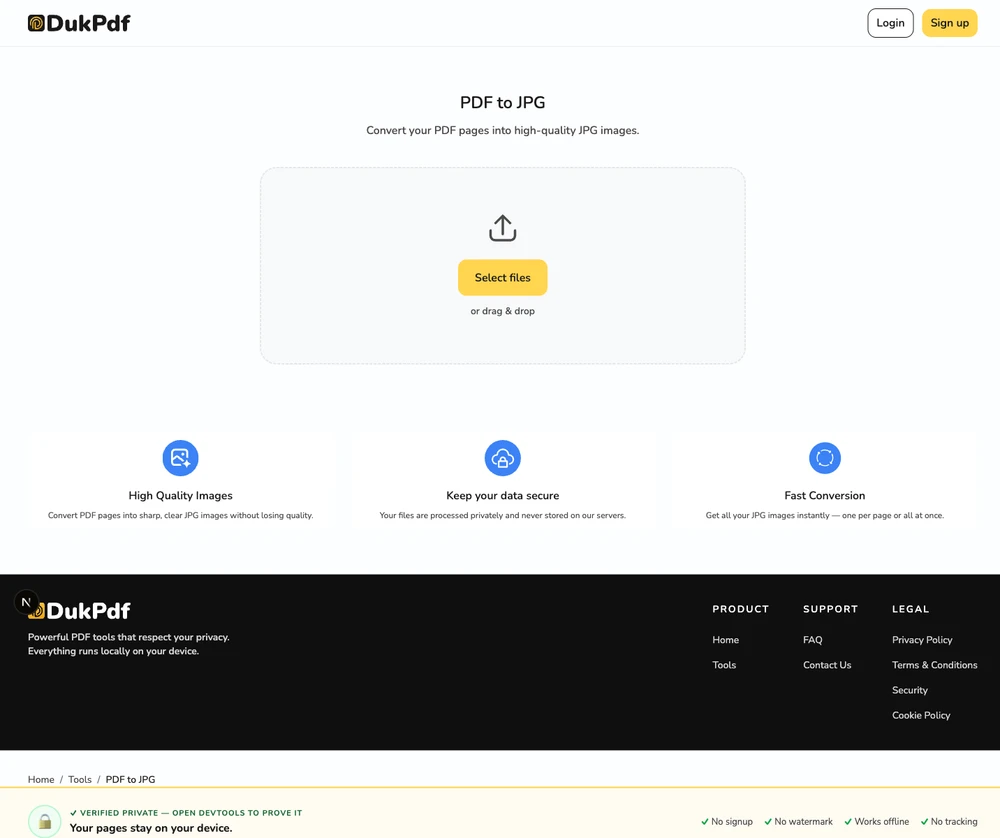
How to convert PDF to JPG — extract pages as images, no server uploads
Convert PDF pages to high-quality JPG images for sharing, slides, or design references.
How-ToHow to merge PDF files — free, no server uploads, any device
Combine multiple PDF files into one document for free, without uploading anything.
Frequently asked questions
What image formats can I convert to PDF?
JPG, JPEG, PNG, and WebP are supported. HEIC, BMP, GIF, and TIFF files can be converted to JPG or PNG first using any standard image converter before being processed into a PDF.
Can I convert multiple images into a single PDF?
Yes. Add up to 50 images at once and they will be merged into a single PDF in the order you choose. Drag the thumbnails to reorder them before converting. Each image becomes one page in the output PDF.
Will the image quality be preserved in the PDF?
Yes. Images are embedded into the PDF at their original resolution. There is no recompression or downsampling. If the resulting PDF is too large for email, use a compress tool afterwards to reduce file size.
What page size will the PDF use?
A4 by default, with the option to switch to US Letter. Each image is fitted to the page while preserving its original aspect ratio. You can choose the page size before converting.
Are my images uploaded during conversion?
No. The conversion runs entirely inside your browser using WebAssembly. Your photos are read, processed, and saved on your device. Open DevTools → Network tab while converting — you will see zero upload requests carrying your images.