
Convert PDF pages to images without uploading
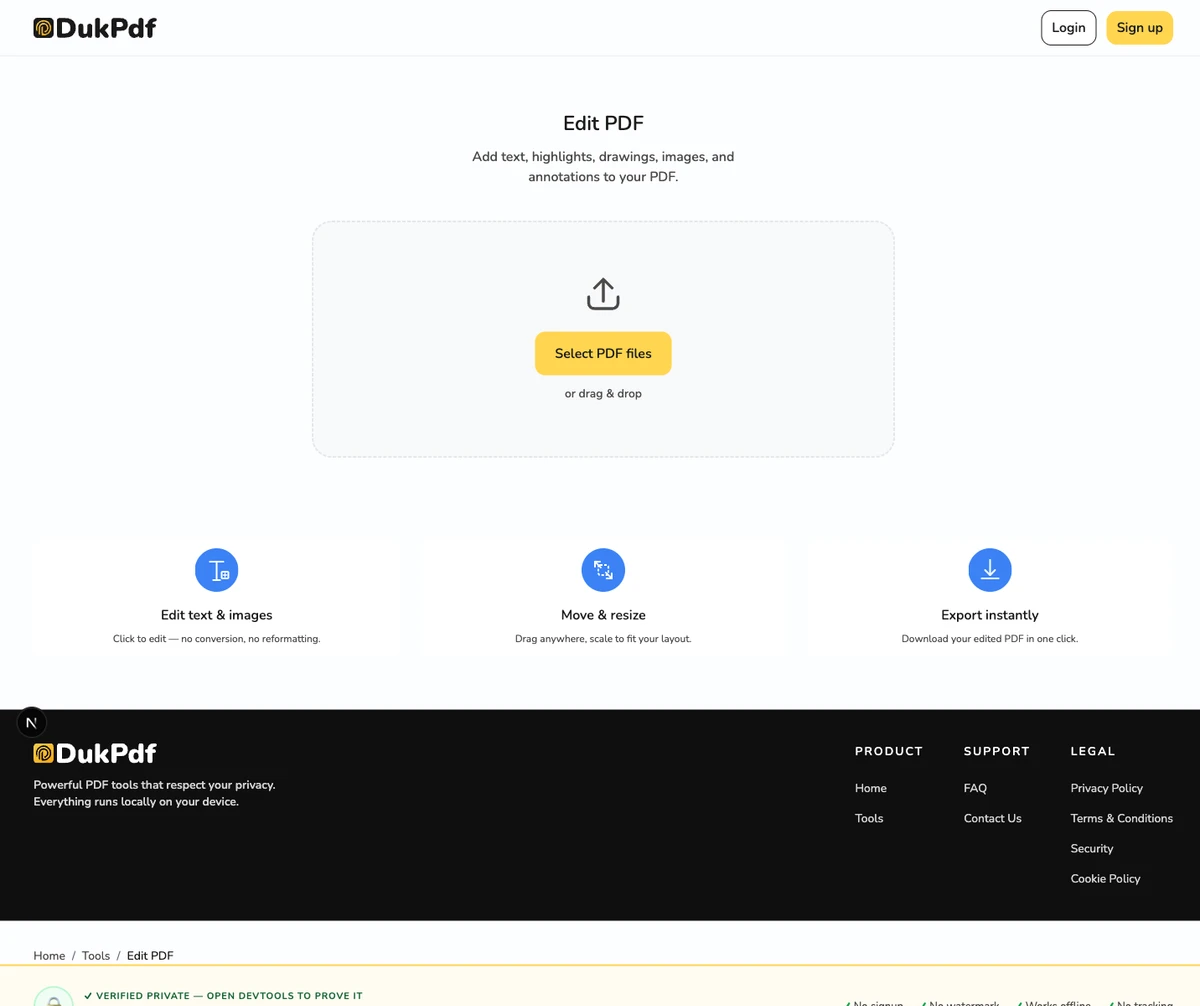
What does PDF to JPG conversion do?
Converting a PDF to JPG means rendering each page of the PDF as a separate image file. The output is not a re-encoded version of the PDF — it is a visual snapshot of each page, saved in the widely compatible JPG format. Text becomes a picture of text. Charts, diagrams, and photos embedded in the PDF are rasterized into the image. The result is a set of image files, one per page, that you can use anywhere JPG is accepted.
This is fundamentally different from extracting content. A text extraction tool pulls the raw text characters out of a PDF. A JPG conversion produces a pixel grid that looks exactly like the page but contains no selectable or searchable text. The right choice depends on your goal: if you need editable text, use OCR or text extraction. If you need a visual copy of the page (for a presentation slide, a social media post, or a design reference), JPG conversion is the correct approach.
The reverse operation — turning images back into a PDF — is also available. If you have JPG images and need a PDF, the JPG to PDF tool embeds images into a PDF document. Used together, these two tools let you move freely between image and document formats without any server-side processing.
When do you need to convert PDF to JPG?
Converting PDF pages to images is useful in a wide variety of situations, from social media to professional design:
- Social media sharing. You want to share a specific chart or quote from a report on LinkedIn, Twitter, or Instagram. Extracting just that page as a JPG gives you a clean, shareable image without taking a screenshot.
- Design references. A PDF contains a mood board, style guide, or visual reference that you want to import into Figma, Canva, or Photoshop. Converting pages to JPG lets you drop them directly into your design tools.
- Slide thumbnails. You have a PDF of presentation slides and want to use individual slides as images in a different deck. Converting each page to JPG gives you ready-to-use slide images.
- Product catalog images. A PDF catalog contains product photos that you need for an ecommerce site. Converting the relevant pages to JPG extracts the visuals without manual screenshotting.
- Archiving visual copies.You need to keep a visual record of a document’s appearance at a specific point in time. JPG snapshots are smaller than PDF files and open instantly on any device.
How to convert PDF to JPG in 3 steps
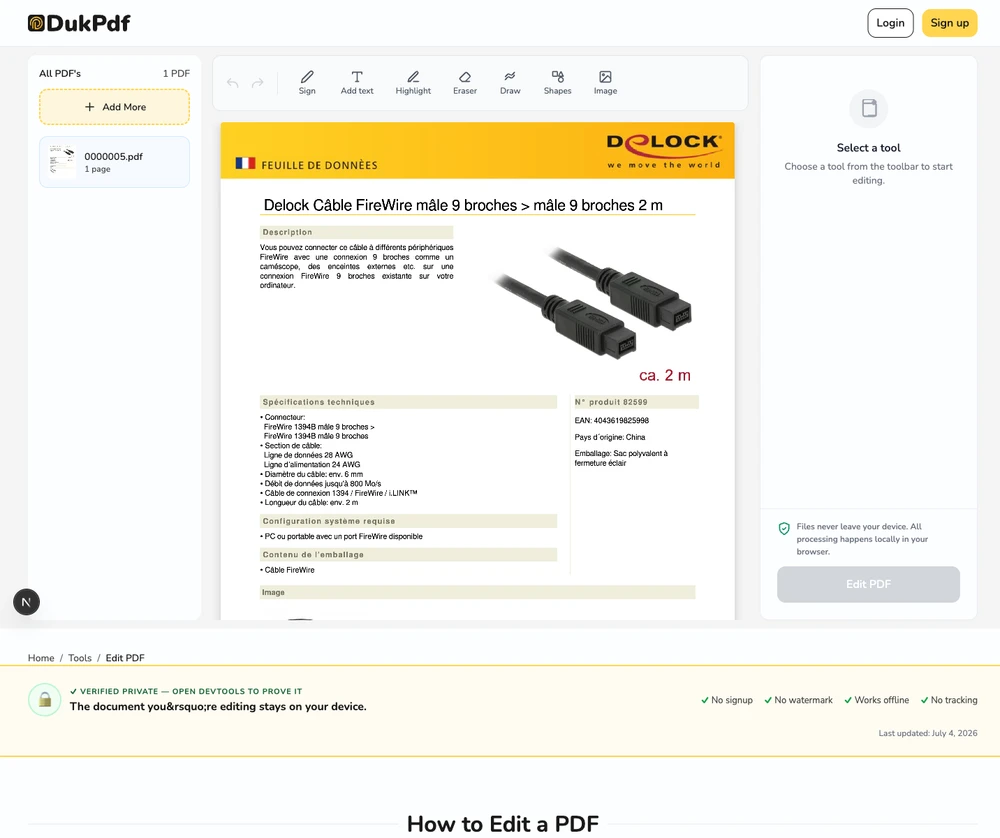
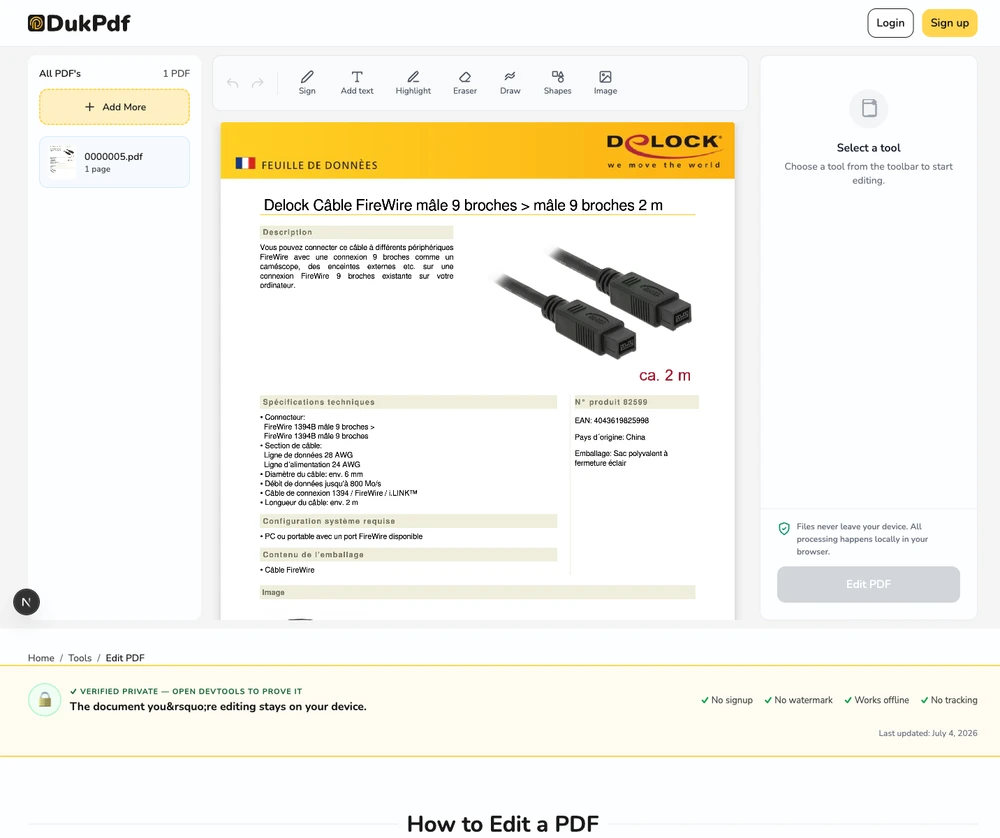
- Open the PDF to JPG tool. Go to the PDF to JPG tool in your browser. The tool loads entirely on your device.
- Select your PDF and choose pages. Click Select fileor drag and drop a PDF. Choose “All pages” or enter specific page numbers and ranges. Preview thumbnails update in real time so you can verify which pages will be extracted.
- Extract and download. Click Convert to JPG. Each page renders as a JPG image in your browser. If you selected multiple pages, the results are bundled in a ZIP file that downloads automatically.
The conversion runs locally using PDF.js and a canvas renderer — your PDF never leaves your device. Check the Network tab during conversion to confirm zero upload requests.
Privacy implications of cloud-based PDF-to-image tools
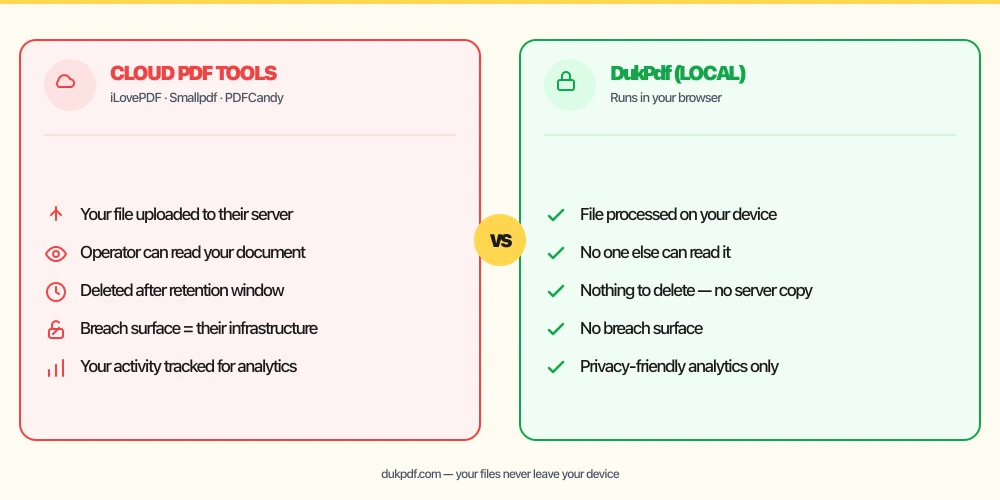
A cloud-based PDF-to-JPG tool requires you to upload the entire PDF to a server. The server renders each page server-side and returns the images. This means every page of your document is processed on someone else’s infrastructure. For confidential documents — contracts with pricing, internal strategy decks, or personal financial statements — that upload exposes every page to the operator.
The risk is that even a single page may contain sensitive information. A page from a confidential PDF extracted as an image on a cloud server is visible to the server operator. If the service is breached, every page image that passed through the service is exposed. Unlike local rendering, where the page data stays in browser memory, cloud rendering creates a server-side copy of every page.
A local converter eliminates this exposure. The PDF is rendered page by page in your browser using canvas elements. No page data is sent to a network. The resulting JPG images are saved directly to your Downloads folder. For more on why local processing matters for sensitive content, see our guide on redacting a PDF without uploading.
Common mistakes when converting PDF to JPG
- Uploading a confidential PDF to a cloud converter. A cloud tool processes your document on its server, exposing every page. Pick a local tool that renders pages in your browser so the content never leaves your device.
- Extracting all pages when you only need a few. A 100-page PDF generates 100 JPG files and a large ZIP. Use the page selector to extract only the pages you actually need.
- Forgetting that JPG images are not searchable. The output is a picture of each page, not a document with selectable text. If you need searchable text, run OCR on the PDF first or extract the text directly.
- Using low resolution for important pages. If you need the extracted image for print or detailed review, check the DPI setting before converting. Low DPI produces smaller files but may lose fine text detail.
- Expecting transparency in JPG output. JPG does not support transparency. If you need lossless output with sharp edges, use PDF to PNG instead — though note that PDF pages render onto white, so neither format gives you a transparent background.
PDF to JPG vs alternatives
Converting PDF pages to images is one way to work with PDF content. Here is how it compares to related operations:
- PDF to JPG renders pages as images. Use it when you need a visual copy of a page for sharing or design.
- JPG to PDF is the reverse: it takes images and produces a PDF. Use them as a round-trip pair.
- Compress PDF reduces file size. If your goal is a smaller PDF (not images), compress the PDF directly.
How DukPdf converts PDF to JPG locally
DukPdf’s PDF to JPG tool renders each page of your PDF as a JPG image entirely in your browser. The tool uses PDF.js to parse the document and an HTML canvas to render each page at the chosen resolution. Every pixel is produced on your device.
Because the rendering runs locally, your PDF never touches a server. Open the browser’s DevTools → Network tab while converting — you will see zero upload requests carrying your document data. For a confidential report, a design mockup, or any document whose pages should not be exposed to a third party, that is the structurally simpler choice.
Tips for the best PDF-to-JPG result
A few tips to get the highest quality JPG output:
- Choose the right DPI for your use case. 150 DPI is fine for screen sharing and social media. For print or detailed review, increase to 300 DPI. Higher DPI produces larger files but captures fine text and line art more clearly.
- Crop before extracting. If only a portion of a page is relevant (a chart, a table, a photo), crop the page first using Crop PDF to avoid generating an oversized image with empty margins.
- Rotate pages first. Sideways pages produce sideways images. Rotate the PDF before converting to ensure all extracted images are correctly oriented.
- Name your output files. If you extract multiple pages, the ZIP file contains numbered JPGs. Renaming them before extraction is not possible, but you can rename the files after downloading.
- Keep the original PDF. The JPG images are a derived artifact. Keep the source PDF if you might need to extract different pages, adjust the resolution, or convert to a different format later.
Related reading
Frequently asked questions
What resolution are the extracted JPG images?
Images render at 150 DPI by default, which is sharp enough for screen use and most print applications. The resolution matches the source PDF’s embedded image data, so text-heavy pages stay crisp. For higher DPI, check the tool settings before extracting.
Can I extract only specific pages?
Yes. Enter individual page numbers (1, 3, 7) or ranges (3-5, 8-12) in the page selector. Only the pages you specify are extracted. Unselected pages are skipped entirely, saving time on large documents.
Will the images keep the PDF’s formatting?
Yes. Each page is rendered as a faithful image snapshot. Fonts, layout, colors, and images are preserved exactly as they appear when you open the PDF in a reader. The output is a visual replica, not a reflowed version.
Can I convert multiple PDFs at once?
Yes. Drop several files and each one is converted independently. Results are returned as a single ZIP containing separate folders for each source PDF, making it easy to organize multi-file outputs.
Are my PDFs uploaded during conversion?
No. Extraction runs entirely in your browser using PDF.js and a canvas renderer. Zero upload requests appear in the Network tab. Your document stays on your device from the moment you select it until the images are downloaded.