
Rotate PDF pages without uploading
What does “rotating PDF pages” mean?
Rotating pages in a PDF means changing the orientation of one or more pages by 90, 180, or 270 degrees. The content of the page — text, images, charts, and layout — stays exactly the same; it is simply displayed at a different angle. A page that was scanned upside down can be turned right-side up. A landscape chart wedged into a portrait document can be rotated so it is readable without tilting your screen or turning the paper sideways.
Rotation is one of the simplest PDF operations, both conceptually and technically. The tool does not re-render the page or re-encode any content. It changes a single property — the rotation entry in the page object — that tells the PDF reader how to display the page. This is why rotation is instant and lossless even for very large files.
The rotation is permanent in the output file. When you download the rotated PDF, the new orientation is baked into the document. Any PDF reader, on any device, will display the pages at the angle you set. This is different from rotating temporarily in your viewer, which only changes the display on your screen and resets when you close the viewer.
When do you need to rotate PDF pages?
Upside-down pages and mixed orientations are surprisingly common in real-world PDFs. Here are the most frequent scenarios:
- Upside-down scans. Duplex scanners sometimes flip the second side of a two-sided document. The result is every other page upside down. Rotating those pages is the fix.
- Mixed landscape and portrait. A document with standard portrait pages and a few wide charts or tables in landscape needs the landscape pages rotated so the reader can view them without turning the device.
- Scanned photos or artwork. Photographs and artwork scanned at the wrong angle appear rotated in the PDF. A quick rotation restores the intended orientation.
- Documents created in the wrong orientation. A PDF generated from a presentation or spreadsheet may have every page sideways. Rotating the entire document by 90 degrees fixes the orientation in one click.
- Preparation for binding. Documents bound on the left edge versus the right edge may need different page orientations for correct reading flow after binding.
How to rotate pages in a PDF in 3 steps
- Open the rotate tool in your browser. Go to the Rotate PDF tool in Chrome, Safari, Firefox, or Edge. The tool loads entirely in your browser.
- Choose pages and direction. Click Select file or drag and drop your PDF. Select the pages to rotate — all pages, specific page numbers, or a range. Choose the rotation direction: 90 degrees clockwise, 90 degrees counter-clockwise, or 180 degrees.
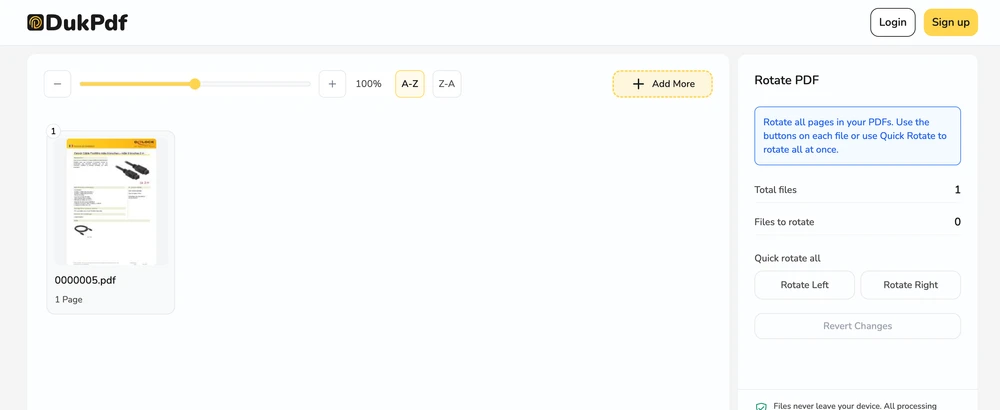
- Rotate and download. Click Rotate. The rotated file is generated locally and saves to your Downloads. The original file is unchanged.
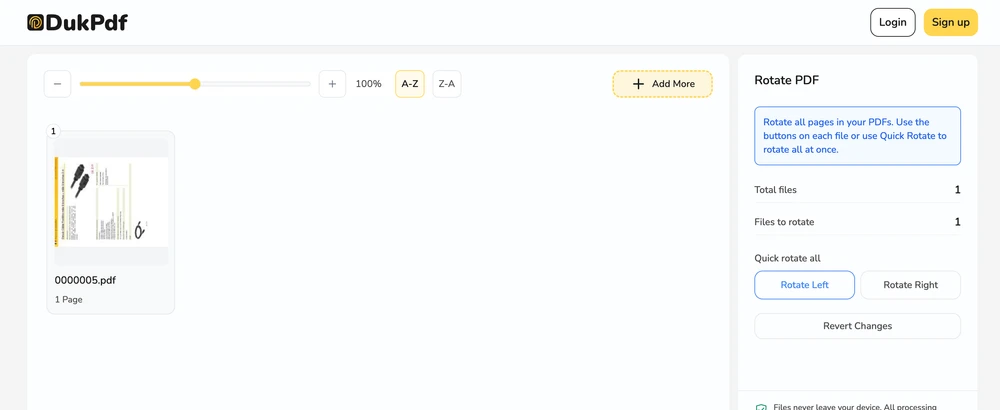
The rotation runs entirely in your browser using qpdf compiled to WebAssembly. Open DevTools → Network tab while rotating — zero requests carry your file data.
Privacy implications of cloud-based PDF rotation
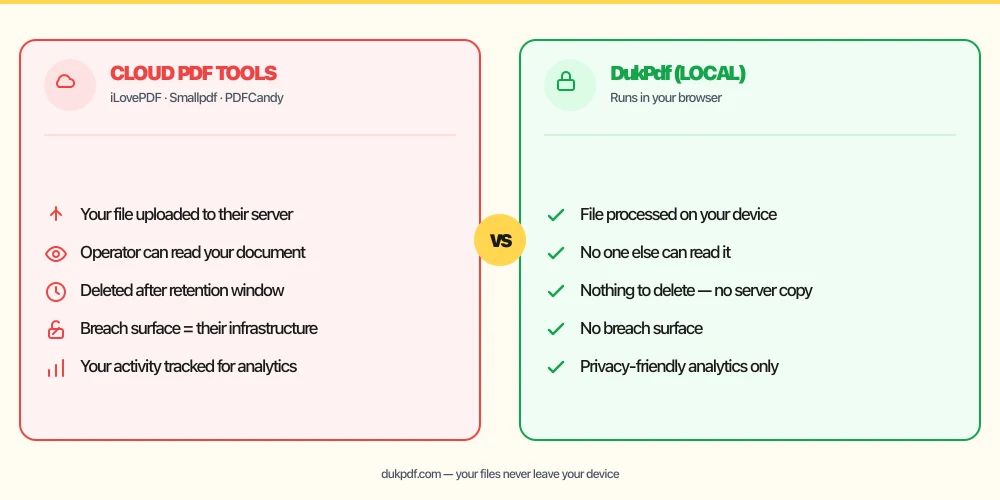
Rotating pages on a cloud server — even this simple operation — still sends your document over the internet. Rotation is arguably the simplest PDF operation, requiring only a change to one numeric property in the page object. Yet many online tools still require a full upload, server-side processing, and a download of the result.
The absurdity is worth stating explicitly: you are uploading a complete document to a third-party server so they can flip one bit that says “display this page rotated 90 degrees.” The server receives every page of the document, even though the operation touches only metadata. If the document contains sensitive information — a patient intake form, a confidential memo, a personal tax return — that upload is a completely unnecessary exposure.
A local rotation tool eliminates this. The file is read in your browser, the rotation property is changed in memory, and the result is saved directly to your Downloads. No server ever receives a copy. For more on why document-processing tools should operate locally, read our analysis of uploading bank statements to online PDF tools.
Common mistakes when rotating PDF pages
- Rotating in the viewer and thinking it is saved. Most PDF readers let you temporarily rotate the display. This does not change the file. Only a dedicated rotation tool makes the rotation permanent in the saved PDF.
- Uploading the whole file for a simple rotation. If the tool requires a full upload, find one that works locally. Rotation is too simple to justify the upload risk.
- Rotating all pages when only some need it. If only pages 3 and 7 are upside down, do not rotate the entire document. Use the page-range selector to target only the affected pages.
- Confusing rotation direction. An upside-down scan needs a 180 degree rotation, not 90. A landscape page that displays sideways needs 90 degrees clockwise or counter-clockwise depending on which direction it is tilted.
- Not checking the result. After rotating, scroll through the file to verify every page is oriented correctly. A single page set to the wrong direction is easy to miss until you share the file.
Rotate vs related page operations
Rotation is often needed alongside other page operations. Here is how it fits:
- Rotate PDF changes page orientation. Use it first if pages are upside down or sideways.
- Crop PDF trims margins. Rotate first, then crop — because the crop box moves with the rotated page, you want the page oriented correctly before setting the crop area.
- Rearrange Pages reorders pages. Rotate individual pages before or after reordering.
How DukPdf rotates pages locally
DukPdf’s Rotate PDF tool turns pages in a PDF entirely in your browser using qpdf compiled to WebAssembly. Add your file, choose the pages and direction, and download the rotated result. The rotation happens on your device, so the document never leaves your machine.
Because the tool runs locally, you can verify zero network activity by opening DevTools → Network tab. For a document with sensitive content that happens to need a simple rotation, that is the safe and rational way to fix the orientation.
Related reading
How to crop a PDF — trim margins and resize pages, no server uploads
Trim margins, remove headers and footers, and resize PDF pages visually — in your browser.
How-ToHow to rearrange PDF pages — drag-and-drop reordering, no server uploads
Reorder PDF pages with simple drag-and-drop — move pages individually or in bulk, in your browser.
Frequently asked questions
Can I rotate only some pages instead of the whole document?
Yes. Enter specific page numbers or ranges (e.g. 3, 5, 7-9) to rotate only those pages. The rest of the document stays in its original orientation.
Will rotating reduce the quality of the PDF?
No. Rotation only changes the orientation metadata of each page. The content — text, images, fonts, vectors — is not re-rendered. The rotated pages are visually and structurally identical to the originals, just turned.
What if I rotate a page the wrong direction?
Click rotate again — each click rotates another 90 degrees. Four rotations bring you back to the original orientation. Most tools also have an undo button.
Can I rotate pages in a password-protected PDF?
Yes. You will be prompted for the password before rotation. The output file is saved without the password. Use a protect-PDF tool afterwards to re-secure it.
Is my PDF uploaded when I rotate pages?
No. Rotation runs entirely in your browser using qpdf compiled to WebAssembly. Open DevTools → Network tab while rotating — zero upload requests.