
Lossless page images, rendered on your device
What does PDF to PNG conversion do?
Converting a PDF to PNG renders each page of the document as a separate image file. The output is a visual snapshot — a grid of pixels that looks exactly like the page but contains no selectable or searchable text. Charts, tables, diagrams and photographs embedded in the page are all flattened into the image. You get one PNG per page, usable anywhere images are accepted.
What makes PNG different from the more common PDF to JPG conversion is that PNG is lossless. JPEG works by discarding detail your eye is unlikely to miss, which is why a JPG can be small. PNG discards nothing. Every pixel that was drawn is stored exactly, so the letters on a text page have hard, clean edges instead of the faint grey halos JPEG leaves behind.
That single property drives every other trade-off on this page. It is why PNG is the right choice for a diagram and the wrong one for a photograph, and it is why hitting a file size limit works completely differently than it does with JPG.
When do you need PNG rather than JPG?
The page content decides, not a general preference. PNG is worth choosing when the page is built from sharp edges and flat colour:
- Documentation and screenshots. Pulling a page out of a manual for a wiki or a help article. JPEG softens the edges of UI text just enough to look wrong next to real text on the page.
- Charts, tables and data pages.Flat fills and thin gridlines are exactly what PNG compresses well, so these pages are often smaller as PNG than you would expect — and perfectly crisp.
- Line drawings and schematics. A hairline stays exactly one pixel wide in PNG. Under JPEG compression it smears into a grey band, which on a technical drawing is a real loss of information.
- Print production. At 300 DPI the artefacts JPEG leaves are invisible on a screen but show on paper. If the page is going to a printer, lossless is the safer choice.
- Upload forms that specify PNG. Some portals simply reject JPG for document scans, and the format is not yours to choose.
The one case to avoid is a page that is mostly photograph. PNG has to store every speck of photographic texture at full cost, so the file can end up several times larger than a JPG that looks identical. For those pages, PDF to JPG is the better tool.
How to convert PDF to PNG in 3 steps
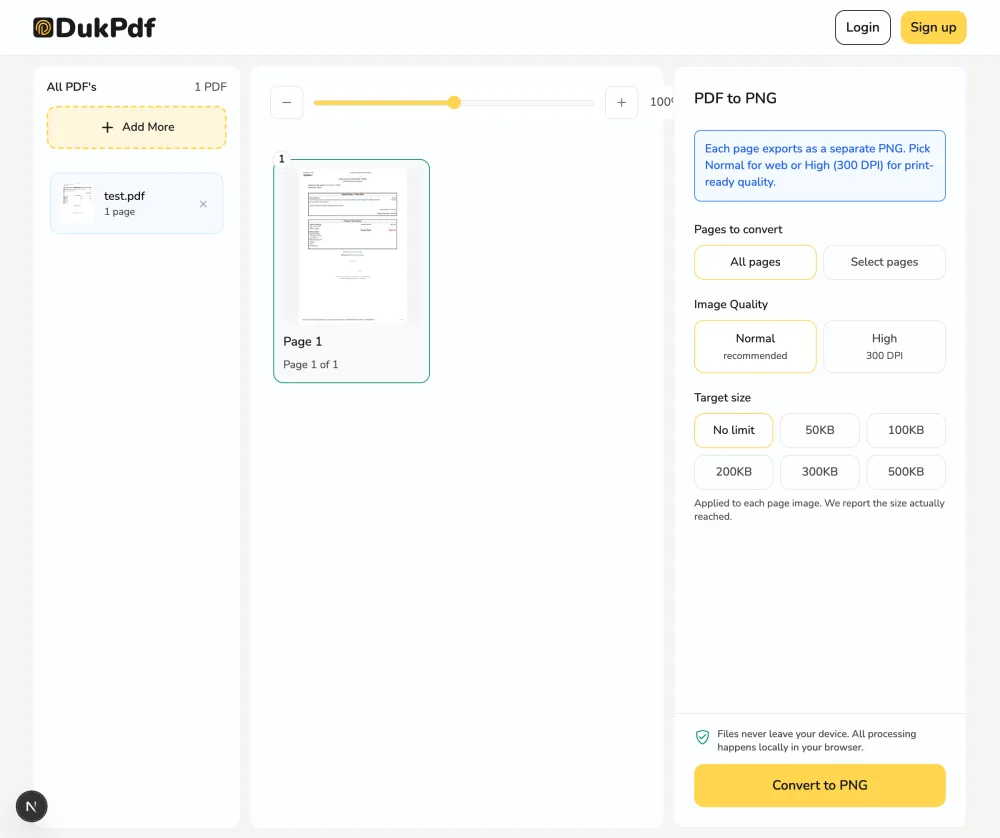
- Open the PDF to PNG tool. Go to the PDF to PNG tool in your browser. Everything it needs loads onto your device.
- Add your PDF and choose pages. Click Select filesor drag a PDF in. Pick “All pages” or enter specific numbers and ranges. Choose Normal quality for screen use or High for 300 DPI print output.
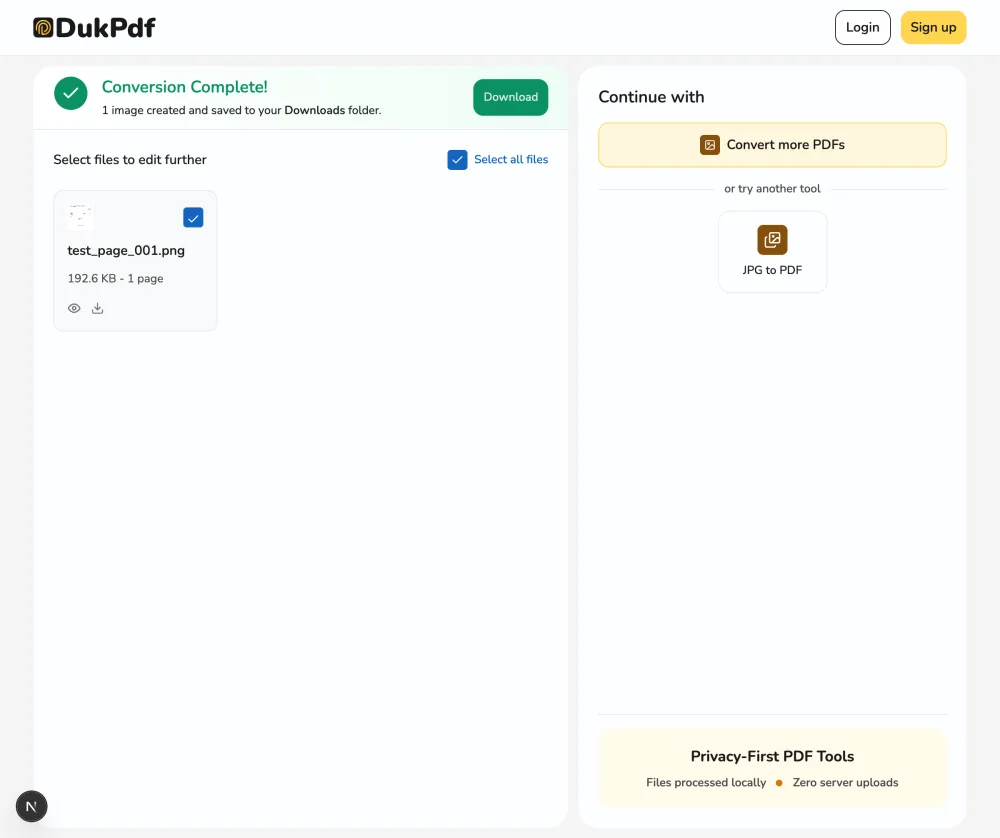
- Convert and download. Click Convert to PNG. Each page renders in your browser and every image is listed with its size. Multi-page results download as a single ZIP.
The conversion runs locally using PDF.js and an HTML canvas — your PDF never leaves your device. Check the Network tab while it runs to confirm there are no upload requests.
Hitting a file size limit with a lossless format
This is where PNG behaves unlike anything else. A JPG converter that has to reach 100KB simply lowers the quality setting and throws away more detail. PNG has no quality setting to lower — that is what lossless means. The only lever available is how many pixels to render. A page drawn at half its width is a quarter of the pixels, and that is where the saving comes from.
In practice that means the text on a size-limited PNG never goes blurry. It goes smaller. The trade you are making is not detail-versus-size, it is area-versus-size, and the thing to check on the result is whether the page is still comfortable to read.
A typical text page renders to roughly 190KB at Normal quality. So a 200KB or 500KB target usually leaves it untouched, a 100KB target takes one step down, and a 50KB target takes several. Photographic pages have a much higher floor and may not reach the tighter targets at all. Each of these pages loads the tool with the target already selected:
- PDF to PNG under 50KB — the tightest useful target. Suits signatures, stamps and logos far better than full pages.
- PDF to PNG under 100KB — workable for text and forms; photographic pages will shrink a long way.
- PDF to PNG under 150KB — the middle step: one small size reduction on a text page, well inside CMS and note-app image limits.
- PDF to PNG under 200KB — the most common ceiling on upload forms, and generous for a text or diagram page.
- PDF to PNG under 500KB — enough room that most pages export at full size and are never reduced.
- PDF to PNG under 1MB — full detail for almost every page, capped so no single image bounces off an uploader.
- PDF to PNG under 2MB — the high-resolution rung: the largest dimensions that stay under 2MB, for zoomable or print-bound pages.
- PDF to PNG at 300 DPI — the opposite goal: print resolution, with no size cap at all.
If a page will not reach the target you need, the most effective fix is not a setting. Use Crop PDF to cut the page down to the part that matters first — a smaller area needs far fewer pixels to stay legible.
Privacy implications of cloud-based converters
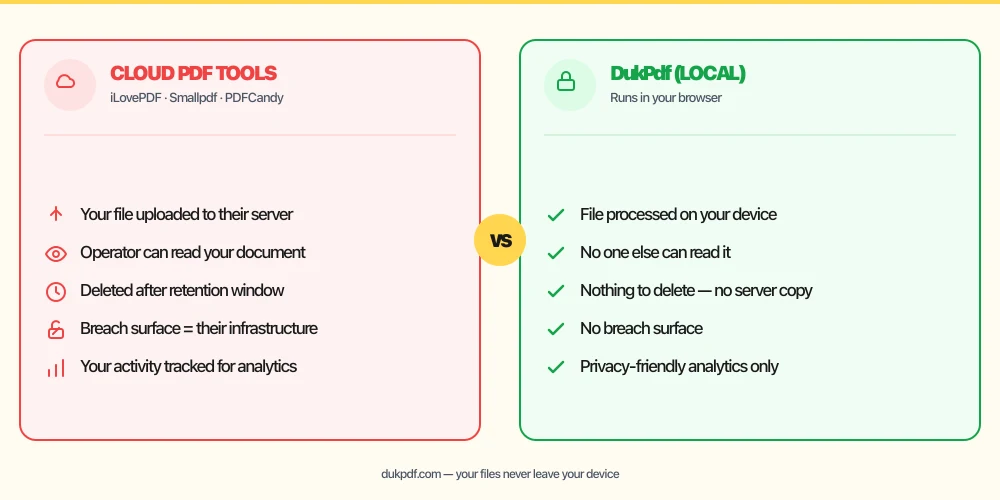
A cloud PDF-to-PNG converter requires the whole document to be uploaded. The server renders every page and sends the images back, which means each page has been processed on someone else’s infrastructure. For a contract with pricing in it, an internal deck, or a scan of an identity document, that upload exposes the content to the operator.
The exposure is per-page and total. A converter has to render every page it was given, so there is no such thing as uploading only the harmless parts. If the service is breached, every page image that passed through it is in scope.
Local rendering removes that category of risk rather than managing it. The pages are drawn in browser memory and the PNGs are written straight to your Downloads folder, so there is no server-side copy to leak. For more on why that distinction matters, see our guide on redacting a PDF without uploading.
Common mistakes when converting PDF to PNG
- Choosing PNG for a photographic page. Lossless storage of photographic texture is expensive. The file can be several times larger than a JPG nobody would tell apart. Match the format to the content.
- Expecting a transparent background. PDF pages are rendered onto white before they become images. PNG supports transparency, but there is none in the source to keep.
- Assuming a size limit will blur the page.It will not — it will shrink it. If the result looks too small, that is the format working as designed, and the fix is to crop or raise the target.
- Rendering everything at 300 DPI. On a screen, 300 DPI and 150 DPI look identical while the file is four times the size. Save the higher setting for pages that are actually going to be printed.
- Forgetting the output is not searchable. A PNG of a page is a picture of text, not text. If you need to search or copy from it, run OCR on the PDF instead.
PDF to PNG vs alternatives
Related operations, and when each one is the right tool:
- PDF to PNG renders pages as lossless images. Use it for text, diagrams, line art and print.
- PDF to JPG renders pages as lossy images. Smaller files, and better for photographic pages. The full comparison is in PNG or JPG for PDF pages.
- PNG to PDF is the reverse: it takes images and builds a PDF. Use them as a round-trip pair.
- Compress PDF reduces the size of the PDF itself. If you want a smaller document rather than images, start there.
How DukPdf converts PDF to PNG locally
DukPdf’s PDF to PNG tool parses the document with PDF.js and draws each page onto an HTML canvas at the resolution you chose, then encodes that canvas as a PNG. Every pixel is produced on your device by your own browser.
When a size target is set, the same rendering runs at progressively smaller dimensions until the output fits, and the largest version that fits is the one you get. Because the search is also local, nothing about the document — not the pages, not the sizes, not the number of attempts — is visible to anyone else.
Related reading
Frequently asked questions
Is PNG better than JPG for PDF pages?
For text, tables, diagrams and line art, yes — PNG stores every pixel exactly, so letter edges stay sharp and thin strokes stay one pixel wide. For photographs it is usually worse, because a lossless format has to store all the photographic detail and the file becomes several times larger than an equivalent JPG. The page content decides, not the format.
Will my PNG have a transparent background?
No. A PDF page is rendered onto a white background before it becomes an image, so the resulting PNG is opaque. PNG supports transparency as a format, but there is nothing transparent in the source to preserve. If you need a cut-out, you would have to remove the background in an image editor afterwards.
How do I get a PNG under a specific file size?
Pick one of the size-targeted pages — 50KB, 100KB, 200KB or 500KB — and the tool renders the page at the largest dimensions that fit. Because PNG has no quality setting, the only way it can get smaller is to cover less area, so a very tight target on a detailed page produces a physically smaller image rather than a blurry one.
What resolution does the conversion use?
Normal quality renders at 150 DPI, which is right for screens. High quality renders at 300 DPI, which is what commercial printing expects — roughly 2480 by 3508 pixels for an A4 page. The renderer caps any image at 8192 pixels on its longest side, so the practical ceiling on a full page is around 700 DPI.
Are my PDFs uploaded during conversion?
No. The document is parsed with PDF.js and each page is drawn onto an HTML canvas in your browser. Open DevTools and watch the Network tab during a conversion — there are no upload requests carrying your document. The PNG files are written straight to your Downloads folder.